75
Gentier Real-Time PCR System
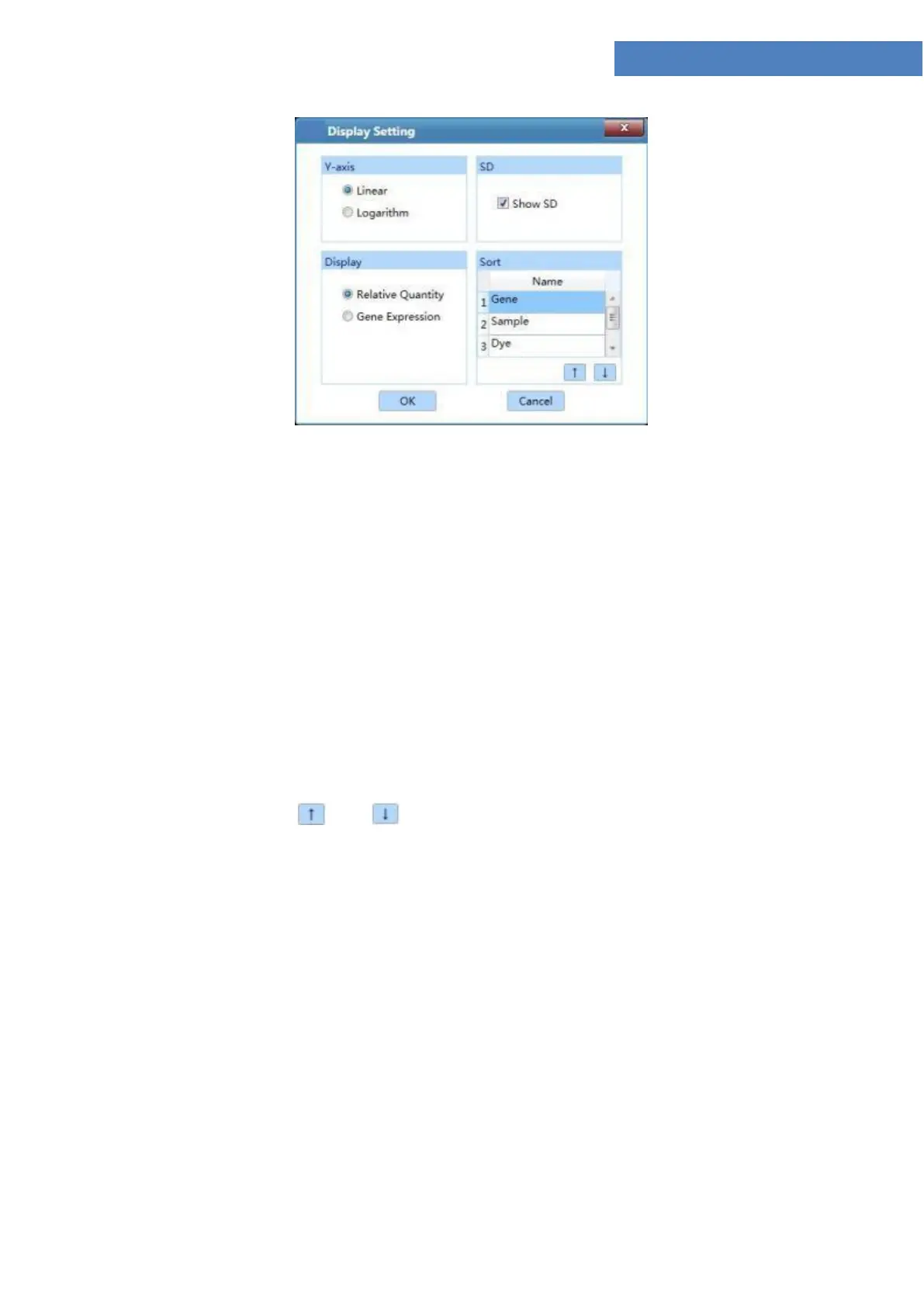
Figure D 11.2 Rel Quant interface Display Setting window
a. Y axis: If user select Linear option, the Bar Chart functional module will display the linear
coordinates of Y axis; if user select Logarithm option, the Bar Chart functional module will
display the logarithm coordinates of Y axis.
b. SD: user can check Show SD check box to display the SD value on Bar Chart functional
module.
c. Display: user can set the display mode of Bar Chart functional module. If user select
Relative Quantity option, the Bar Chart functional module will display the relative
quantity ratio of the target gene and reference gene; if user select Gene Expression option,
the Bar Chart functional module will display the relative quantity ratio of target gene &
sample and reference gene & sample.
d. Sort: User can use and keys to set the display sort order of Bar Chart functional
module, including Sample, Dye or Gene.
Rel Quant Analysis Setting
After entering the relative quantification analysis interface, the application software will
automatically pop up the analysis setting window, which consists of Gene and Sample,
Amplification Plot two tabs. User can set the relevant parameters for current relative
quantification analytical method in the analysis setting window.
I. Amplification Plot tab: the introduction of relevant parameters and function keys is same
with those introduced in D-3.3.4.1Abs Quant - Abs QuantAnalysis Setting.
II. Gene and Sample tab: user can set the dye, gene, sample and reference required for the



 To Next Page