E SETUP MENU
To change Camera Setup settings, highlight the setting you wish to change and press
the SELECT button. Use the UP and DOWN arrows to choose the option you want,
and press the SELECT button again to conrm it. The icon next to the setting name
will reect the new setting.
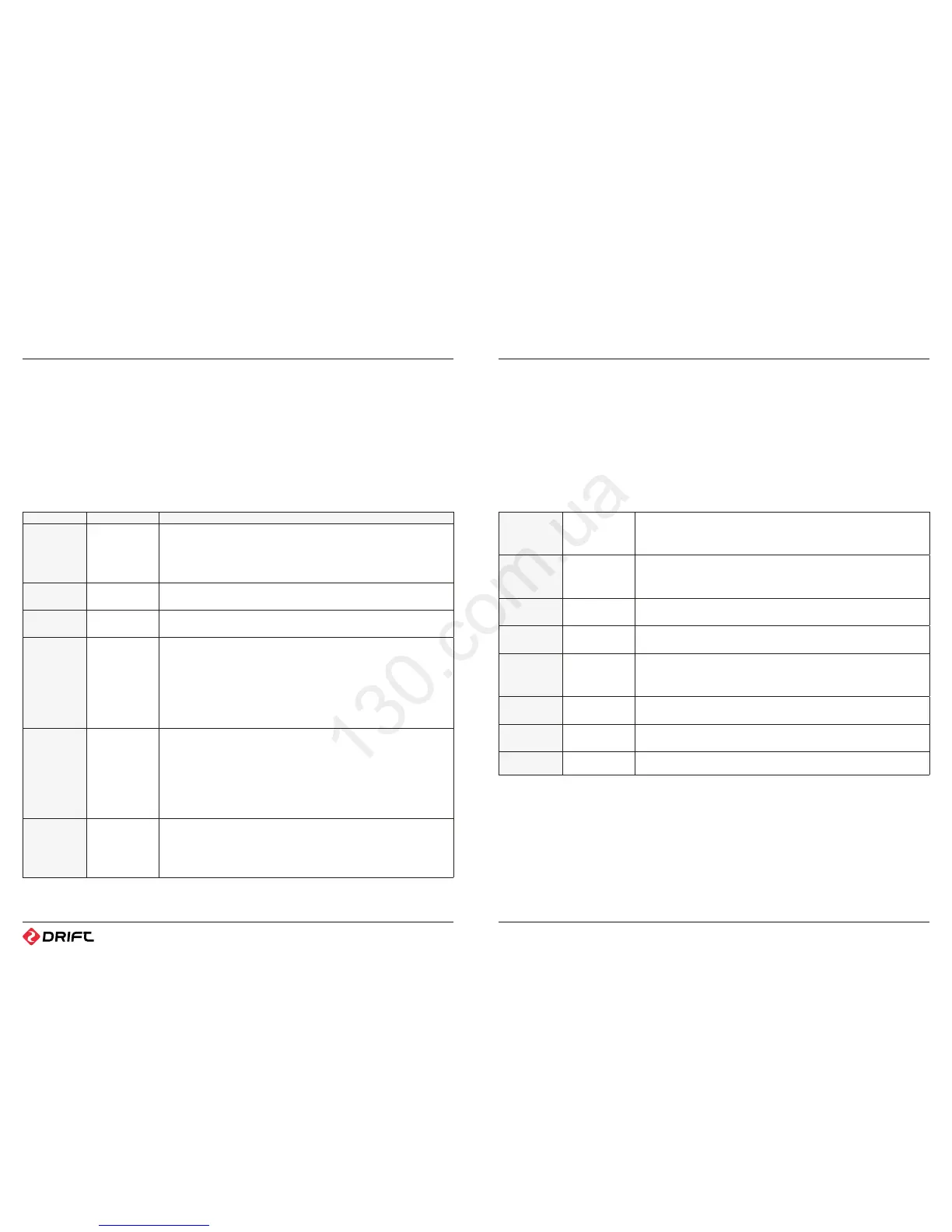
Menu Options Description
Mic Sensitivity 1. High
2. Medium (Default)
3. Low
4. O
Dierent sports have dierent ambient sound levels. Generally choose Low for
motorsports and Medium for cycling and wintersports.
Remote Control 5. Yes (Default)
6. No
Use this option to turn remote control functionality on or o.
Remote Pairing 7. Paired (Default)
8. Not Paired
This options allows for the camera to be paired with a specic remote. Please see the
pairing instructions in page 18.
LCD O 9. Never (Default)
10. 5 seconds
11. 10 seconds
12. 20 seconds
13. 1 minutes
14. 5 minutes
To conserve battery life, the LCD screen can be set to power down after a set period
of time. The camera remains on - only the LCD screen powers down. To switch on the
LCD screen, just press any button on the control panel.
Camera O 15. Never (Default)
16. 1 minutes
17. 5 minutes
18. 10 minutes
19. 20 minutes
20. 30 minutes
To conserve battery life, the whole camera can be set to power down after a set period
when not in use. Once powered down, the camera will need to be switched on again.
The camera will not switch o while recording is in progress.
Speaker Volume 21. O
22. Low
23. Medium
24. High (Default)
Use this option to change the volume level of the built-in speaker.
LCD Brightness 25. High (Default)
26. Medium
27. Low
Use this option to change the brightness of the built-in LCD screen.
Date 28. Year
29. Month
30. Day
Set the camera date. When the battery is removed or runs out of charge, the date
information is lost and will need to be reset.
Time 31. HH
32. MM
Set the camera time. When the battery is removed or runs out of charge, the time
information is lost and will need to be reset.
Date/Time
Stamp
33. O (Default)
34. On
Certain video applications require a date/time stamp. Enabling this option will add the
time and date to the bottom-right corner of all video footage.
Language 35. English (Default)
36. French
37. German
Format 38. No
39. Yes
Use this option to format your Micro SD card. Please note that all data will be lost.
Reset Settings 40. No
41. Yes
Use this option to reset all camera options to the factory settings.
Firmware Version The number indicates the rmware version installed on the camera. When new
rmware is successfully installed, this number will change.
F SETTING THE TIME & DATE
1. Open the Camera Setup Menu as described on the opposite page.
2. Highlight the Time or Date setting on page 2 of the Setup Menu and press the
SELECT button.
3. Press the UP and DOWN buttons to adjust the value of the time or date elds, and
the SELECT button to move between hours/minutes or year/month/day.
4. Press the MENU button to save the time/date and return to the Setup Menu.
menu options



 To Next Page