Need help?
Do you have a question about the DS18 DDX9AD and is the answer not in the manual?
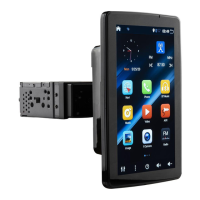
This document serves as the owner's manual for the DS18 DDX9AD, a 9-inch single DIN modular multimedia receiver. It operates on an Android Q operating system and offers mirror-link functionality for both iOS and Android devices. The receiver supports various connectivity options including Bluetooth (BT), Auxiliary (AUX), GPS, USB, SD card, AM/FM radio, and allows access to your favorite apps.
General Safety Warnings: To ensure safe operation and prevent damage, avoid placing metal objects (like coins) inside the unit, which could cause short circuits. Install the unit in a location that does not obstruct the driver's view or interfere with vehicle operations. While driving, prioritize attention to the road rather than the display. The head unit contains high-precision components, so avoid strong impacts. Do not attempt to remove the cover or adjust internal components; for maintenance, consult a professional service center.
Before Use: When purchasing optional accessories or making system settings, verify compatibility with the unit with your dealer. You can select your preferred language settings in the language menu.
Display Protection: Protect the display from damage by not using ballpoint pens or sharp tools to touch it. For cleaning, use a mildly damp soft cloth. Avoid rough cloths, alcohol, or any other corrosive liquids, as these can damage, blur, or blank the screen. Proper cleaning prevents damage. Damage resulting from improper operation is not covered by the warranty.
Note on Manual Discrepancies: The actual display screen of your device may differ slightly from the images in this manual due to unannounced software upgrades and updates; this does not affect normal use. Some functions (e.g., DVD, color LED, TV) are optional, and your specific device may not include all functions listed in this manual.
The device features several keys for various functions:
Opening and Turning Off the System: Press the power button for 1 second to activate the system. To turn it off, press and hold the power button for 1 second.
Main Interface Navigation: Press the home button to return to the default main interface. You can slide left or right to navigate between different interfaces.
Moving or Removing Icons: To uninstall a program, long-press its icon. A prompt will appear asking if you want to uninstall the app.
To set a custom boot logo: Click "logo select." Touch the ES File Explorer icon to select your car logo from a USB or SD device (the image must be in BMP format). Click the upper right corner and select "Set as Bootlogo."
Touch the Setup icon, then "Language & Input," then "Language," and select your desired language. Press the back button.
Remark: If you need to reset the keys, click "Reset" and then set them again.
Press the colorful lights icon to choose your favorite color for the car's key lights. (Note: Some models may not support this function.)
Wi-Fi Setup: To connect to Wi-Fi: Touch "Settings" >> "Wi-Fi" >> turn on Wi-Fi >> select your network >> type the password >> connect.
Wi-Fi Hotspot Setup: To connect to a Wi-Fi hotspot: Touch "Settings" >> "More" >> "Tethering & portable hotspot" >> set up Wi-Fi hotspot >> enter the Security code >> touch "SAVE."
Controls:
Storing Channels: Press and hold the P1 key to store the current channel to P1. You can save up to 6 channels this way.
Connecting a BT Device:
Connecting a Registered BT Device Manually:
Deleting a Registered Device:
Hands-Free Call:
BT Setup:
Playing BT Audio Device: Click the BT music icon to play music from the connected BT device. You can navigate between the last tune, next tune, and play/pause.
Music Player and Video Player: The Music Player and Video Player function when a USB or SD card containing music or video files is connected.
Android USB Connect:
iPhone Wi-Fi Connect:
Note for Wi-Fi Connect: For Wi-Fi connection, ensure both the mobile and the unit are connected to the same Wi-Fi network or that the unit is connected to the mobile's Wi-Fi hotspot. Android 6.0 systems support 4G dongles; the connection process for a 4G dongle is consistent with a 3G dongle.
General Settings:
Display Settings:
Backup and Reset: To back up files and reset the system: Go to "Settings" >> "Backup & reset" >> "reset" >> "Restore the factory settings."
About Device:
 General
| Display Size | 9 inches |
|---|---|
| Touch Screen | Yes |
| Apple Carplay | Yes |
| Android Auto | Yes |
| Bluetooth | Yes |
| USB Ports | 1 |
| USB | Yes |
| Micro SD | Yes |
| AM/FM Radio | Yes |
| RCA Output | Yes |
| Video Output | Yes |
| Backup Camera Input | Yes |
| Operating System | Android |
| Wi-Fi | Yes |
| GPS | Yes |
| Rear Camera Input | Yes |
| Steering Wheel Control | Yes |
| Audio Output | 4 x 50W |
| Compatible Formats | MP3, WMA, AAC, FLAC |

 To Next Page