877-534-5157 | GraphicProducts.com 2
Initial Setup
1. Place the Toro Max printer on a secure, at surface, with the Control Panel (buttons) facing you.
2. Plug the AC Adapter (“brick”) into a standard, grounded three-prong wall outlet. Then, plug the other end of the power
cord into your Toro Max. (This connector uses a slider to latch into place, preventing accidental disconnects; to unplug the
connector from your Toro Max, grasp the plug slider and pull it away from the printer.)
3. Slide the Keyboard Release Slider (on the Control Panel) to the right, and swing the keyboard down.
4. To adjust the screen angle, push the Keyboard Release Button (to the right of the screen). The screen will pop forward, and
you can lift the screen to the desired angle.
5. Press the Power button (on the Control Panel) to turn on your Toro Max. Once the system powers up, use a nger or the
included stylus to navigate with the touchscreen.
6. (Optional) If you prefer, you can use the included wireless mouse instead of the touchscreen controls. Connect the mouse’s
small USB receiver (stowed in the underside of the mouse) to one of the USB-A ports on your Toro Max. Then, slide the
mouse’s power switch to ON. The wireless mouse uses one AA battery.
Installing the Battery
To use your Toro Max without an AC power supply connected, you will need the Toro Max battery installed and charged. When
fully charged, the battery will provide about three hours of continuous printing.
To install the battery:
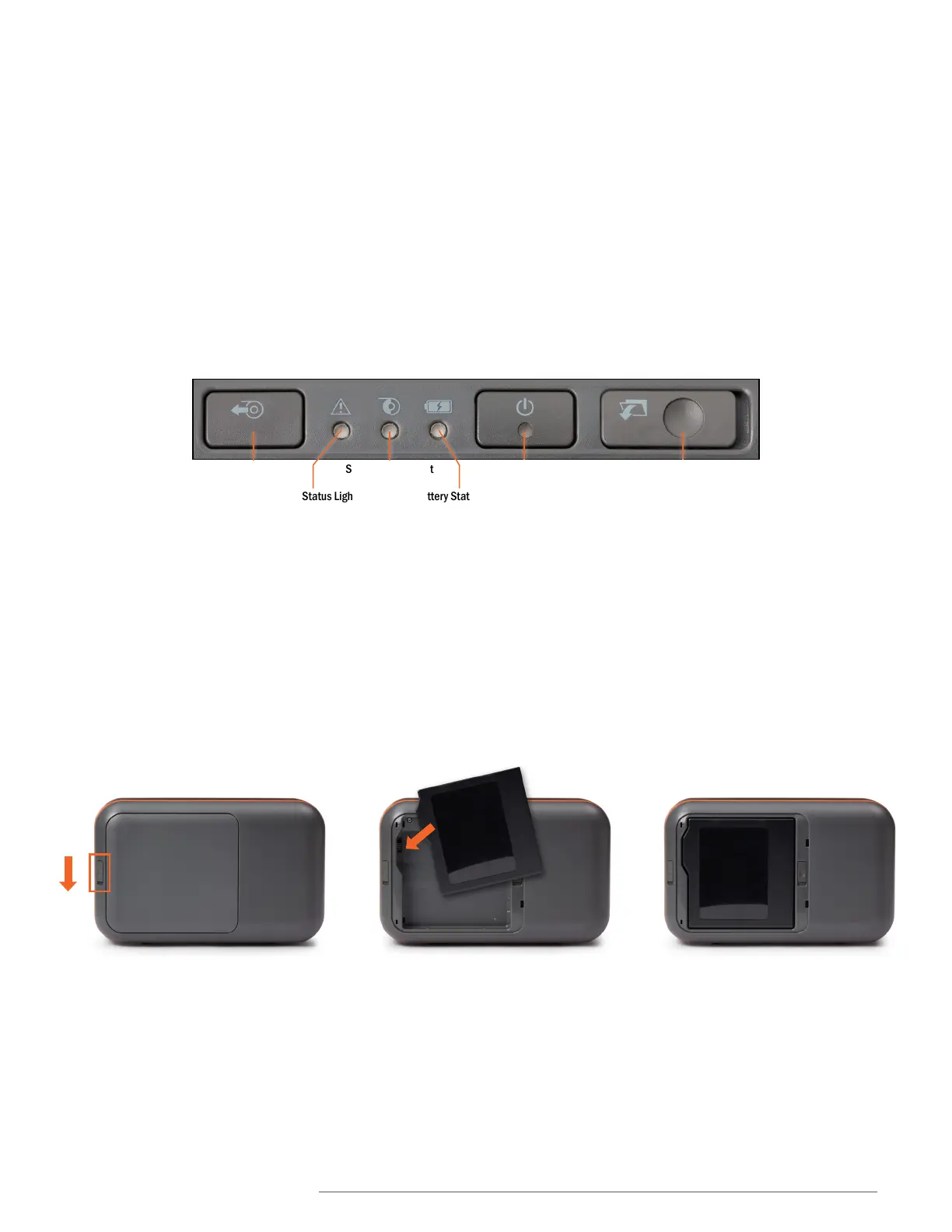
1. Remove the battery cover from the back of your Toro Max by pushing the slider downward and pulling the door away.
2. Position the battery so the cut-outs are aligned and the contacts on the battery match up with the contacts in the Toro Max.
3. Press the battery in until it locks into place.
4. Return the battery cover to its position, and press it into place.
The Toro Max battery will charge automatically while your Toro Max is plugged in with its AC adapter, whether the system is
powered on or off. Charging will stop automatically when the battery is full.
IMPORTANT: If you have a battery for the original DuraLabel Toro system, do not use it in the Toro Max, as the older battery
was designed to use a separate charging system. Contact your DuraLabel representative for more information.
Supply Feed Power Button
Printer Status Light
Supply Status Light
Battery Status Light
Keyboard Release Slider
Control Panel



 To Next Page