83
Chapter 14
5.Click “Save Selected Camera” to save the image you need.
6.Save the image and the next time you log in with same user name will
be able to open the window and see the image you previously saved.
7.Click “Monitor”
to view the particular camera you
choose.
8.Then click “Refresh” to refresh the static preview images.
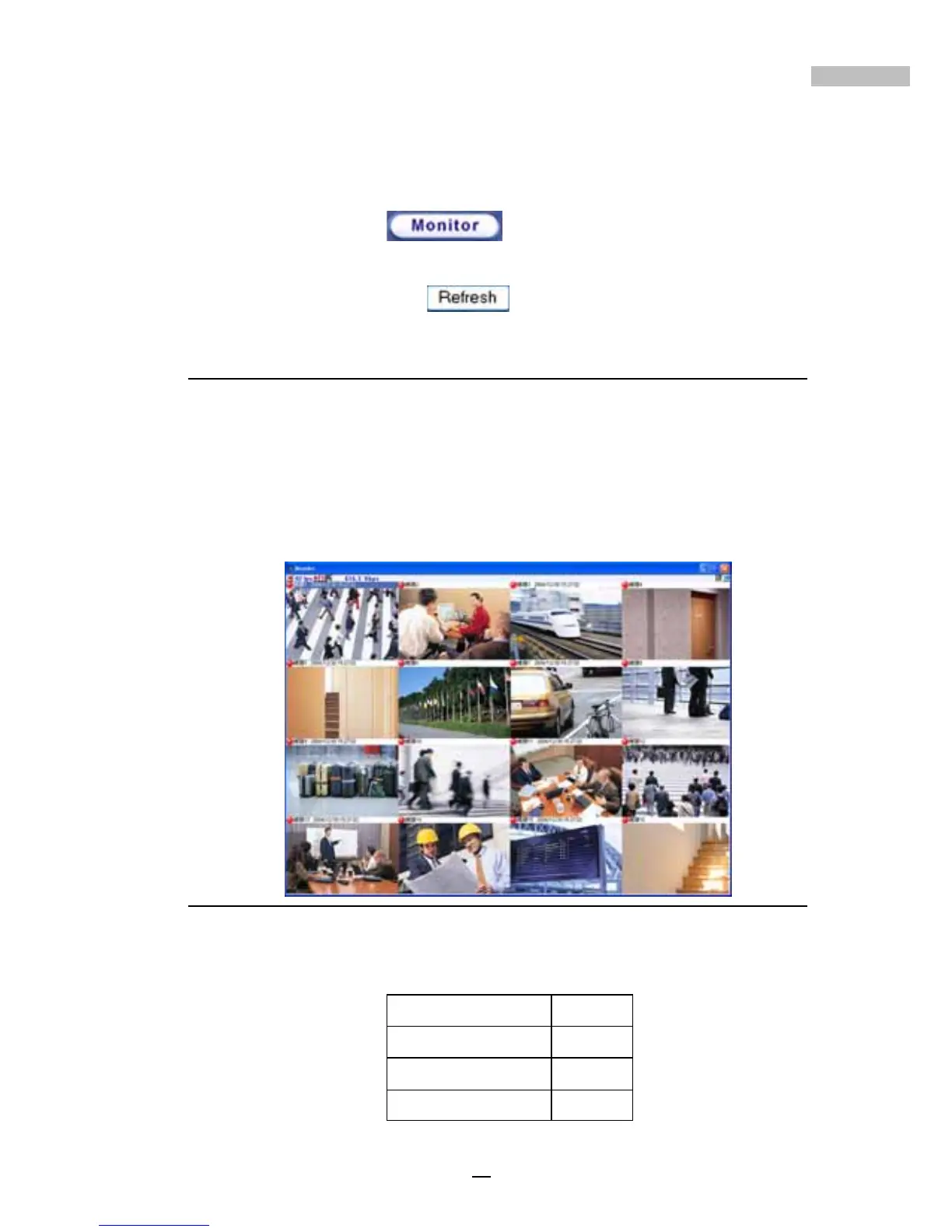
Real Time Monitor Window
The Real Time Monitor Window is the key window of remote monitoring,
user can monitor selected cameras. The user can also click the left mouse
button twice to enlarge the selected camera window and click the right
mouse button to restore the enlarge camera window.
The Maximum FPS of each camera will be shown on the upper left side of
the real time monitoring screen.
Figure 14-7: bandwidth display icon
Default FPS as below:
Displayed Camera Speed
9-16 Cameras 2 FPS
5-8 Cameras 4 FPS
1-4 Cameras 8 FPS



 To Next Page