92
Taking a Snapshot
Whenever you find an abnormal status on the screen, you may take a snap
-
shot of the screen immediately using the “Snapshot” function.
1.Click the “Snap” button.
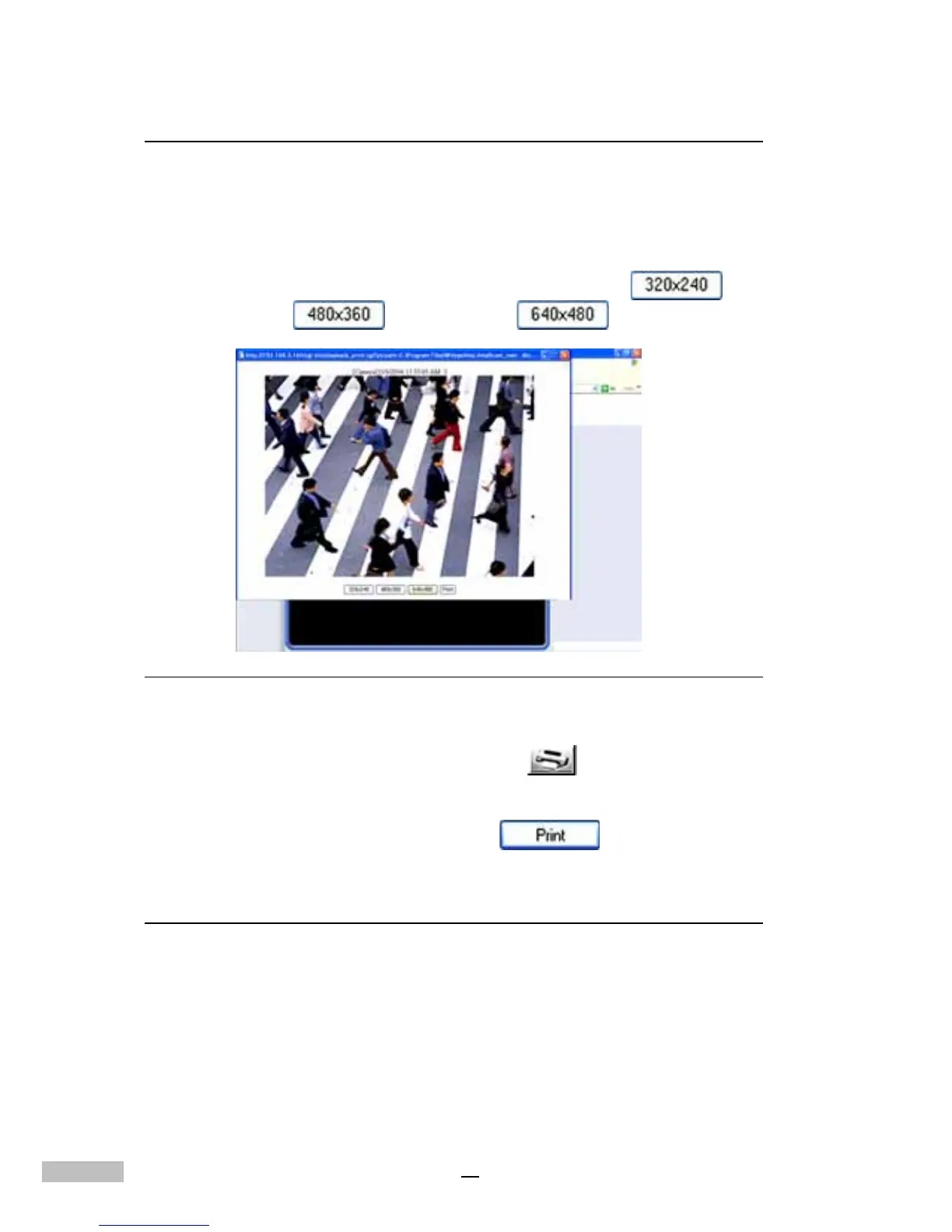
2.From the pop-up window, select the resolution size of your print. The
system provides three resolution options, 320x240
,
480x360 and 640x480 .
Figure 14-19: Snapshot Resolution - 640x480
3.Choose the Resolution and click “Print” . You will be prompted
to select a printer from a pop-up window.
4.Select your printer and click “Print”
to print.
Exporting an Image
Exporting an image allows users to access images remotely from the hard
disk and save it onto your local hard drive.
1.Click the “Export” button.
2.Select an exporting duration.
3.Select if you also need to export a playback program.



 To Next Page