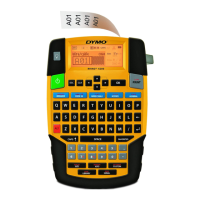
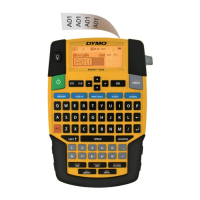
The DYMO RHINO 4200 is a versatile label printer designed for creating high-quality labels for a wide range of industrial applications. This device allows users to produce labels in various sizes and styles, utilizing RHINO Industrial label cartridges available in widths of 6 mm (1/4"), 9 mm (3/8"), 12 mm (1/2"), or 19 mm (3/4"). These cartridges come in diverse materials, including flexible nylon, permanent polyester, vinyl, non-adhesive tag, and heat shrink tubes, catering to different labeling needs.
Function Description
The RHINO 4200's primary function is to create custom labels with text, symbols, and barcodes. It supports an extended Latin character set using RACE technology, similar to a mobile phone keypad, where holding down a letter key displays all its variations. The printer can generate Code 39 and Code 128 barcodes, which can be added to General, Fixed length, Flag, and Module label types. Barcodes print horizontally and cannot be used on 6 mm (1/4") labels. Users can choose to print barcode text in small print either below or above the barcode, and can also add text before and after the barcode, as well as serialize them.
The device offers several label types tailored for specific industrial uses:
- General Labels: Standard labels with no special formatting, text center-aligned, and length automatically determined by text amount.
- Fixed Length Labels: Allows users to set a specific label length regardless of the text entered, useful for applications requiring uniform label sizes. The default fixed length is 25 mm (1.0").
- Wire/Cable Labels: Designed to wrap around wires or cables, with text repeated multiple times depending on text size and label width/length.
- Flag Labels: These labels wrap around a wire or cable, with text printed on both ends and a blank space in the middle for wrapping. The result is a label that can be read from both sides, forming a "flag."
- Breaker Labels: Multi-cell labels for labeling rows of breakers. Users can select breaker height, number of breakers, and poles, then enter text for each breaker. Separator lines can be printed between cells.
- Module Labels: Multi-cell labels for rows of modules of varying widths. Users set module width, number of modules, and text for each. Multipliers can adjust individual module widths.
Usage Features
The RHINO 4200 is designed for ease of use with a clear LCD display and a comprehensive keypad.
Power and Display:
The printer can be powered by six AA alkaline batteries or an optional rechargeable Lithium-ion battery pack (DYMO Li-ion Battery 7.2V 1400mAh) and AC power adapter. For optimal performance, the rechargeable battery pack or AC adapter is recommended. The device automatically enters standby after two minutes and turns off after five minutes of inactivity to save power. The LCD display features a caption bar showing the current label type and feature indicators. A backlight can be toggled on/off for low-light conditions, and its timer can be adjusted from 5 to 30 seconds. Display contrast is also adjustable.
Keypad and Navigation:
- CAPS Mode: Toggled by the CAPS key, it capitalizes all entered letters when on.
- ALT Key: Used to select functions or symbols printed above keys (e.g., ALT + 9* for an asterisk).
- Escape Key (ESC): Cancels actions or exits menus without selection.
- Navigation Keys: Allow movement through text (left/right character, left/right cell in multi-cell labels, up/down in lists) and menu levels.
- Backspace Key (←): Deletes characters to the left of the cursor.
- Clear Key (CLR): Clears current text and format settings, returning to the General label type.
- Cutter Button (✂): Cuts the label. When printing multiple labels, the printer pauses after each label for manual cutting, a feature that can be turned off for continuous printing.
- Hot Keys: Dedicated keys for quickly creating specific label types (e.g., Fixed, Wire/Cable, Flag, Breaker, Module) and for adding barcodes.
- Creating a New Label: Start by clearing previous text with CLR, entering new text, and formatting.
- Adding/Removing Labels: New blank labels can be inserted before or after the current cursor position. Existing labels can be removed individually or as a group.
- Printing Labels: Print single labels or groups, with options to print all or only the current label.
- Text Size: Labels can be printed in various sizes (6, 8, 12, 16, 18, 22, 24, 32, 50 point, and MAX). "Auto" size automatically determines the best fit.
- Text Style: Options include bold, italic, underlined, boxed, and narrow.
- Rotating Text: Text can be printed horizontally, vertically, 90-degree, or mirrored. Barcode labels only print horizontally.
- Aligning Text: Text can be left, right, or center-justified. Module and breaker labels use center alignment only.
- Multi-Line Labels: Up to five lines of text can be printed, depending on label width.
- International Characters: Supports extended Latin characters; holding a letter key displays variations.
Advanced Labeling Features:
- Custom Defaults: Users can set custom default settings for each label type, allowing for quick creation of frequently used label types. These defaults can be changed or turned off individually.
- Creating a Series of Labels: Automatically generates a series of labels by defining a starting pattern, increment, and count. This is useful for serializing numbers or letters (e.g., 123, 153, 183 or A, B, C).
- Library: Stores default symbols and terms, and allows users to save custom terms and frequently-used labels.
- Symbols: Categorized symbols (Arrows/Brackets, Hazard Warnings, Pro AV/Security, Numbers, Currency, Electrical) can be inserted and formatted. Popular symbols are accessible via ALT + number keys.
- Terms: Pre-defined terms (Audio, Video, Security, My terms) can be inserted. Custom terms can be added to "My terms."
- My Labels: A section in the library to save up to 25 frequently-used labels, including text and formatting. Saved labels can be recalled for printing or editing.
- Favorites Key: Allows quick access to frequently-used symbols, terms, and labels saved to the Favorites list, bypassing the full Library menu.
Printing Options:
- Multiple Copies: Print up to 10 copies of the same label.
- Collating Multiple Copies: When printing groups of labels, choose between normal (all copies of first label, then all copies of second, etc.) or collated (one complete set of labels, then the next set).
- Separator Lines: For multi-cell labels (breaker, module), choose whether to print separator lines between cells.
- Pausing Between Labels: The printer can pause after printing each label for manual cutting, or this feature can be turned off for continuous printing.
- Advancing the Label: Add blank space to the beginning or end of a label in 6.5 mm (1/4") increments.
- Print Contrast: Adjust print contrast to lighten or darken text, depending on label material.
Maintenance Features
The RHINO 4200 is designed for long, trouble-free service with minimal maintenance.
- Cleaning the Cutter Blade: Remove the label cassette, press and hold the cutter button to expose the blade, then clean both sides with a cotton ball and alcohol. Caution is advised due to the sharp blade.
- Cleaning the Print Head: Remove the label cartridge, then remove the cleaning tool from inside the label cartridge door. Gently wipe the padded side of the tool across the print head.
Regular cleaning ensures proper functioning and print quality. The device also includes troubleshooting tips for common issues like battery discharge, poor print quality, label jams, and display problems. For further assistance, users can visit the DYMO website.

 Need help?
 General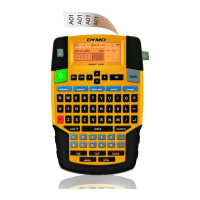





 To Next Page