EasyManua.ls Logo

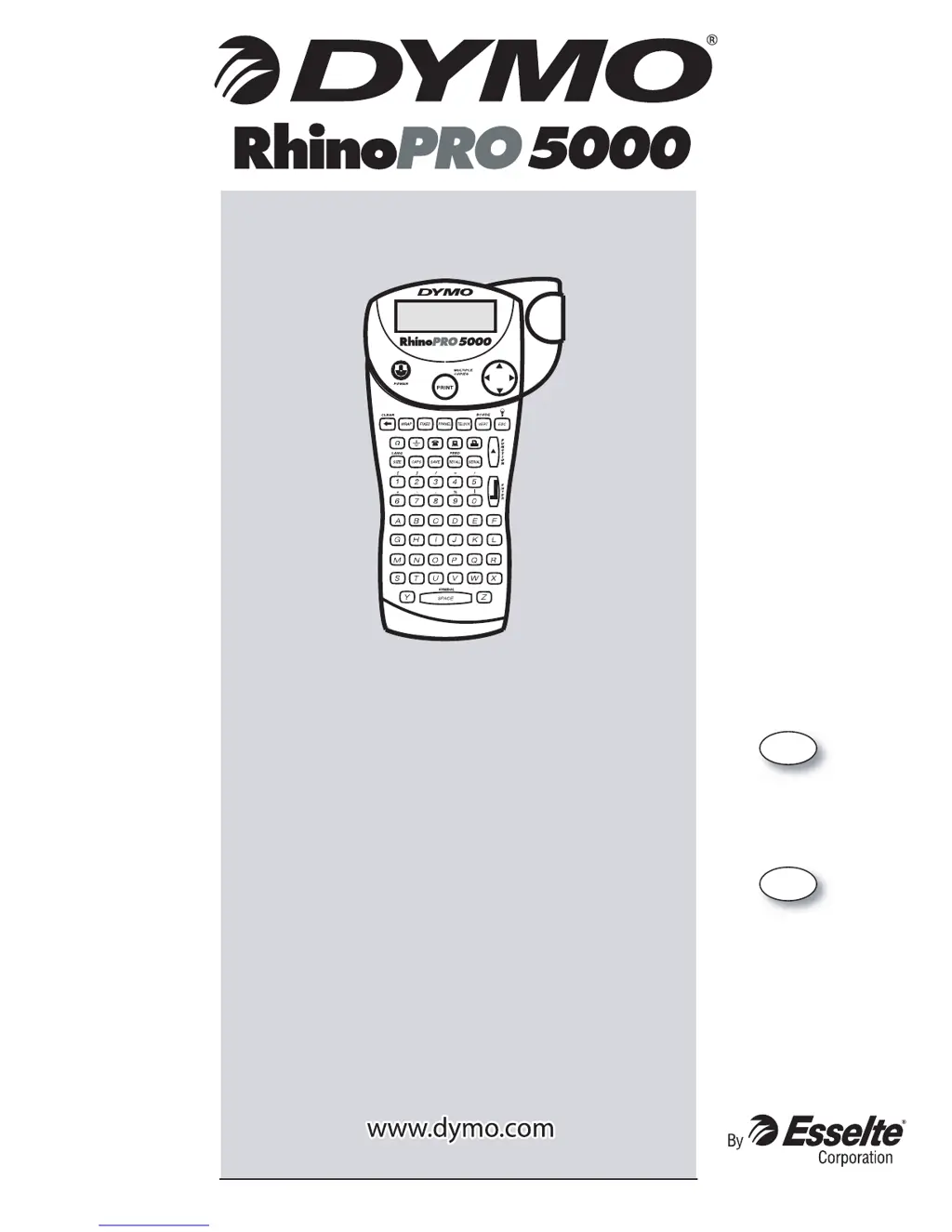
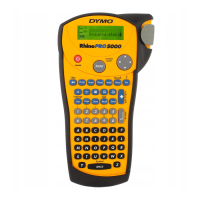
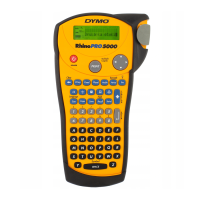
Dymo Rhino 5000 - User Manual

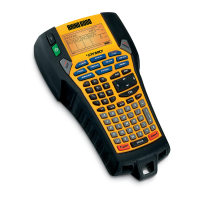
Dymo Rhino 5000
24 pages
Print Icon
To Next Page IconTo Next Page
Loading...
Electronic
Labelmaker
User Guide
Imprimante
Electronique
Guide D‘Utilisation
Page 3
Page 13
US
CAN

Questions and Answers

  • J
    Jason BarronJul 29, 2025
    Why is my Dymo Rhino 5000 Label Maker printing poorly?
    • E
      Eddie SmithJul 29, 2025
      If your Dymo Label Maker is experiencing poor print quality, try the following: * Replace discharged batteries. * Ensure the tape cassette is correctly installed. * Clean the print head. * Replace the tape cassette.
  • T
    Theresa SullivanAug 2, 2025
    How to fix a jammed Dymo Rhino 5000 Label Maker?
    • M
      Martha HodgesAug 2, 2025
      If your Dymo Label Maker is jammed, remove the cassette to clear the tape jam.
  • A
    allison44Aug 6, 2025
    What to do if my Dymo Label Maker says 'No tape'?
    • D
      Deborah PerkinsAug 6, 2025
      If your Dymo Label Maker says there is no tape, this may be because the tape cassette is missing or empty. Insert a new tape cassette to resolve this issue.
  • B
    brandonsmithAug 10, 2025
    What to do if my Dymo Label Maker says 'Too many lines'?
    • J
      Joshua MorrisAug 10, 2025
      If your Dymo Label Maker displays 'Too many lines', select another format.
  • M
    Miss Tonya MilesAug 14, 2025
    Why does my Dymo Rhino 5000 Label Maker have no display?
    • J
      John ClarkAug 15, 2025
      If your Dymo Label Maker is displaying nothing on the screen, make sure the printer is turned on and replace the batteries if they are discharged.
  • K
    Kylie KennedyAug 19, 2025
    What to do if my Dymo Rhino 5000 Label Maker shows a 'Battery low' message?
    • T
      Tyler DiazAug 20, 2025
      If your Dymo Label Maker says ‘Battery low’, replace the batteries or connect an AC power adapter.
  • M
    Michael HeathAug 25, 2025
    How to improve cutter performance on a Dymo Rhino 5000 Label Maker?
    • K
      Kristin GarciaAug 25, 2025
      If your Dymo Label Maker's cutter isn't performing well, clean the cutter blade.

Summary

Getting Started

Power Supply

Printer can operate on AC or battery power; auto-off after five minutes of inactivity.

Inserting the Batteries

Instructions for installing six AA batteries, noting polarity and compartment.

Connecting the AC Adapter

Steps to connect the AC adapter, which disconnects battery power.

Inserting the Tape Cassette

Guide to inserting a label tape cassette and purchasing additional ones.

Selecting a Language

How to set the printer's language, affecting features and character sets.

Printing Your First Label

Step-by-step instructions to create and print a simple label.

Getting to Know Your Printer

Printer Controls and Display

Details on printer buttons, LCD display indicators, backlighting, CAPS mode, and key functions.

Designing Your Label

Navigation Key and Editing

Using navigation keys for editing labels and selecting menu options.

Label Formatting Options

Customizing labels with font size, multi-line text, symbols, and international characters.

Memory Functions

Saving and Recalling Labels

Instructions for saving, recalling, and deleting labels from the printer's memory.

Using the Hot Keys

Wrap-Around Labels

Creating labels that wrap around cables, with options for wire gauge and cable size.

Specialized Label Printing

Fixed Length Labels

Setting a specific label length regardless of text length, with increment options.

Patch Panel Labels

Labeling rows of ports on patch panels with adjustable spacing and serialization.

Terminal Block Labels

Printing text vertically for terminal blocks, similar to patch panel labels.

Vertical Labels

Printing single-line labels with text oriented vertically.

Advanced Printing Features

Barcode Labels

Generating CODE-39 and CODE-128 barcodes on 3/4" tape with optional text.

Multiple Copies and Tape Feed

Printing multiple copies of a label and adjusting blank tape space before/after labels.

Serializing Labels

Printing sequential labels numerically or alphabetically with customizable increments.

Printer Maintenance and Settings

Print Quality Adjustment

Adjusting print head temperature to control print density and quality.

Printer Cleaning Procedures

Instructions for cleaning the cutter blade and print head for optimal performance.

Label Cassette Information

List of available RhinoPRO industrial label cassettes by material type and size.

Contacting Customer Support

Dymo Rhino 5000 Specifications

General IconGeneral
BrandDymo
ModelRhino 5000
CategoryLabel Maker
LanguageEnglish

Related product manuals