10
4. Access Camera
For initial access to the IP Camera, users can search the camera through the
installer program: DeviceSearch.exe, which can be found in “DeviceSearch”
folder in the supplied CD.
Device Search Software Setup
Step 1: Double click on the program Device Search.exe. After its window
appears, click on the <Device Search> button on the top side.
Step 2: The security alert window will pop up. Click on <Unblock> to continue.
Device Search
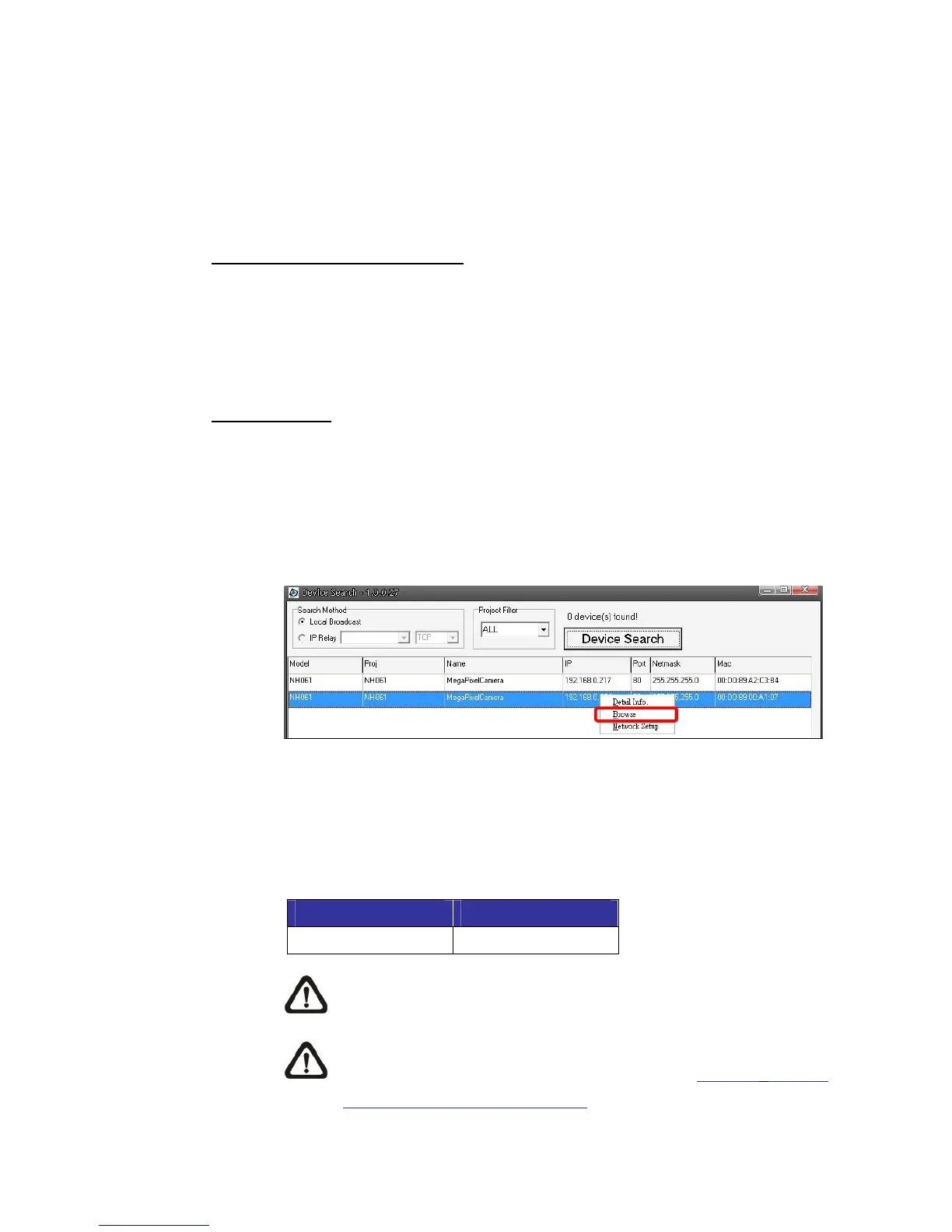
Step 3: Click on <Device Search> again, and all the finding IP devices will be
listed in the page. The IP Camera’s default IP address is:
192.168.0.250.
Step 4: Double click or right click and select <Browse> to access the camera
directly via web browser.
Step 5: Then the prompt window of request for entering default username and
password will appear for logging in to the IP Camera.
The default login ID and password for the Administrator are:
Login ID Password
Admin 1234
NOTE: ID and password are case sensitive.
NOTE: It is strongly advised that administrator’s password be
altered for the security concerns. Refer to Full HD Multiple
Streams IP Camera Menu Tree for further details.



 To Next Page