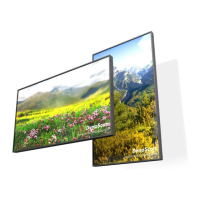
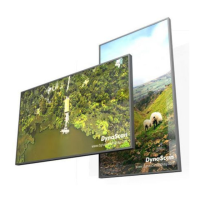
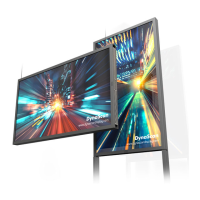
The DynaScan DI551ST2 is a professional LCD display designed for various applications, offering a range of features for both operation and maintenance. It functions as a high-brightness display, capable of showcasing content from multiple video sources and operating with an internal Android-based operating system called DSM365.
Function Description
The primary function of the DI551ST2 is to display visual content. It supports various input sources including HDMI, DisplayPort (DP), and DVI, allowing for flexible connectivity to external video devices such as PCs or AV equipment. The display can be powered on or off using a main power switch located on the rear panel, or remotely via an infrared (IR) remote control, provided the main power switch is in the ON position.
A key feature of this display is its internal operating system, DSM365, which is based on Android. This allows users to install applications via USB flash drive, SD card, or the internet, expanding the display's functionality beyond simple video playback. The DSM365 system offers a "APPS" section to show installed applications and a "SETTINGS" menu for system configurations.
The display also incorporates failover input capabilities, meaning it can automatically switch to a secondary input source if the primary one becomes unavailable. This ensures continuous content display, which is crucial for professional signage applications. It supports up to three failover inputs (Failover 1, Failover 2, Failover 3) in addition to the main input.
For remote control and integration into larger systems, the DI551ST2 includes RS-232C and RJ-45 network input connections. These allow for remote management and control from a PC, making it suitable for complex installations. Additionally, it features an SD card slot supporting up to 32GB (FAT32/NTFS format) and a USB port for flash drive storage, mouse, and keyboard connectivity, enhancing its versatility for content delivery and peripheral interaction.
Usage Features
The DI551ST2 offers a user-friendly interface for managing its settings and inputs. The On Screen Display (OSD) menu can be accessed via the remote control or the rear panel controls. Navigation through the OSD menu is intuitive, using up, down, left, and right arrows to select and adjust various items.
Key OSD menu categories include:
- Input Source: Allows selection of the main display input (HDMI, DP, DVI, DSM365) and configuration of failover inputs.
- Picture: Provides controls for color temperature (User, D93, D65, D55), individual RGB light levels (0-100), contrast (0-100), Gamma (Native, 2.2, 2.4, sgamma), and Black Level (RGB Full or Limited). These settings enable precise image calibration.
- Time: Includes current date and time settings, and a power control timer for automatic power on/off scheduling. The internal clock continues to function even when the power is off.
- Backlight: Features an Auto Brightness function that adjusts screen brightness based on ambient light. Users can set high and low brightness levels (0-100) and corresponding times. It also includes a Local Dimming option with settings for Off, Low, Medium, and High contrast.
- Advance: Offers options for Display Mode (LANDSCAPE or PORTRAIT orientation for the OSD menu), Screen Protection (to prevent image burn-in with adjustable intervals), IR Control (enable/disable remote control for OSD), Power Off Mode (Standby, which affects RS-232 control), Volume (0-100), and Reset to Default Setting (restoring all settings except time and power schedule).
- Information: Displays crucial device information such as input resolution, model number, serial number, hardware and firmware versions, and color depth of the current input. It also provides temperature monitoring for the backlight unit (BLU) and ambient temperature, along with the Ambience Light Sensor (ALS) level.
- Over Heat Protection: This feature automatically reduces brightness (50% at 60°C, 25% at 62°C, 3% at 64°C) to protect the display when internal temperature exceeds safe limits. Once the temperature decreases, brightness is restored to 100%, and protection is disabled.
The display is designed for portrait orientation, requiring a clockwise rotation of 90 degrees when viewed from the front, so the left edge becomes the top edge. An orientation sticker on the rear helps distinguish the correct installation direction.
Maintenance Features
The DI551ST2 emphasizes safety and longevity through its maintenance guidelines.
- Cleaning: The screen panel should be cleaned gently with a soft, lint-free cloth, avoiding hard materials, sharp objects, excessive pressure, or cleaning solutions that could cause discoloration. The casing should be cleaned with a soft cloth after unplugging the power cord, and harsh solutions like benzene, alcohol-based cleaners, or detergents should be avoided.
- Installation: Proper installation is crucial. The display must be mounted using a VESA Standard wall mount, ensuring the mounting location can support its weight. The installation angle should be within 15 degrees of the vertical axis. It is important not to install the wall mount while the power is on to prevent electrical shock. Adequate ventilation is necessary, and the display should not be installed near flammable materials, heat sources, or in confined, hot, humid, dusty, or fumy environments. The power cord should not be bent, twisted, or damaged.
- Burn-in Prevention: To prevent image burn-in, which is not covered by warranty, prolonged display of static or fixed images should be avoided. The "Screen Protection" feature in the OSD menu can be enabled to mitigate this risk.
- Troubleshooting: The manual provides a troubleshooting guide for common issues such as no image display, unstable image, remote control malfunction, auto on/off not working, or inability to control the display via RS-232. Recommended solutions include checking cable connections, power status, resolution settings, battery condition, and remote control range.
- Regular Inspection: Fasteners should be inspected regularly for loosening or deformation, and corrective measures taken promptly to prevent worsening situations. Increased inspection frequency is recommended for areas where previous maintenance has occurred.
- Power Cord: The power cord must comply with local safety regulations and should not be damaged or modified. It should not be attached to building surfaces or run through walls, ceilings, or floors.
- Professional Service: Disassembling the LCD is strictly prohibited to avoid electric shock or other hazards. All maintenance requirements should be handled by DynaScan certified service professionals. Users are advised to contact DynaScan or their dealer immediately if the power cord is damaged, liquid enters the LCD, the unit is exposed to water, dropped, or if any structural damage, smoke, strange smells, or unusual noises occur.


 To Next Page
 General