Need help?
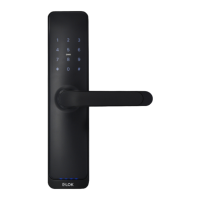
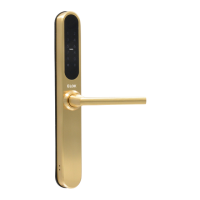
Do you have a question about the E-LOK 805 and is the answer not in the manual?
Procedure to change the lever orientation for the E-LOK 8-Series smart lock.
Steps to reverse the direction of the mortice lock mechanism.
Using the mortice template to cut holes for new installations.
Making holes on the door face for the lock's screws and spindle.
Inserting the mortice lock into the door and ensuring it's straight.
Installing the spindle into the outdoor handle and securing with a split pin.
Resetting the lock via the app while in Bluetooth range.
Resetting the lock using the physical reset button and a code.
Resolving issues when transferring lockset ownership to trash.
Creating a new user account for the E-LOK app.
Logging into an existing E-LOK application account.
Connecting the 8-Series Smart Lock to the phone via Bluetooth.
Selecting the correct E-LOK 8-Series from nearby devices.
Assigning a custom name to the E-LOK 8-Series for easy identification.
Navigating to the main control page for the smart lock.
Unlocking the smart lock using the phone's Bluetooth connection.
Setting up and managing various types of PIN codes for the lock.
How to use a PIN code to unlock the E-LOK smart lock.
Managing and adding RFID cards for lock access.
Entering scrambled PIN codes to enhance security.
Enabling a privacy mode that restricts access to authorized users.
Keeping WiFi constantly connected for full remote access.
Using power saving mode for intermittent WiFi connectivity.
Steps to switch between power saving modes for WiFi.
Unlocking the lock remotely via Wi-Fi using the app.
Sending electronic keys to other users via the E-LOK app.
Viewing the default or set admin passcode for the lock.
Checking the history of lock usage and failed attempts.
Monitoring the E-LOK's battery level via the app.
Synchronizing the lock's internal clock for accurate records.
Setting the lock to remain unlocked during specific periods.
Methods to manually lock the smart lock after passage mode.
Putting the lock into passage mode directly from the keypad.
Connecting a remote fob to the smart lock for control.
Setting the delay before the lock automatically re-locks.
Enabling or disabling the audible feedback from the lock.
Assigning Master Admin ownership to another E-LOK App account.
Understanding how the handle operates the deadbolt and latch.
Key considerations for automatic locking and deadbolt engagement.
Procedure for using a PIN code to unlock the smart lock.
How to insert the mechanical key into the lock slot.
Rotating the key to operate the lock mechanism.
Using the handle to engage with the latch after key operation.
Using the USB-C port for temporary power supply.
How the E-LOK Gateway facilitates communication and notifications.
Requirement for the Master Admin to set up the Gateway.
Connecting the E-LOK Gateway using the provided USB-C cable.
Optimal placement for the Gateway near the Wi-Fi router and lock.
Steps to add the E-LOK Gateway through the E-LOK application.
Performing a factory reset on the E-LOK Gateway device.
Moving the ownership of the Gateway setup to another account.
Details on the Gateway's network, power, and standards.
Performing routine checks and battery replacements every six months.
Key information on app setup, managing multiple locks, and series compatibility.
How to find help and contact customer service for issues.
 General
| Access Options | PIN Code, RFID Card, Mechanical Key |
|---|---|
| Material | Zinc Alloy |
| Type | Electronic Door Lock |
| Power Source | 4 AA Batteries |
| Emergency Power | 9V Battery (External) |
| Backset | 60mm |


 To Next Page