23
Item Description
JPEG / MPEG / H264 Select the image resolution and quality.
Image Resolution: CIF / 4CIF
Image Quality: BEST / HIGH / NORMAL / LOW
Frame Rate The frame rate allowed to each viewer can be adjusted to adapt to the bandwidth on the network.
Set the desired image frequency to the maximum (FULL) or to a specified frame rate (1/2; 1/3;
1/4; 1/5; 1/10; 1/15; 1/20; 1/25; 1/30).
The actual frame rate depends on the actual network connection, and may be lower than the
specified one.
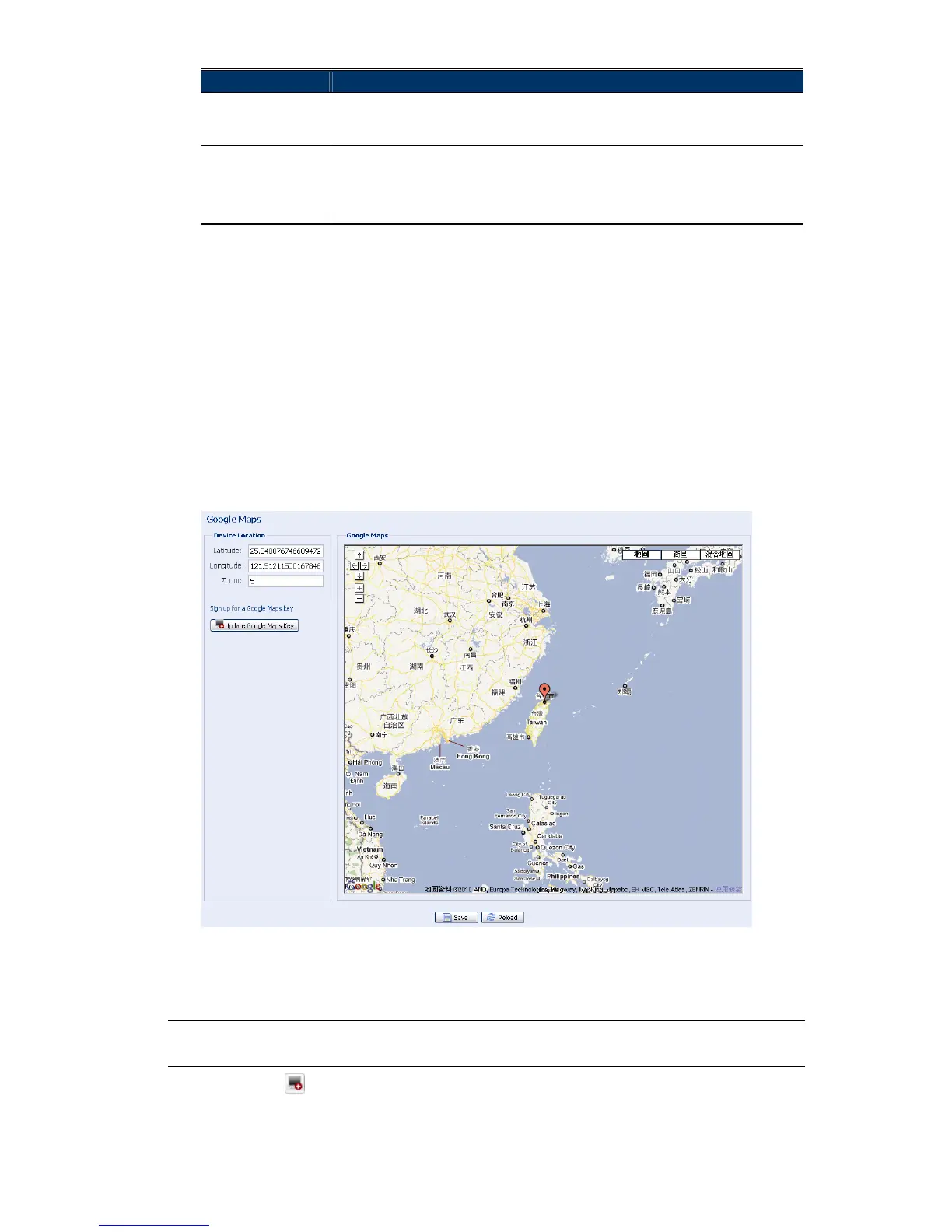
4.5.7 Google Maps
This function is used to let you know where the network camera is.
The system will prompt you to apply a Goole Maps Key if your access is denied. Please follow
the instructions below when you’re denied:
Step1: Click “Sign up for a Google Maps key” to enter the application page.
Step2: Check the terms and conditions, and enter the IP address of the network camera. Then,
click “Generate API Key”.
Step3: Copy the generated API key, and click “Update Google Maps Key” on the web browser to
paste it.
4.5.8 Upgrade
This function is used when users need to upgrade the network camera for function scalability.
Note: Before using this function, make sure you have the correct upgrade files provided
by your installer or distributor.
Step1: Click “ ” to browse to where you save the upgrade files, and select them one by one
until all files are selected (up to four files).



 To Next Page