24
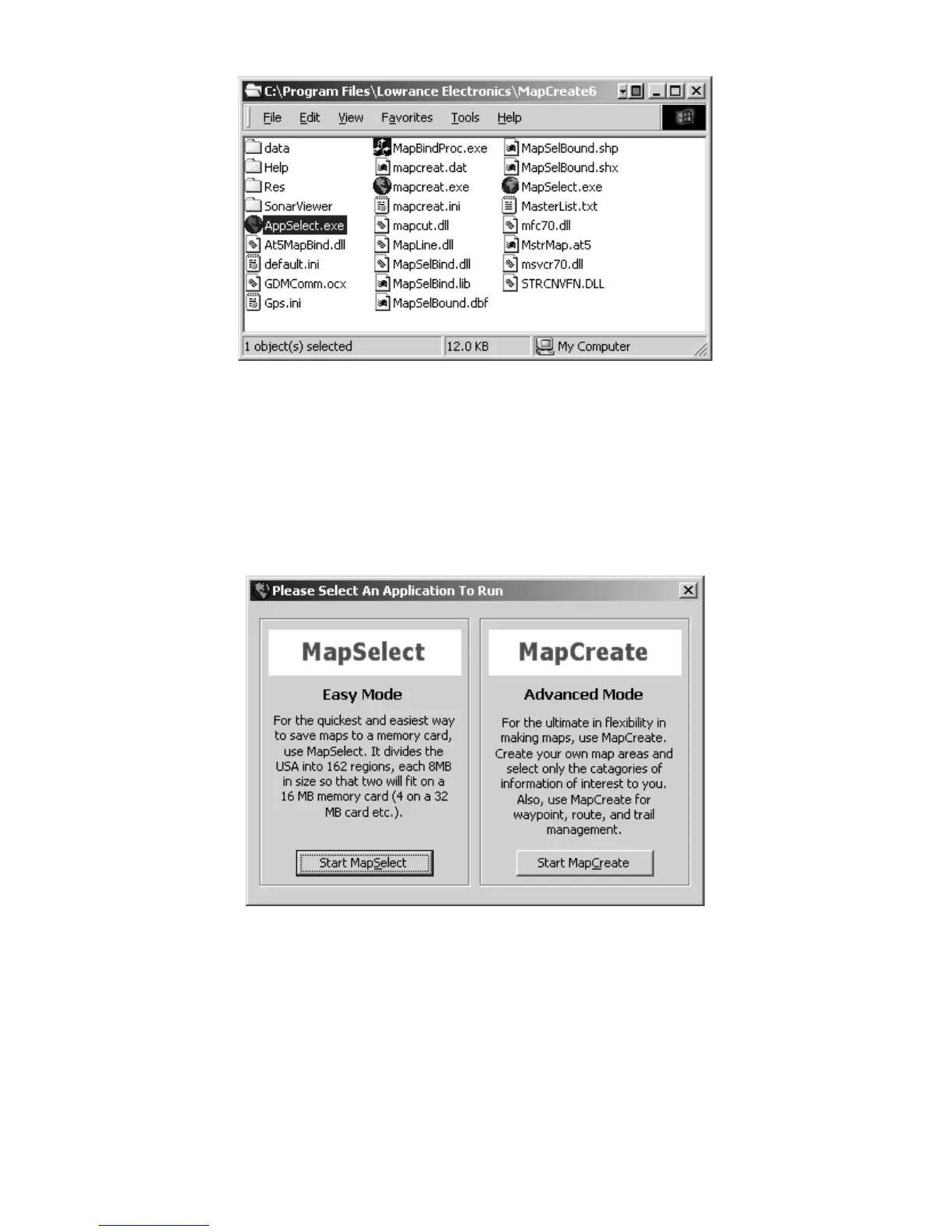
Or, you can start the program by double-clicking the
AppSelect icon in the MapCreate program group window.
You'll see a screen that looks like this below, asking you to choose
which mode you want to use. Choose MapSelect to quickly and easily
save custom maps of pre-defined areas to your MMC. Choose
MapCreate to make more advanced custom maps of exactly the areas
and sizes you desire, or to manipulate other GPS data such as routes,
waypoints, trails and event marker icons.
MapCreate 6.2 mode selection screen.
NOTE:
To skip the mode selection screen, double-click the icon of the desired
program in the MapCreate program group window (MapSelect or
MapCreate), or create a direct shortcut as described on page 20.
The MapSelect Screen
If you choose to use MapSelect, you'll see a screen that looks like this:



 To Next Page