10
10
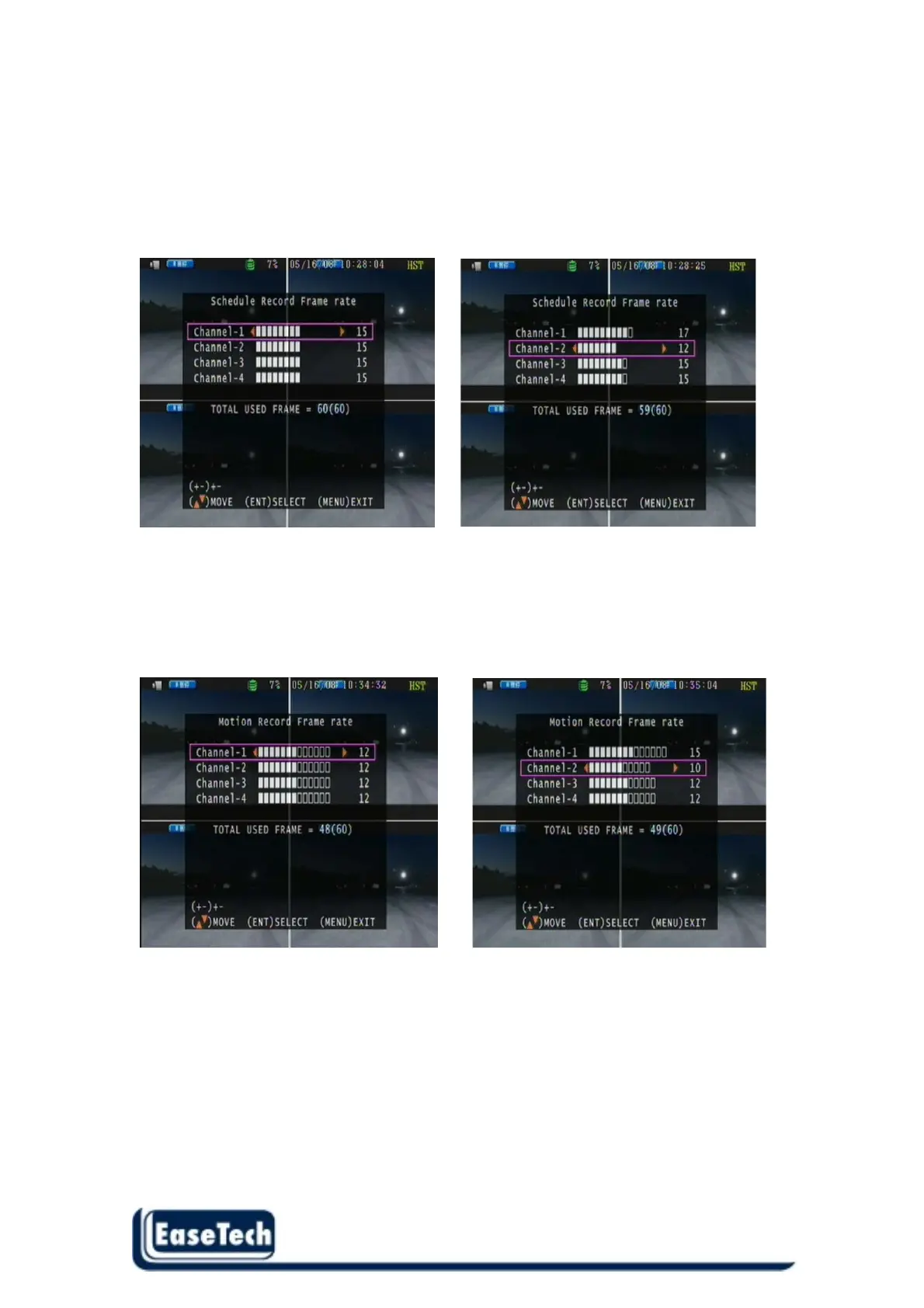
2.2.1 Schedule Record Frame rate
User can use the direction left button to decrease the frame rate or direction right button
to increase the frame rate value .
After changed the frame rate value , press “MENU” button to exit the setup menu .
Schedule record will follow these frame rate values .
2.2.2 Motion Record Frame rate
User can use the direction left button to decrease the frame rate or direction right button
to increase the frame rate value .
After changed the frame rate value , press “MENU” button to exit the setup menu .
Motion record will follow these frame rate values .
2.2.3 Record Quality:
Low / Normal / High (See record time table page 11)
2.2.4 Event Rec Duration:
5/ 10/ 15/ 20/ 25/ 30 seconds. Duration time recording after event
2.2.5 Auto Record:
Off / 1 ~ 8 minutes selectable
When auto record is set to 1 ~ 8 minutes , the DVR will start recording after 1~ 8 minutes no
operation .



 To Next Page