
 Need help?
Do you have a question about the Easy Clocking XENIO 500 and is the answer not in the manual?
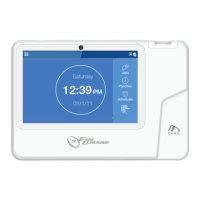
The primary time clock device included in the package.
The user manual provided with the Xenio time clock.
The power supply unit for the Xenio time clock.
Includes wall mount, screws, and anchors for installation.
An optional component for covering mounting hardware.
Steps for marking, inserting anchors, and securing the wall mount.
Connecting the Xenio to Ethernet and its power adapter.
Attaching the Xenio to the wall mount and securing it with a screw.
Navigating the Xenio menu to find Wi-Fi settings.
Turning on Wi-Fi and choosing a network from the available list.
Confirming the connection and viewing network status details.
Navigating the Xenio menu to select the Ethernet option.
Setting up IP address configuration, defaulting to DHCP.
Saving the chosen Ethernet network settings.
Connecting Xenio to cloud-based software via an internet connection.
Steps to configure Xenio for connection to locally installed software.
Confirming entered host PC IP address, port, and connection status.
Insert a USB flash drive into the device's port.
Accessing the 'Export to USB' option via the settings menu.
Choosing between 'All' or 'New' records and confirming the export.
Create and configure users in the EasyClocking software first.
Choose a user and authentication method on the device.
Scanning the finger multiple times for accurate fingerprint registration.
Registering a smart card by presenting it to the reader.
Setting a 4-6 character passcode for user authentication.
Details on Employee, Manager, and Administrator roles and their permissions.
Steps to assign Administrator or Manager permissions through the software.
Verifying identity to access menus with Administrator/Manager privileges.
Demonstrates proper finger placement on the sensor for accurate scanning.
Illustrates common incorrect finger placements to avoid.
Display shown on the device after a successful clock-in/out.
Placing the smart card in front of the device's card reader.
Display shown on the device after a successful clock-in/out.
Activating and configuring the PIN number option within the settings.
Steps to enter User ID and Personal Identification Number (PIN) to clock.
Process for running and installing software updates on the Xenio.
Customizing the display theme and setting the device language.
Configuring date/time, screen sleep, and brightness settings.
Adjusting volume levels and touch sound preferences.
 General
| Fingerprint Sensor | Yes |
|---|---|
| Operating System | Linux |
| Weight | 0.8 kg |
| RFID Card Reader | Yes |
| Communication | TCP/IP, USB Host |
| Transaction Capacity | 200, 000 logs |
| Power Supply | DC 12V |
| Verification Speed | ≤1 second |
| FAR | 0.0001% |
| Log Capacity | 200, 000 logs |
| FRR | <=0.01% |

 To Next Page