Need help?
Do you have a question about the Easypix Easy-Scan and is the answer not in the manual?
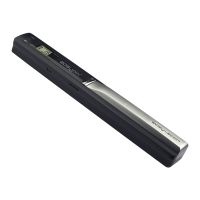
Allows selection between JPG and PDF file formats for scanned documents.
Provides scan resolution selection at 900, 600, or 300 dpi.
Scanned JPG/PDF files are saved directly to the microSD card.
Supports microSD cards with capacities up to 32GB.
Driver-free installation for Windows 7/Vista/XP and Mac OS 10.4+.
Compartment for 2x AA alkaline batteries.
Powers the device on/off and starts/stops scanning.
Indicates errors such as scanning too fast (Red LED).
Indicates readiness for scanning (Green LED).
Displays scanning status information.
Allows selection of High (900dpi), Middle (600dpi), or Low (300dpi) resolution.
Switches between JPG and PDF scanning modes.
Enters the mode for setting the device's time.
Port for connecting to a computer to download photos.
Location for inserting the microSD card for storage.
Initiates formatting of the microSD card.
Shows that photos are being stored on the microSD card.
Visually represents the battery charge level.
Indicates whether the scanner is in JPG or PDF mode.
Displays the number of scanned files stored.
Shows the currently selected scanning resolution (High/Middle/Low).
Instructions for opening the battery door and inserting batteries.
Guide on inserting a microSD card and the need for formatting.
Procedure to set year, month, date, hour, and minute.
Steps to format the microSD card for scanner use.
How to select resolution using the DPI button.
How to select JPG or PDF mode using the JPG/PDF button.
Detailed steps for correctly scanning documents.
Indicates scan progress or completion.
Signals scanning errors or excessive speed.
Type of image sensor and number of available dots.
Defines low, middle, and high resolution DPI settings.
Time taken to scan A4 documents at different resolutions.
Number of scans possible on a 1GB microSD card.
Physical dimensions of the scan area and maximum scan length.
Supported file formats and description of the LCD display.
Auto power off time, USB port, and external memory type.
Specifies the type of batteries required.
Minimum operating systems supported for scanner use.
Minimum processor and memory requirements.
Required interface for connecting the scanner.
Solutions for issues preventing the scanner from powering on.
Troubleshooting steps for problems saving scanned images.
Steps to resolve issues where the computer does not detect the scanner.
Solutions for rapid battery depletion.
Tips for improving the clarity of scanned images.
Resolution steps when the error LED is illuminated.

 To Next Page
 General