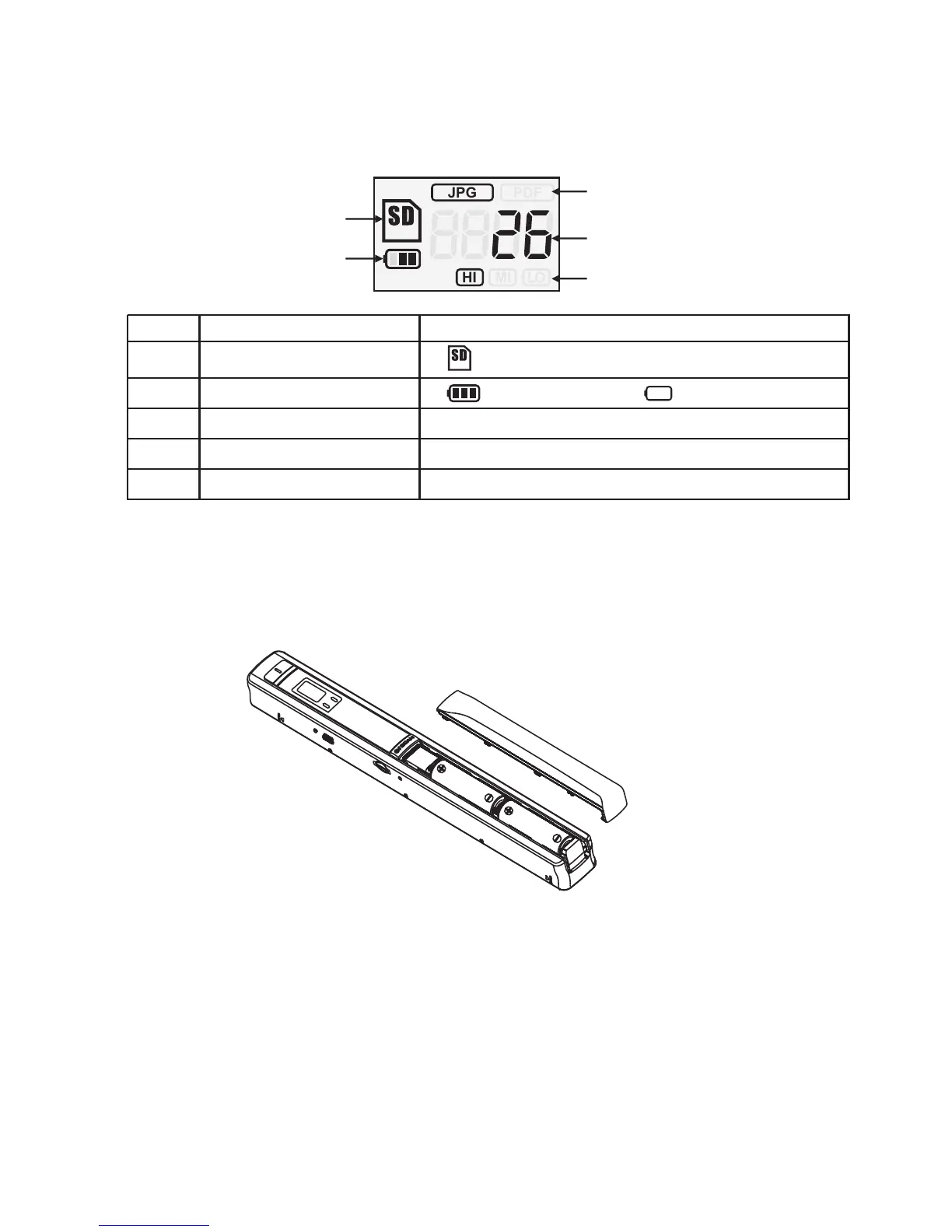
3. Explanation of the status icons
RESOLUTION
HI MI LO
JPG PDF
FULL
EFFECT
1
2
3
4
5
Item Function
Description
SD card indicator Photos will be stored in m SD card icro
Battery indicator
Battery is full Empty battery
Effect indicator
JPG PDFor
Counting indicator
Show scanned files in SD cardmicro
Selected resolution
High(900dpi)/Middle(600dpi/)Low(300dpi)
1
2
3
4
5
4. Using the scanner
4.1 Installing the battery
1. Open the battery door.
2. Insert 2x AA alkaline batteries into the battery compartment.
3. Turn on the by pressing the [POWER] button for 2 seconds.scanner
4.2 Inserting a microSD memory card (not included)
You must insert a microSD Card (not supplied) to record and store your pictures.
Inserting the microSD memory card:
1. Turn OFF the scanner.
2. Insert the microSD card into the microSD card slot, gently press in until card
is latched.
Note: -Do not force the card into the slot; forcing may damage scanner and
the microSD memory card. Align microSD card position (as marked)
and try again.
-The microSD memory card must be formatted before scanning.
See the following instruction.



 To Next Page