8
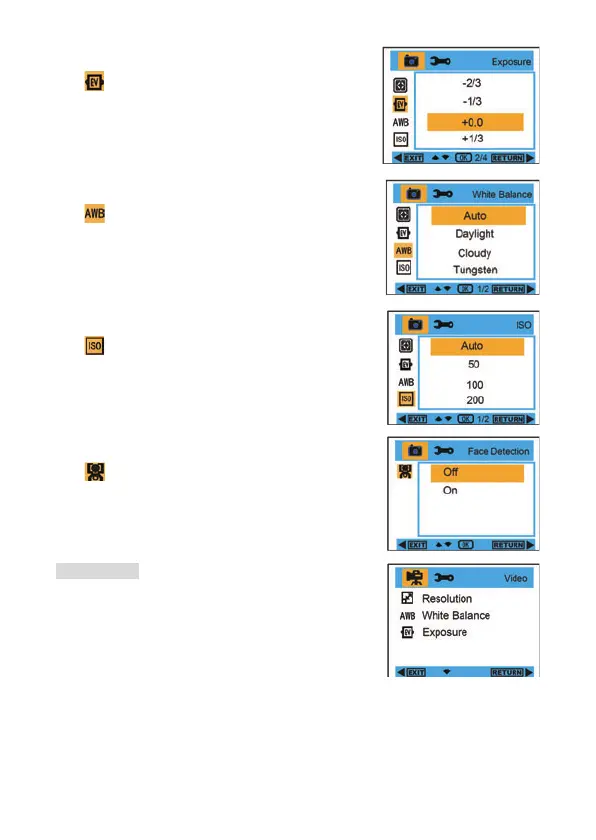
Exposure :
1. Enter into MENU, and press Up/Down button to select”
Exposure”.
2. Press OK button, and then press Up/Down button to
select exposure,
-2.0 , -5/3 , -4/3 , -1.0 , -2/3 , -1/3 ,
+0.0 , +1/3 , +2/3 , +1.0 , +4/3 , +5/3 , +2.0
3. After selection, please press OK button to confirm, and
press Left button to exit. Or, select Right button to
return.
White Balance :
1. Enter into MENU, and press Up/Down button to select ”
White Balance”.
2. Press OK button, and then press Up/Down button to
select white balance,
Auto / Daylight / Cloudy /
Tungsten / Fluorescent
3. After selection, please press OK button to confirm, and
press Left button to exit. Or, select Right button to
return.
ISO :
1. Enter into MENU, and press Up/Down button to select ”
ISO”.
2. Press OK button, and then press Up/Down button to
select ISO,
Auto , 50 , 100 , 200 , 400
3. After selection, please press OK button to confirm, and
press Left button to exit. Or, select Right button to
return.
Face Detection :
1. Enter into MENU, and press Up/Down button to select ”
Face Detection”.
2. Press OK button, and then press Up/Down button to
select Face Detection
Off / On
3. After selection, please press OK button to confirm, and
press Left button to exit. Or, select Right button to
return.
Video Mode:
Under Video mode, please press Menu/Left button to enter
into the menu, and press Up/Down button to select the
setting. There are
Resolution, White Balance, and
Exposure



 To Next Page