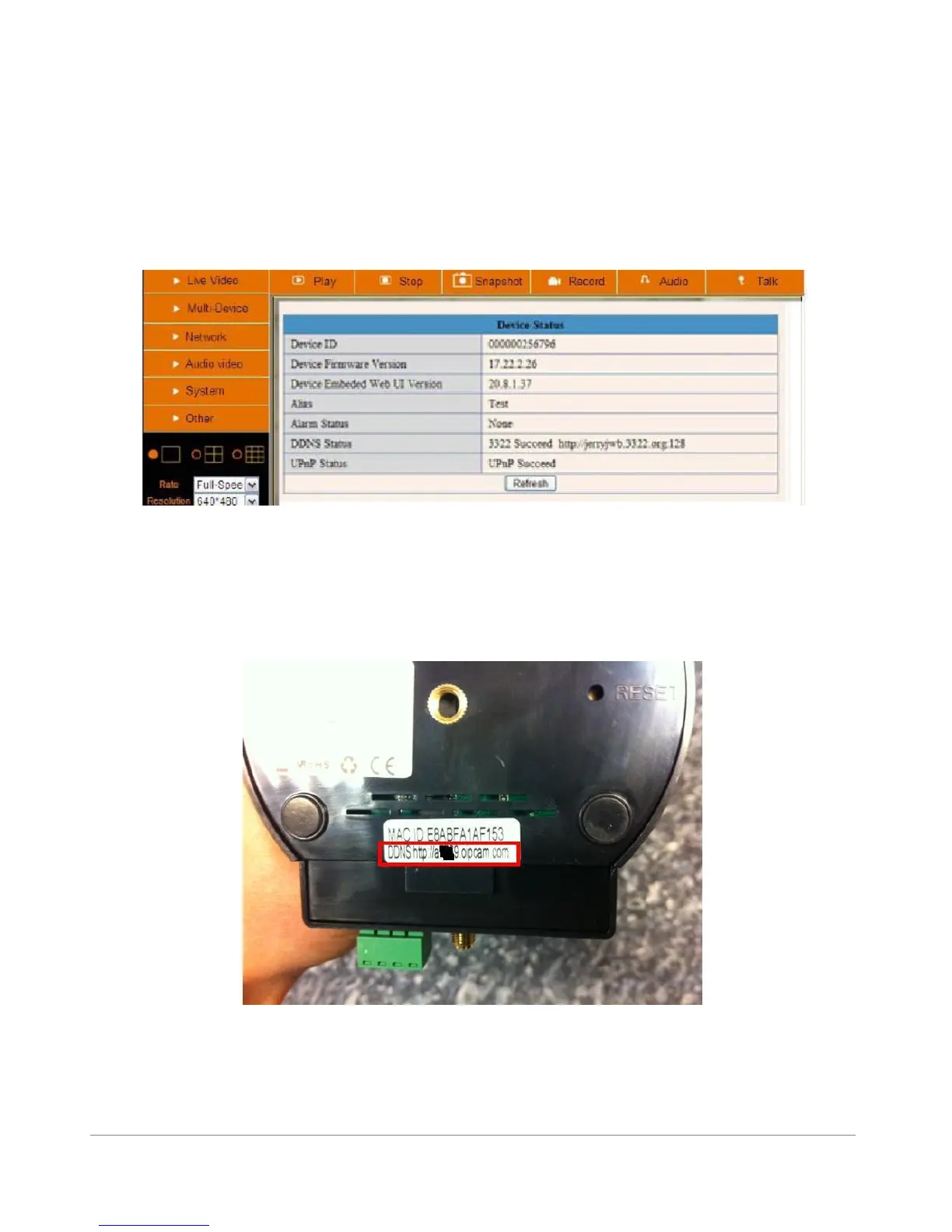
DDNS Status (Always check!)
Before you have remote access to the camera, you first need to check the DDNS status from the camera.
Login to the camera and choose “System”>”Device Info”. Please check that ‘DDNS Status’ shows
‘succeed’ followed by the address. This is illustrated in the image below. It is important that you get the
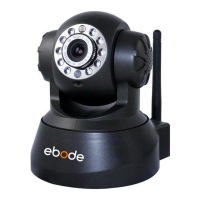
address link of DDNS to access the camera from anywhere in the world. You can also find this address on
the bottom of your camera. Write this address somewhere or add it as a favorite in your web browser to
visit the camera from outside the network (from your mobile device for example at work, school, on the
road etc.)
Figure 4.3
If everything has been setup our DDNS and UPnP Status should mention: “Succeed” and you are ready to
visit our camera from outside our home.
At the bottom of your camera will find a UNIQUE DDNS address to use with your camera:
Figure 4.4
Congratulations! You’ve know successfully installed your IP camera. It is always a good idea to ask
friends or family to login to the camera from their own place. Don’t forget to change the password of the
camera afterwards!


 To Next Page