10
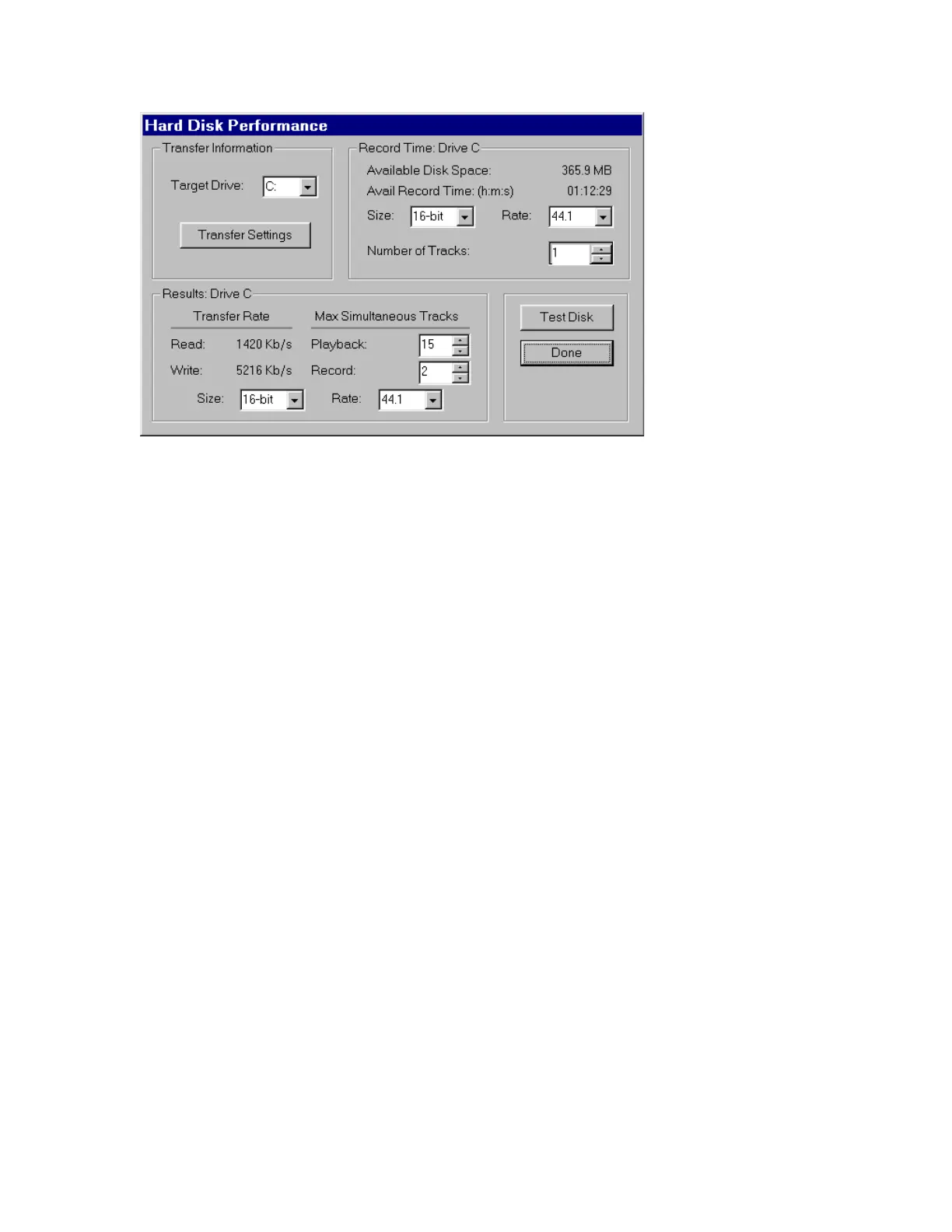
You can adjust the parameters on the Hard Disk Performance
screen to view your disk’s record and playback capabilities at
various sample rates and bit-resolutions.
You can also change the
Size
(bit-resolution),
Rate
(sample rate), and
Number of Tracks
fields. Though the original test was performed with
default values of 16-bit 44.1kHz, you can easily see your disk’s
performance reading and writing, say, 24-bit 48kHz data simply by selecting
those values in the appropriate fields.
About the
Playback:
and
Record:
fields under the
Max
Simultaneous
Tracks
heading:
•
At the basic level, these two fields show you how many simultaneous
tracks of playback and recording your system will support. For example, if
the readout was “15” for the
Playback:
field and “8” for the
Record:
field, that means your system is capable of playing back 15 tracks while
simultaneously recording 8 tracks. Note, however, that the Playback: and
Record: fields are interrelated: as you change the value in one field, the
value in the other field is affected. In other words, the values are dynamic.
You can get a feel for how much overall read/write bandwidth you have by
adjusting the values in the two fields. By lowering the number of record
tracks, you’ll see the number of simultaneous playback tracks increase.



 To Next Page