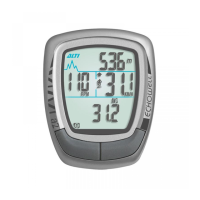
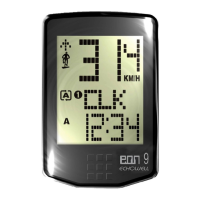
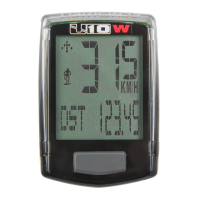
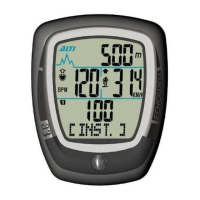
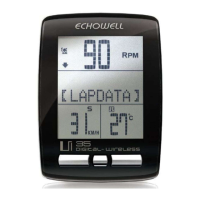
If there is no display on your Echowell Bicycle Accessories, try the following:
* Replace the battery with a new one.
* Ensure that the positive pole of the battery faces the battery cap.
A
Angela RiveraAug 12, 2025
What to do if the low-battery symbol is blinking on my Echowell Bicycle Accessories?
D
debra86Aug 12, 2025
If the low-battery symbol is blinking on your Echowell Bicycle Accessories, replace the battery in the main unit with a new one.
A
Andre DaviesAug 16, 2025
Why is the altitude not displayed correctly on my Echowell Bicycle Accessories?
D
Danielle LewisAug 16, 2025
If the altitude is not displayed correctly on your Echowell Bicycle Accessories:
1. **Calibration**: Calibrate the altitude before each ride, referring to "Overview of Button Operation".
2. **Air Pressure Hole**: Ensure the hole for measuring air pressure on the bottom of the main unit is clean. Avoid poking anything into it to prevent damage.
E
eedwardsAug 21, 2025
How to fix irregular display on Echowell echo a2?
B
Bradley TurnerAug 21, 2025
If you are experiencing an irregular display on your Echowell Bicycle Accessories, refer to "Main Unit Setup" and initiate the computer again.
M
Madeline WuAug 26, 2025
Why is the LCD black on my Echowell echo a2 Bicycle Accessories?
T
Tamara HatfieldAug 26, 2025
If the LCD screen on your Echowell Bicycle Accessories is black, and the unit was exposed to direct sunlight for an extended period when not in use, put the main unit in the shade to allow it to return to its normal state.
B
Brittany AndersonAug 29, 2025
Why is the display slow on my Echowell echo a2?
S
Susan SmithAug 29, 2025
If the display on your Echowell Bicycle Accessories is slow, and the temperature is at or below 0°C (32°F), the computer will return to its normal state once the temperature rises.
T
Timothy SpencerNov 3, 2025
Why is the speed not displaying correctly on my Echowell Bicycle Accessories?
A
Amy WilliamsNov 3, 2025
There could be several reasons why the speed is not displayed correctly on your Echowell Bicycle Accessories:
1. **Setting Mode**: Ensure the computer is not in setting mode by completing the setting procedures.
2. **Magnet and Sensor Position**: Check the installation manual to verify that the magnet and sensor are correctly positioned with the proper gap between them.
3. **Wheel Circumference**: Make sure the wheel circumference setting is accurate. Refer to "Wheel Circumference Measurement and Setting" to input the correct value.
4. **Sensing Distance**: Adjust the distance between the main unit and the sensor, or adjust the sensor's angle, as described in the installation manual.
5. **Sensor Battery**: Replace the sensor battery if it's nearly exhausted.
6. **Interference**: Mov...



 To Next Page

 General