Need help?
Do you have a question about the Eclipse T180 and is the answer not in the manual?
Reach technical support via phone or email for assistance with the player.
Mach Speed is not liable for data loss or damage from misuse, damage, or unforeseen circumstances.
Information on copyright protection and restrictions on reproducing manual content without consent.
Lists maximum playback times; actual times may vary due to settings like brightness.
Discusses compatibility with various Micro SD card brands and specifications.
Player may not support all file formats; conversion tools are recommended.
Details FCC rules compliance for Class B digital devices and guidelines for interference.
Avoid extreme environments, dropping, or striking the player to prevent damage and warranty voidance.
When to charge the battery based on the icon or player responsiveness.
Warns against abrupt disconnection and unauthorized disassembly to prevent data loss or device damage.
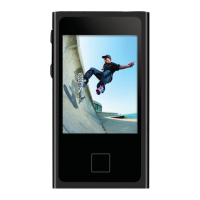
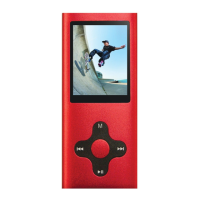
Lists key features like touchscreen, display, supported formats, recording, and expandable memory.
Step-by-step instructions for turning the player on and off using the power button.
How the touchscreen locks for battery saving and how to unlock it.
Instructions for connecting the player to a power source for charging.
Detailed steps for inserting and removing the Micro SD card correctly.
Guide on syncing music files using Windows Media Player 10 or later.
Player does not support DRM encrypted audio or video files.
Instructions to finalize the setup in Windows Media Player and access the Sync tab.
Process of selecting music and dragging it to the sync list to prepare for transfer.
Windows Media Player transfers the selected songs to the player.
Procedures to safely disconnect the MP3 player from the computer after syncing.
Using copy and paste for videos, pictures, and ebooks, in addition to audio.
Steps to connect the player via USB and locate the 'Safely Remove Hardware' icon.
How to find and open the player's drive letter in 'My Computer'.
Guidance on locating music files, often in 'My Music' or via search.
Using the search function to find *.MP3 and *.WMA files if needed.
Instructions to copy music files from computer to the player's drive.
Simple drag-and-drop method for transferring files on a MAC.
How to slide between the two main menu screens using the arrow icon.
Brief explanation of icons for Music, Video, Photo, Record, eBook, Radio, Browser, Settings.
How to play, pause, skip tracks, and fast forward/rewind audio files.
Reiteration of supported audio formats (MP3, WMA, WAV) and DRM restrictions.
Explains icons for battery charge level and equalizer mode.
Describes icons for repeat mode and how volume level is shown and adjusted.
Explains the back icon to return to the menu and the file format indicator.
Explains icons showing file bitrate and the current song's position in the playlist.
Describes the progress bar and how to access the Music Submenu via the menu icon or 'M' button.
Details settings for Repeat Mode, Equalizer, and Replay Mode (A-B).
How to browse folders and select specific audio files to play.
Options to delete individual files or all audio files from the device.
How to play videos, including navigation and playback controls.
Only AMV format at 160x128 resolution is supported for videos.
How to view photos and pictures loaded onto the device.
Supported image formats (JPG, BMP, GIF) and resolution impact on quality.
How to slide between images and return to the photo selection screen.
Using the built-in microphone to create and play back voice recordings.
Steps to start, pause, and save voice recordings; notes on microphone range.
How to view text files loaded on the player.
Only TXT format is supported for eBook files.
Turning pages forward or backward using buttons or screen gestures.
Accessing bookmark management and other options within the eBook reader.
Using the FM tuner to listen to local radio stations.
Critical instruction to connect headphones to use the FM tuner.
Explains the display of station, frequency, and playback controls.
How to change the radio station using arrow buttons.
How to select saved radio stations using the power button.
Options for saving, deleting presets, recording, and band selection.
Scanning for and saving radio stations, potentially overwriting existing presets.
Choosing between US and Japan FM bands for station tuning.
Advanced file browsing that opens supported files in appropriate modes.
Options for adjusting Date/Time and Auto Dim screen settings.
Changing device language and setting auto power off/sleep timers.
Displays used memory percentage and firmware version.
Guide to installing the included video conversion tool.
Choosing input files and specifying output save locations for video conversion.
Starting the conversion process and understanding the media player window.
Advice on installing codec packs to resolve conversion errors.
Details the one-year warranty, coverage, exclusions, and nontransferable nature.
Process for contacting support, obtaining an RMA number, and shipping requirements.
Guidelines for product exchanges and handling of returned items.
Procedures for reporting wrong items, missing items, or shipping damage.
Explains limitations on liability for consequential or indirect damages.
Contact information (email and phone) for technical assistance.
 General
| Storage | 8GB |
|---|---|
| Screen Size | 1.8 inches |
| Resolution | 128 x 160 pixels |
| USB Port | USB 2.0 |
| Battery | Built-in Rechargeable Lithium Battery |
| Supported Formats | MP3, WMA |
| SD Card Slot | MicroSD (up to 32GB) |

 To Next Page