CONNECTING YOUR
SMART THERMOSTAT
TO THE INTERNET
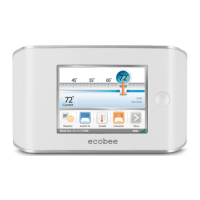
You can manage your ecobee system using the color touch screen
on the Smart Thermostat or from your ecobee personalized web
portal. Internet access lets you:
Program and congure your Smart Thermostat from your
personalized web portal.
Remotely control your Smart Thermostat from anywhere you
have Internet access.
Enable your Smart Thermostat to display and use local
weather data to maximize energy savings.
Receive important alerts and reminders about your
heating and cooling system.
Note: To connect your system to your personalized ecobee web portal you
must have a broadband Internet connection and a wireless home network.
WiFi Specications
Your Smart Thermostat is designed to support:
A 802.11 b or g wireless router
WEP 64, WEP 128, WPA1 and WPA2 encryption methods
Dynamic or static IP addressing
Setting up WiFi
The Smart Thermostat is equipped with a wireless
interface that connects to any home wireless
network. You must enable the WiFi radio in the Smart
Thermostat and congure it in order to access your
home wireless network.
When the WiFi radio is turned on, the Smart Thermostat
displays a list of available networks, along with an
indication of the signal strength and whether security
encryption is used.
If your home network is not listed, or if the signal
strength is very low, try readjusting the antenna on
your wireless router. If that does not improve the
signal you may need to relocate your router.
Once your network has been detected, press on
that list item to continue with the conguration. If
7
the network is encrypted, you will be asked to enter
the password for that network. This is the password you
created when the wireless network router was rst setup
Using the MAC address
You may have congured your network to lter for
known MAC addresses. If this is the case refer to the
section Displaying Information About your Smart
Thermostat on page 6 of this manual to nd the MAC
address for your Smart Thermostat.
Advanced Conguration
Advanced conguration lets you input your network
parameters manually. Select this list item and choose
the network you wish to connect to, or it will allow
you to add one to the list (ie if your network does not
broadcast its SSID). You will then be able to view and
congure the following:
Dynamic or Static IP addressing
SSID
Password
Type of Encryption
WiFi Channel
IP Address
IP Subnet
Gateway
Primary DNS
Secondary DNS
Creating Your Personal Web Portal
Once a wireless Internet connection is established, you
will need to register the Smart Thermostat to create
your personal web portal.
Your e-mail and password are not stored in the Smart
Thermostat. You can change this information once the
account has been registered and activated.
If you do not receive a registration e-mail, please
check your junk mail folder as registration messages
are sometimes agged as junk mail.
To set up the WiFi radio:
From the Home
screen, Press More.
Press Settings.
Switch WiFi on and
select your network
from the list of
available networks.
8
To register the thermostat:
From the Home screen,
press Register.
You will be prompted
to enter your primary
e-mail address.
Press Done. continued...





 To Next Page
