3
Power A Free Life
4. For more information about the App, please follow the instruction on the App or
our official website www.ecoflow.com.
1 2 3
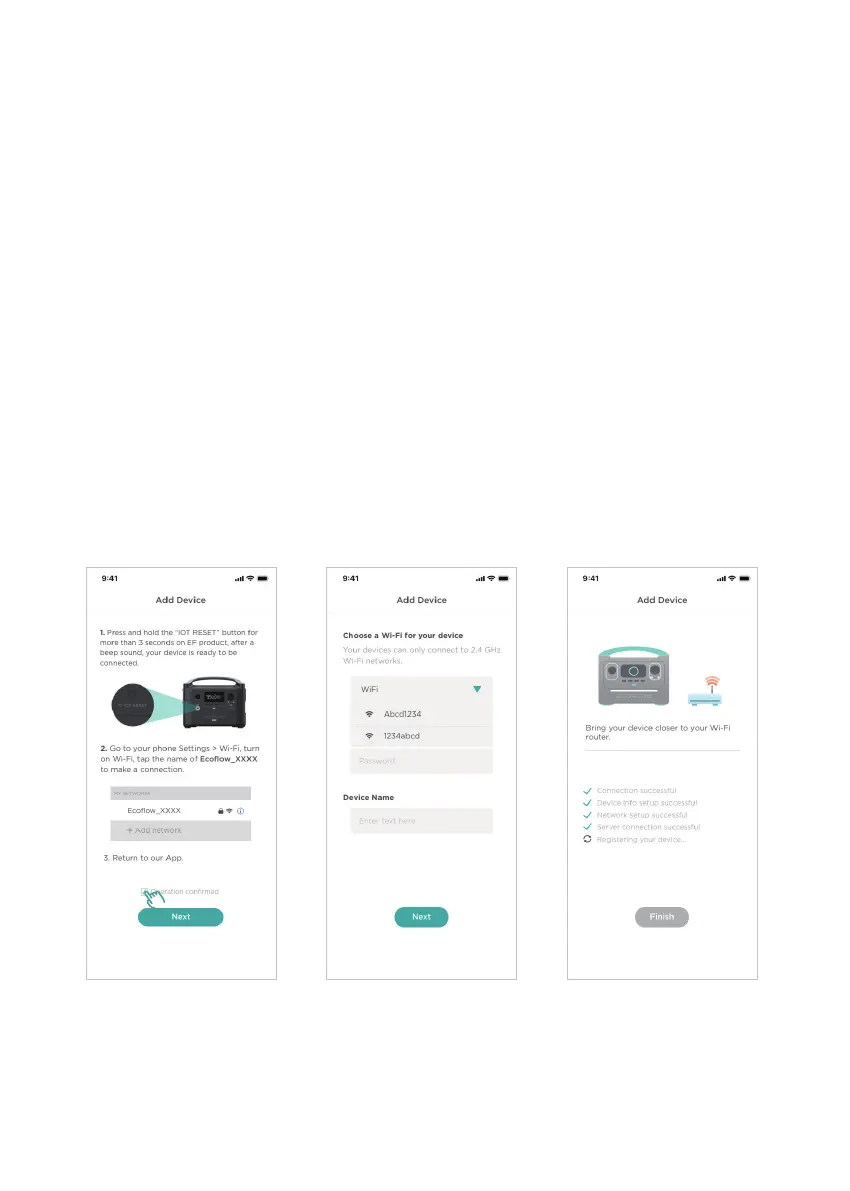
1.
• Open your App, click on the "+" on the top right corner.
• Press and hold the "IOT RESET" button for more than 3 seconds on EF product, after a beep sound, your
device is ready to be connected.
• Go to your phone Settings > Wi-Fi, turn on Wi-Fi and find the new device in the network list:
Ecoflow_XXXX. Tap it to make a connection.
• Return to EcoFlow App.
• Confirm the operation, and tap "Next" to continue.
2.
• Choose a Wi-Fi for your EF product. Your EF product can only connect to 2.4 GHz Wi-Fi networks.
• Enter a name for your EF product.
• Tap "Next" to finish adding your EF product.
3.
Please confirm:
EF product
√
Connection successful
√
Device info setup successful
√
Network setup successful
√
Server connection successful
√
Device registration successful
If it fails to connect, move the EF product closer to the router, confirm whether it is a 2.4GHz network, and
repeat the operations of the first step.
Indoor Mode: Connet to the home router (support remote control).





 To Next Page