24EN
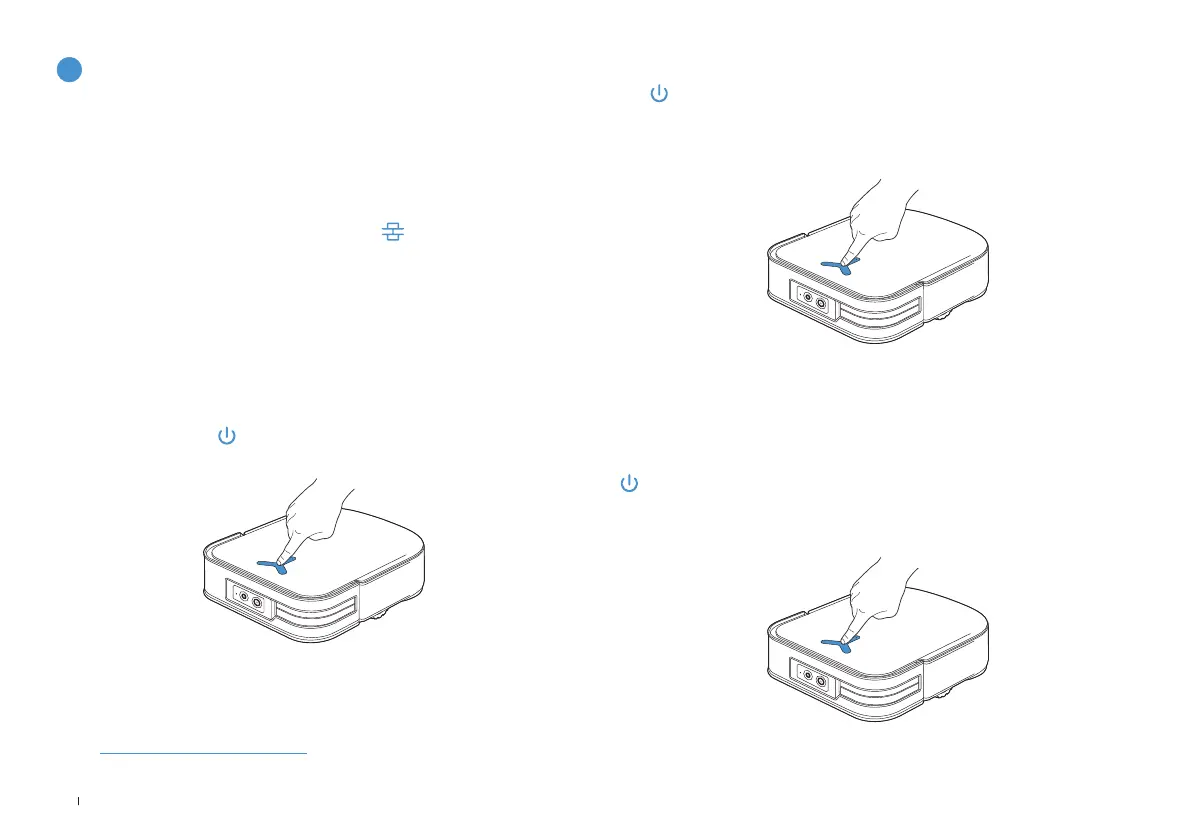
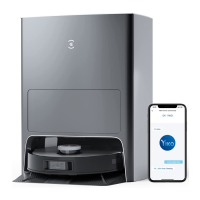
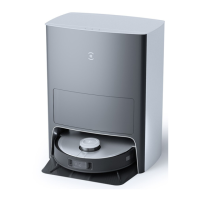
Before first vacuuming, please make sure the DEEBOT is in the Station
and fully charged� Tap
on DEEBOT to start�
2. Start vacuum
1. Create a map
When creating a map for the first time, please follow DEEBOT to help
eliminate some minor issues�
When mapping, DEEBOT will explore the house environment
automatically� The exploration path may be different from cleaning path�
Set up Virtual Boundary via the App: Map>
>Virtual Boundary
Order the DEEBOT to map by ECOVACS HOME App or voice�
6
Operate DEEBOT
When mopping, DEEBOT will recognize floor types� DEEBOT is able to
lift mops automatically when encountering carpet� Please don't use the
DEEBOT on shaggy rugs or carpets with fibres longer than 10mm� It is
recommended to fold up the shaggy rugs with fibres longer than 10mm
during the cleaning process, or set the shaggy carpeted area as a No-
Entry Zone by setting Virtual Boundary in the ECOVACS HOME App�
Note:
• Do not frequently remove washable mopping pads�
• Do not use a rag or any other object to scratch the Moping Pad Plates�
• When the ECOVACS HOME App prompts that the mops need to be replaced,
please replace them in time� Explore more accessories at ECOVACS HOME App
or at https://www�ecovacs�com/global�
The indicator light will go out after the DEEBOT is paused for a few minutes� Press
on DEEBOT to wake it up� After stopping working for about 1h, DEEBOT may
enter standby mode�
4. Wake up
Tap on DEEBOT to pause during vacuuming�
3. Pause




 To Next Page