5
3. Check for Firmware Updates
To update the Mobi View tablet firmware, connect the tablet to your computer via
the USB cable. To update the RF Hub Firmware, plug the hub into a USB port on
your computer.
a. Open Device Manager. Select the eInstruction icon from the system tray
on your computer, and then select Device Manager.
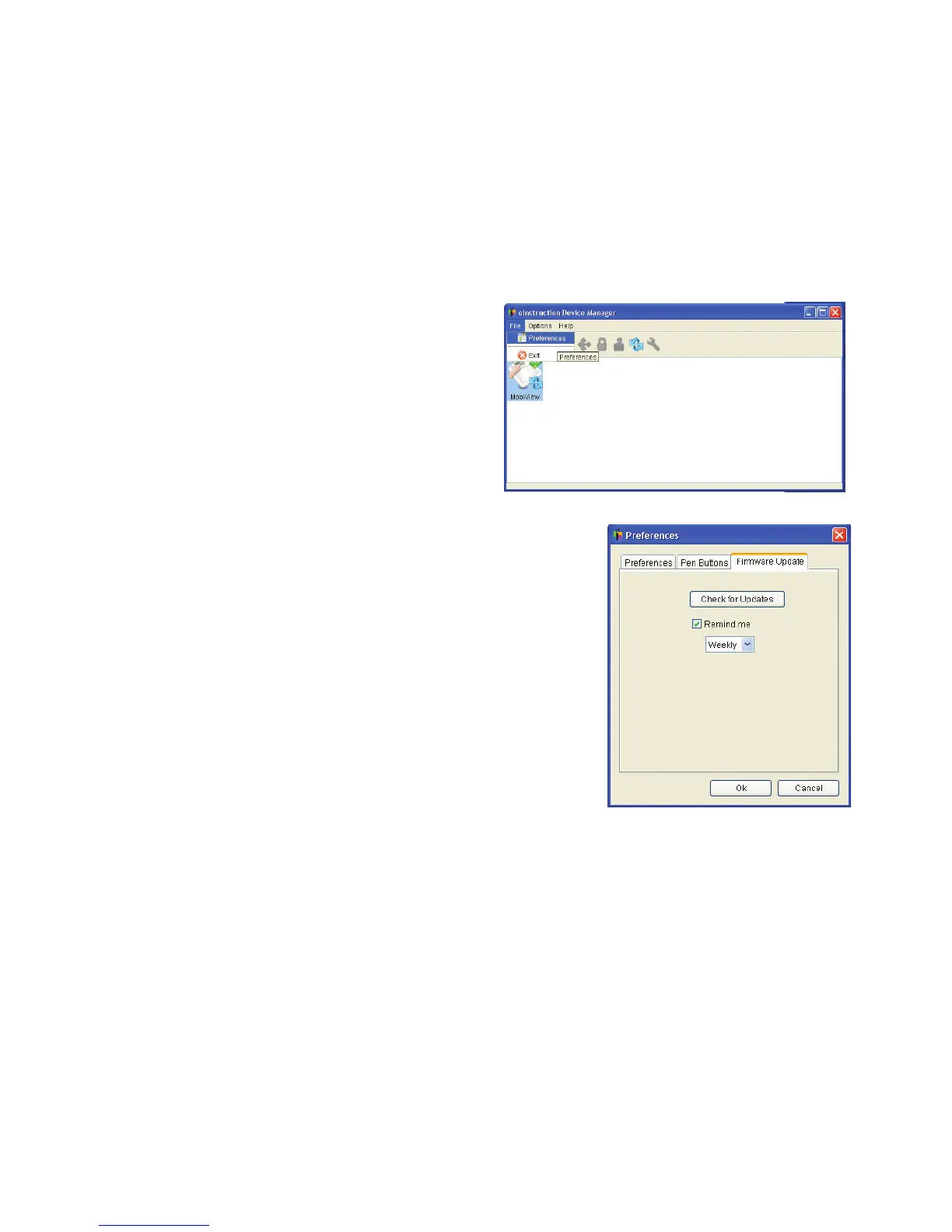
b. In Device Manager, select the Mobi
View icon and then select File >
Preferences.
c. Select the Firmware Updates tab,
and press the Check for Updates button.
d. If firmware updates are available, follow the
on-screen prompts to install the updates.
Go! Begin Using Mobi View


 To Next Page