4
Setting Up Mobi View
1. Install Software
Load the Workspace software onto your computer from the included CD.
Note: You may need administrator rights on your computer to install Workspace.
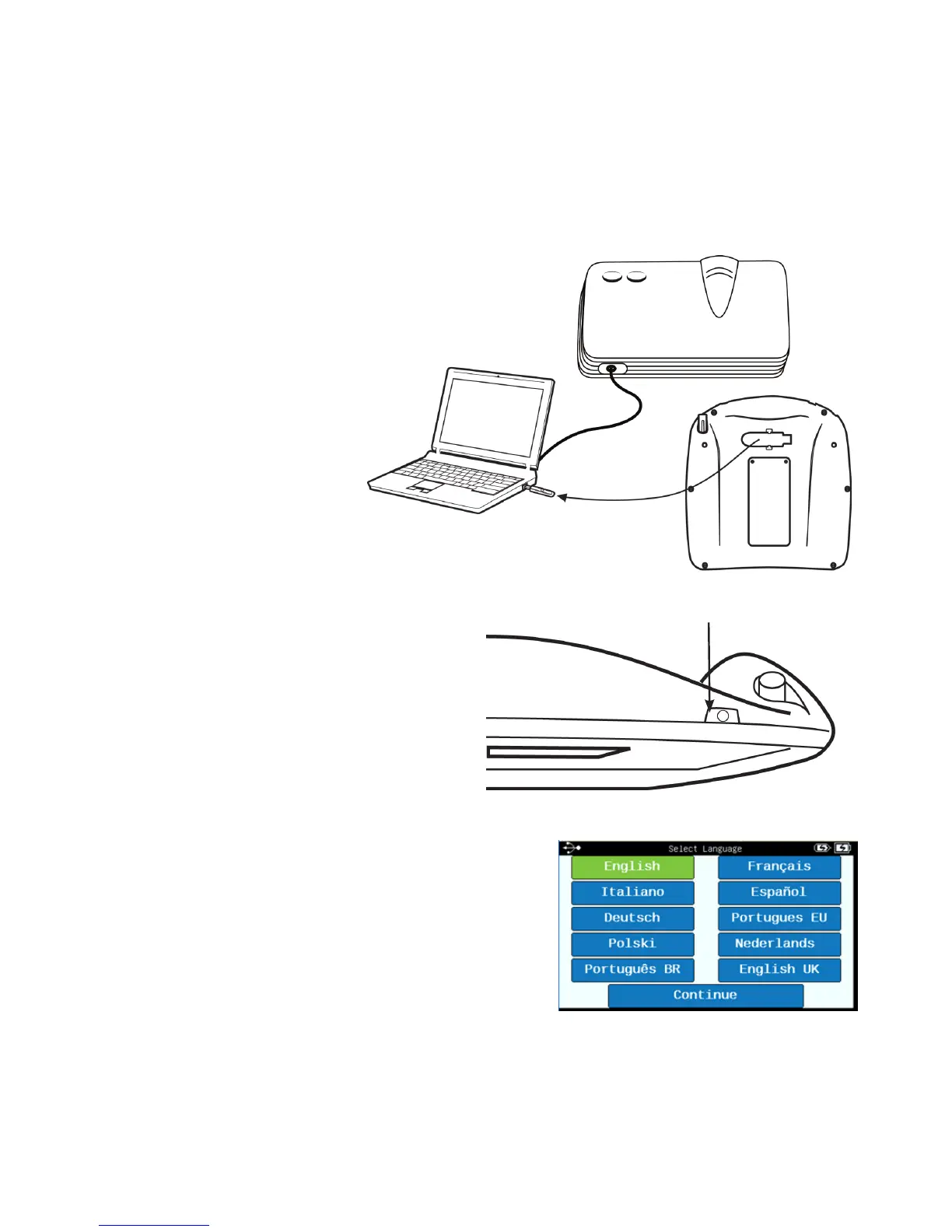
2. Turn on Mobi View
a. Remove the RF hub
from the back of the
Mobi View or docking
station and plug it
into a USB port on the
computer.
Tip! Connect the computer
to a projector to display
Workspace to the class.
b. Press the power button. If
connected, you will see the
Select Language screen. If not,
follow the on-screen prompts to
troubleshoot.
c. Select your desired language to view the
Home screen.


 To Next Page