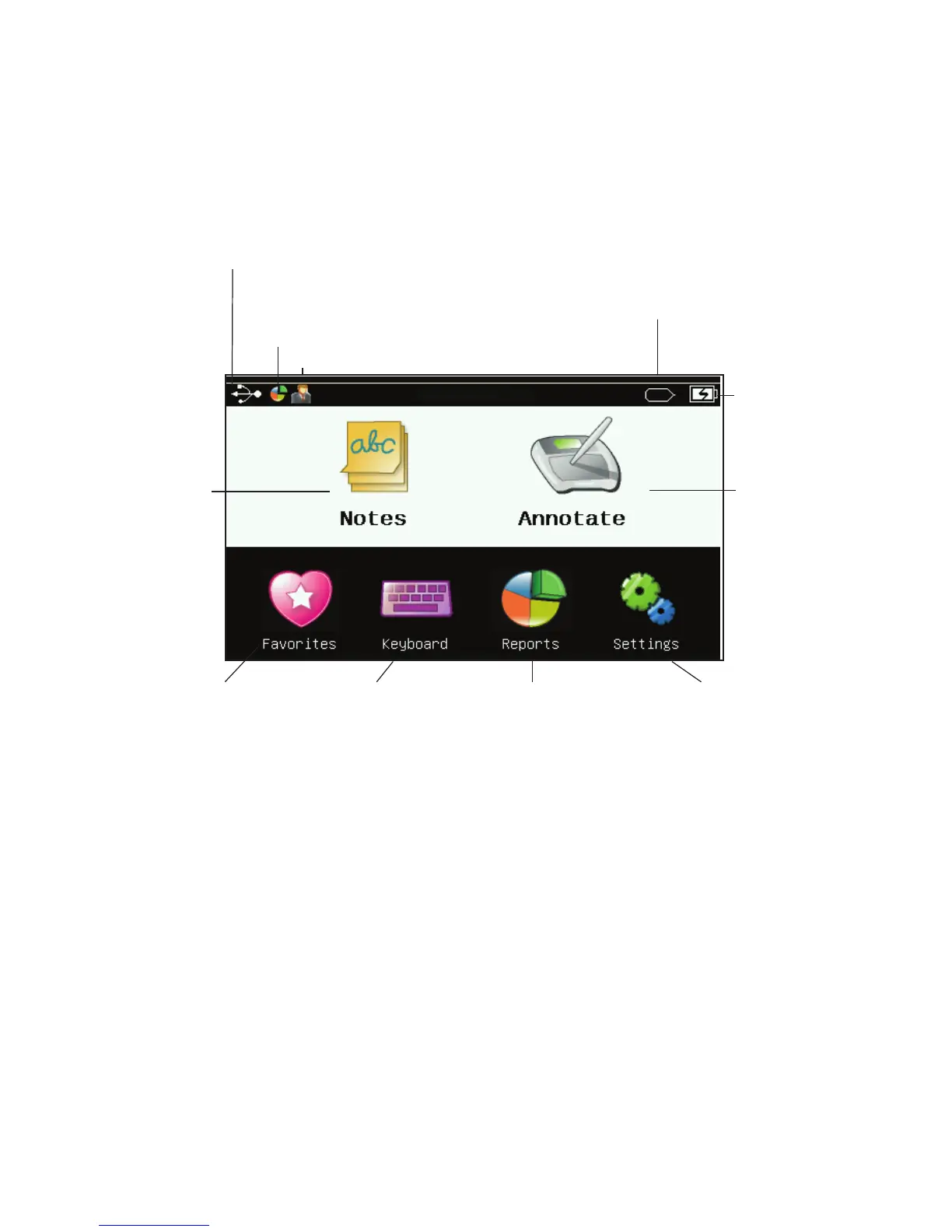
Create,
post,
and save
notes
(page 7)
Annotate
content
(page 8)
Bookmark
favorite files or
websites (page 10)
Access a standard
keyboard
(page 11)
View assessment
reports if using a
student response
system (page 12)
View and adjust
settings (page 13)
Battery life
indicator
Presenter
The Home screen
Pen proximity indicator (appears when
pen near active writing area) or pen
charging indicator (if charging)
2: Using Mobi View
Access all Mobi View features directly from the Home screen.
Note: To conserve battery power, Mobi View goes into “sleep” mode after 1 - 5 minutes of
inactivity and shuts down after 20 minutes. Likewise, the pen goes into “sleep” mode after
2 minutes of inactivity. To wake up your Mobi View and pen, simply press the pen tip to
the Mobi View tablet.
Reports
ready
USB connected
(Signal strength if
disconnected)


 To Next Page