23
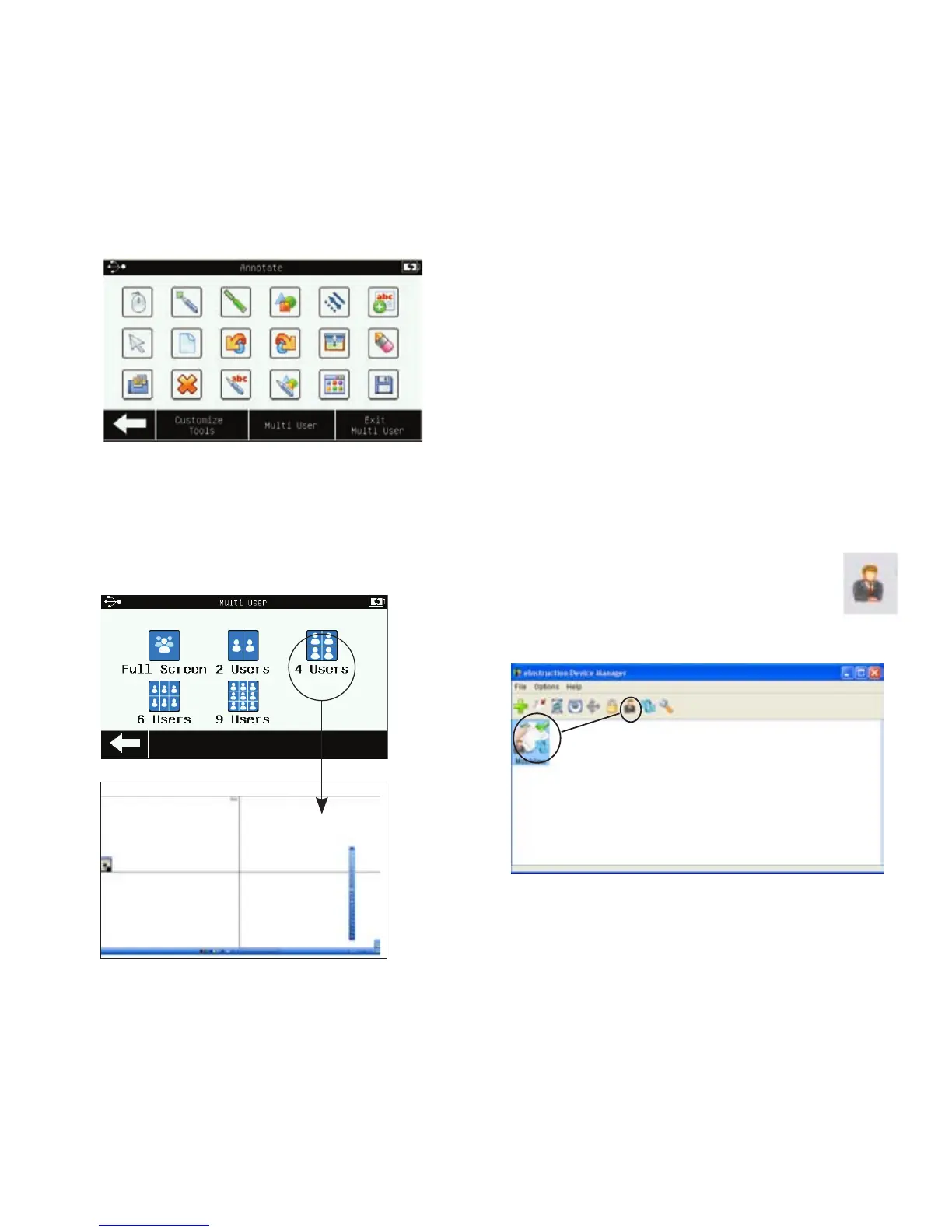
3. Select the desired number
of users to activate the
Workspace multi-user mode.
Workspace in Multi-User mode
4. Press the Exit Multi-User button
to end the multi-user session.
Locking Student Tablets
To lock student tablets and regain
control of the session, press the pen
tip to Mobi View.
Tip! You may also lock devices in
the Device Manager utility on the
computer by selecting the
device and then pressing the
Lock icon.
Designating a Presenter Tablet
1. Open Device Manager. Select
the eInstruction icon from the



 To Next Page