22
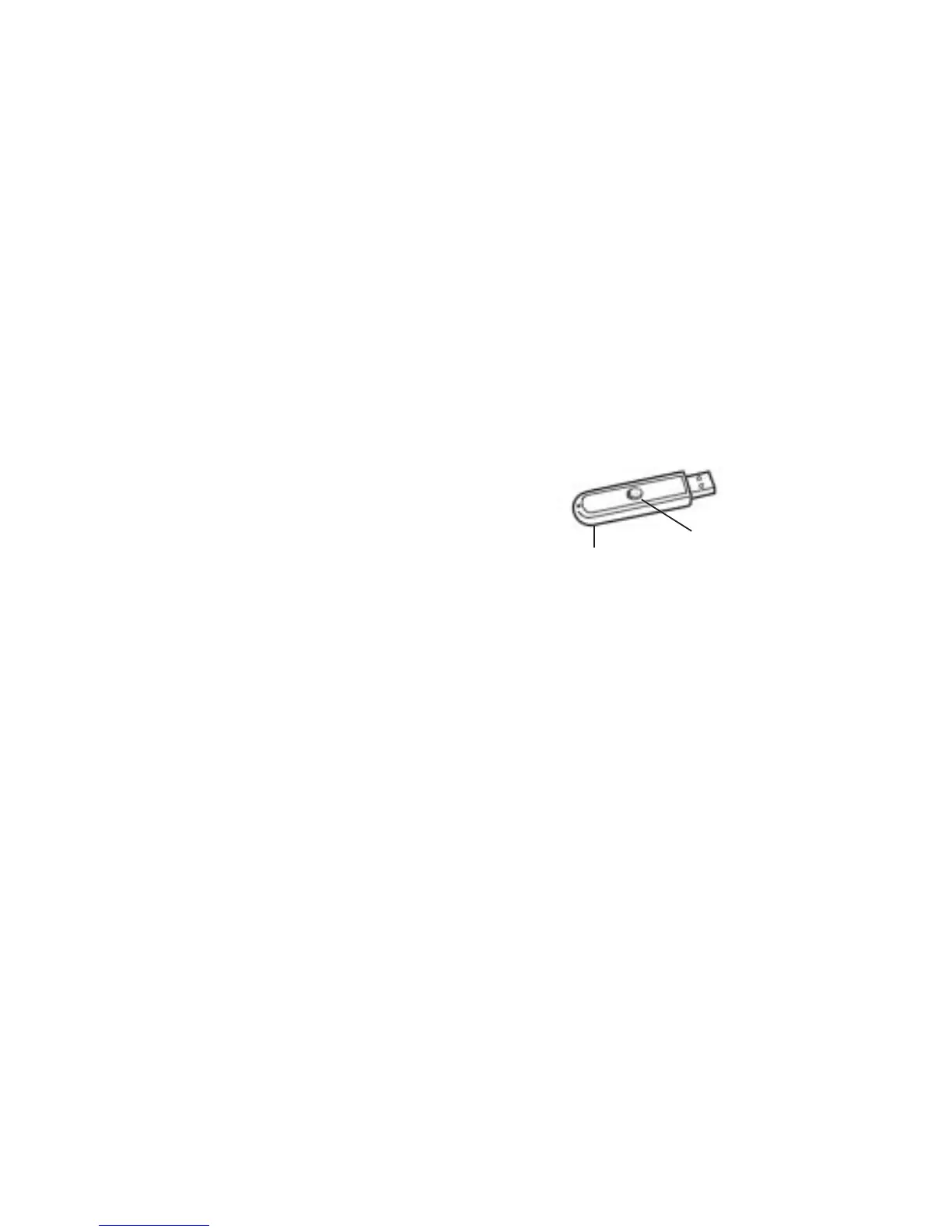
on the Mobi RF Hub, and
then the Activation button
on the Mobi. You must
pair the additional Mobi to
the hub within 2 minutes.
Tip! If adding a Mobi KWIK or
Learner, the activation button is
the blue button next to the battery
compartment.
2. From the Annotate screen,
press the Multi-User button.
Multi-User Mode
Mobi View allows up to nine devices,
including Mobi View, Mobi Learners,
Mobi KWIK, and DualBoard to
interact simultaneously in multi-user
mode.
Mobi View is automatically
designated as the “Presenter” tablet
in a multi-device environment, (if
there is no other device already
set as “Presenter”) allowing you to
start and stop multi-user mode and
to view instant reports if using one
of eInstruction’s student response
systems.
Launching Multi-User Mode
1. Pair each additional Mobi
you wish to connect by first
pressing the Activation button
3: Getting the Most Out of Mobi
Activation button
RF Hub



 To Next Page