EasyManua.ls Logo

eInstruction MOBIView - User Manual

eInstruction MOBIView
36 pages
Print Icon
To Next Page IconTo Next Page
Loading...
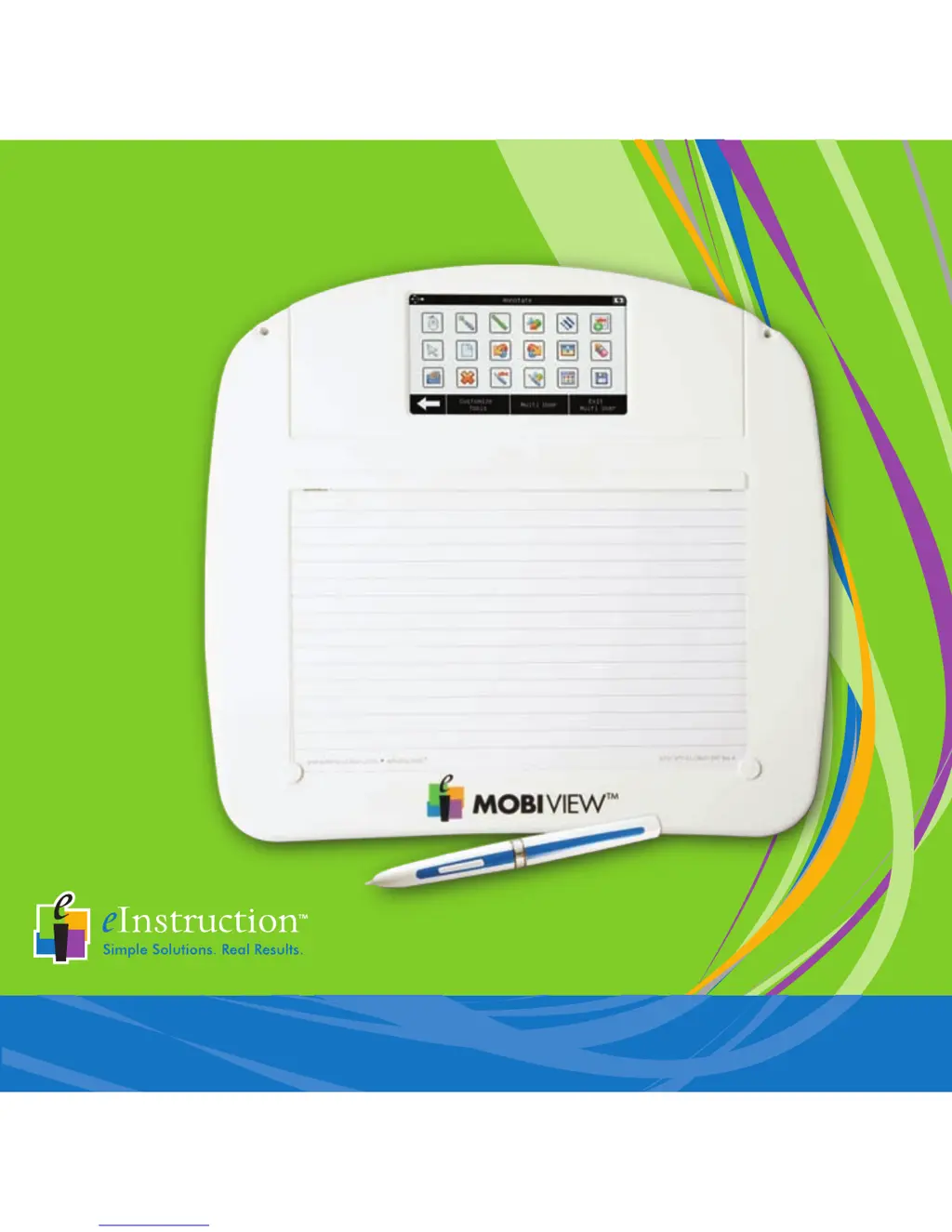
MOBIView
Quick Start Guide

Questions and Answers

  • J
    Julie HaleyJul 26, 2025
    What to do if my eInstruction Tablet Mobi View is not communicating?
    • A
      Ashley HumphreyJul 27, 2025
      If your eInstruction Tablet Mobi View is not communicating, it may have entered sleep mode after 15 minutes of inactivity. Try pressing the touchscreen to reactivate it. Alternatively, from the Settings screen, select the Pair with Hub button, or from the Device Manager utility, try reconnecting the board. Also, ensure you're using the Mobi View RF hub if you are in a multi-device environment.
  • K
    Karla TravisAug 6, 2025
    How to fix eInstruction Tablet pens that are not charging?
    • S
      Sarah YoungAug 6, 2025
      If the pens for your eInstruction Tablet are not charging, first check that you have removed the plastic tab from the pen battery compartment. Also, make sure the pens are correctly seated in the pen charger and that the Mobi View is charged. When Mobi View is on, the Pen Charging icon should appear on the home screen while the pen is charging.
  • K
    Keith MartinezAug 15, 2025
    Why are my eInstruction Tablet annotations not lining up with the pen in Notes feature?
    • S
      Stephanie HortonAug 16, 2025
      If your annotations aren't lining up with the pen when using the Notes feature on your eInstruction Tablet, recalibrate the touchscreen. Go to Settings, select Calibrate Touchscreen, and then follow the calibration wizard.

Summary

Getting Started

Before You Begin

Essential prerequisites and system compatibility info.

Setting Up Mobi View

Detailed steps for charging the Mobi View and pen.

Install Software

Guide to loading the Workspace software from the CD.

Using Mobi View

Notes

Creating and saving private or public notes for class sharing.

Annotate

Using Workspace tools to annotate content and collaborate.

Getting the Most Out of Mobi

Multi-User Mode

Allows up to nine devices to interact simultaneously in a session.

Launching Multi-User Mode

Steps to pair additional Mobi devices and start multi-user mode.

Workspace in Multi-User mode

How to manage the multi-user session and exit it.

Caring for Mobi View

Pen

Support and Troubleshooting

Troubleshooting Mobi View

Common problems and their solutions for Mobi View issues.

Hardware and Software Requirements

eInstruction MOBIView Specifications

General IconGeneral
BrandeInstruction
ModelMOBIView
CategoryTablet
LanguageEnglish