(1) This device may not cause interference.
(2) This device must accept any interference, including interference
that may cause undesired operation of the device.
This device contains licence-exempt transmitter(s)/receiver(s)
that comply with Innovation, Science and Economic Development
Canada’s licence-exempt RSS(s). Operation is subject to the
following two conditions:
8
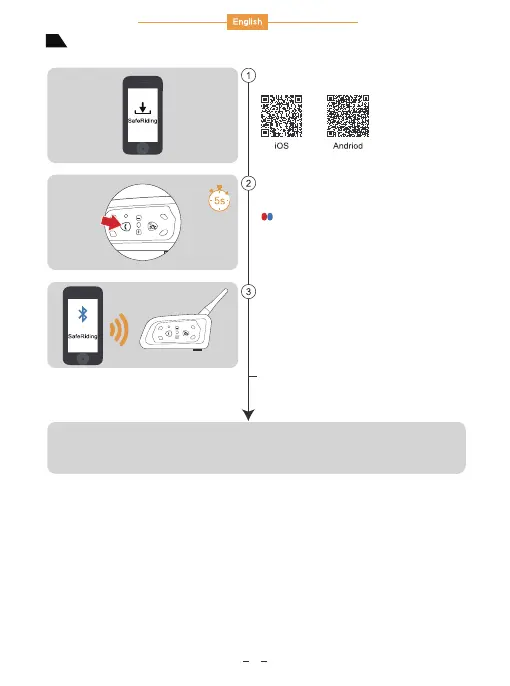
APP provides intercom group, music control, FM control, switch
off, check authenticity and other functions.
Mobile App
Press and hold (approx. 5s)
<Phone Button> until the red and
blue lights flash alternately.
Open the APP, click on the Bluetooth icon in the
top right corner, the interface shows the name of
the intercom device searched, select the intercom
device to be connected,and click to connect.
(IOS system needs to enter the phone pairing
again, in the system settings->Bluetooth, connect
audio Bluetooth)
Open the APP the next time you use it. Click the
Bluetooth icon in the top right corner and click to
select Intercom for connection from the paired
devices.
Red and blue lights alternate quick flash
Download and install SafeRiding mobile
APP for the first time.
B
C
E
D


 To Previous Page