Need help?
Do you have a question about the EJEAS MS4 and is the answer not in the manual?
This document outlines the features and operations of the EJEAS MS4/MS6/MS8 Mesh Group Intercom System, designed for off-road communication. The system supports various modes of communication, music playback, and integration with mobile devices, offering a comprehensive solution for riders.
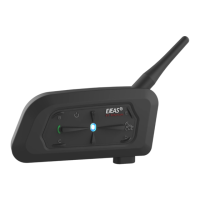
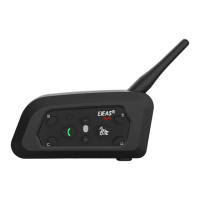
The EJEAS MS4/MS6/MS8 series are mesh group intercom systems that facilitate communication among multiple riders. These devices are equipped with an intercom button, volume controls (plus and minus), and a combined phone/power button. LED lights indicate the device's status, with different colors (blue, red, green) signifying various modes and alerts. The series includes MS4, MS6, and MS8 models, each supporting a different number of riders and offering varying maximum communication distances.
The intercom system supports two primary communication modes: Mesh Intercom and Bluetooth Intercom.
Mesh Intercom allows for group communication among multiple riders. In Sport Mode, the MS4 supports up to 4 riders, with a maximum distance of 1.8km between two riders in open terrain and 0.9km in traffic. The total connection distance for 4 riders is approximately 1.5-3km. The MS6 supports up to 6 riders, maintaining the same 1.8km/0.9km individual rider distance, with a total connection distance of 2.5-5km for 6 riders. The MS8 extends this to 8 riders, with a total connection distance of 3.5-7km.
To initiate Mesh Intercom in Sport Mode, all intercoms must first enter pairing mode. This involves pressing and holding the Intercom Button for approximately 5 seconds until the voice prompt "Sport Mesh Pairing" is heard, and the red and green lights flash alternately. One unit is then designated as the pairing server, and its Intercom Key is briefly pressed, resulting in a beep and the red and green lights flashing alternately twice. A "Pairing Successful" message confirms the connection, and all intercoms will eventually announce "Join the Mesh," indicating readiness for communication.
The system also features a Listening Mode, where other intercoms can be paired to form a team. In this mode, one intercom acts as the creator, and others as listeners. To enter listening mode pairing, the listener presses and holds the Messenger key + Minus key for about 5 seconds, hearing "Listen Mesh Pairing" and seeing alternating red and green lights. The creator, an intercom already paired in sport mode, then presses and holds the Intercom Button + Volume - for about 5 seconds, also hearing "Listen Mesh Mesh Pairing" and seeing alternating red and green lights. A brief press of the Intercom Button on the creator unit will then initiate the pairing.
Mesh Intercom Reconnect allows devices to automatically resume intercom mode if they were turned off directly without explicitly turning off the intercom mode. To manually reconnect, briefly press the Intercom Button. To turn off Mesh Intercom, press and hold the Intercom Button for approximately 1 second until "Mesh Close" is announced. The Mesh Microphone Mute feature is activated by clicking the Intercom Button, displaying "Microphone Mute," and can be unmuted by clicking it again, prompting "Microphone Unmute."
When entering the Mesh network, Bluetooth music can be played simultaneously. If someone speaks, the system automatically switches to Mesh intercom, and after a period of silence, music playback resumes.
Bluetooth Intercom enables pairing with other intercoms, including older models (V6/V4) and other branded Bluetooth headsets. To pair, press and hold the Phone/Power Button + Volume + for approximately 5 seconds until red and blue lights flash alternately, and "Intercom Pairing" is heard. Other intercoms follow the same procedure to enter pairing state. Once discovered, one intercom initiates the connection, and "Pairing Successful" confirms the link.
For older models, simultaneously press and hold Phone/Power Button + Volume + + Intercom Button for approximately 5 seconds to start pairing. The system will search for other intercoms, and "Intercom Pairing" will be announced.
To search for other branded Bluetooth intercoms, press and hold the Phone/Power Button + Volume + for approximately 5 seconds until "Intercom Pairing" is displayed with alternating red and blue lights. Then, click Phone/Power Button + Volume + again to initiate "Intercom Searching," with red and blue lights flashing alternately. The intercom will search for HFP-enabled intercoms and other devices, initiating a pairing connection upon discovery. A "Pairing Successful" message confirms the connection.
Intercom connection is indicated by rapidly flashing blue light and the prompt "Intercom Connected." To disconnect, press and hold the Intercom Button for approximately 1 second, and "Intercom Disconnected" will be heard.
The EJEAS intercom supports connection to mobile phones for playing music, making calls, and activating voice assistants. Up to two mobile phones can be connected simultaneously.
To pair with a mobile phone, press and hold the Phone/Power Button for approximately 5 seconds until red and blue lights flash alternately, and "Phone Pairing" is heard. On the mobile phone, search for "MS4/6/8" in Bluetooth settings and click to connect. A "Pairing Successful, Connected" message will confirm the link, and the current battery level may be displayed on the phone's Bluetooth icon (requires HFP connection).
For Bluetooth reconnection, the device automatically connects to the last paired phone's Bluetooth upon power-on. If no connection is made, clicking the Phone/Power Button will attempt to reconnect to the last connected phone.
The system prioritizes telephone calls, interrupting Bluetooth music, FM radio, and intercom communication. These functions resume after the call ends.
To activate the voice assistant, press and hold the Phone/Power Button for 1 second while in standby or playing music. This feature requires mobile phone support. Commands such as "Open QQ Music," "Music on a song," "Music next," "Call EJEAS," and "Open navigation" can be used.
The device includes an FM radio (76-108MHz) that can automatically search and play radio stations. FM can be used during intercom conversations, allowing users to listen to the radio while talking.
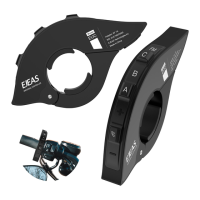
The EUC is an optional remote control for the intercom.
The EUC provides control over various intercom functions:
To restore the device to its default settings, press and hold the Phone/Power Key + Volume + + Volume - for about 5 seconds. "Restore Default Settings" will be announced, the pairing record will be deleted, and the phone will automatically reboot.
Firmware upgrades can be performed by connecting the product to a PC via USB. Download and open the "EJEAS Upgrade.exe" software. Click the "Upgrade" button and wait for the process to complete.
The EJEAS SafeRiding Mobile App enhances the intercom experience.
The app provides features such as intercom group management, music control, FM control, device power-off, authenticity checks, and other functions. For subsequent use, simply open the app, click the Bluetooth icon, and select the intercom from the paired devices list to connect.
 General
| Brand | EJEAS |
|---|---|
| Model | MS4 |
| Type | Motorcycle Bluetooth Intercom |
| Bluetooth Version | 5.0 |
| Range | 1000 meters |
| Number of Connected Devices | 4 |
| Standby Time | 300 hours |
| Charging Time | 2 hours |

 To Next Page