!
MENU AND SETUP FUNCTIONS
SAVE MEMORY FILE TO COM PORT
This allows you to back up the memory directly to a PC using the RS-232 port. While in this
menu, pressing “enter” starts the data transmission. The contents of the memory are encoded in
text format and can be recorded by a PC connected to the RS-232 port. Read the section at the
end of this manual on using the computer port for more information on how to back up the
memory this way.
LOAD MEMORY FILE FROM CF
This allows you to restore the memory from a backup. Pressing, “Enter” displays the message
“Select memory file, then press enter” on the top line of the display. The name of the first Show
Designer 2CF memory file on the CF card will appear on the bottom line of the display, use data
wheel 1 to select the desired file. Press “enter” to load the file. Warning: the current memory will be
overwritten. Read the section at the end of this manual on using the compact flash for more
information.
LOAD MEMORY FILE FROM COM PORT
This allows you to restore the memory from a backup that was made using the RS-232 port and
a PC. Pressing, “enter” configures the RS-232 port for memory read and waits for the file to be
sent from a PC. Read the section at the end of this manual on using the computer port for
details on how to back up and restore the memory this way. The only way to exit this menu is
to turn the power off.
LOAD FIXTURE PROFILE FROM CF
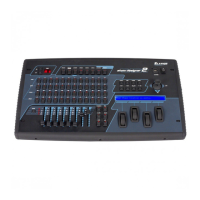
This allows you to load fixture profiles into the Show Designer 2CF from a compact flash card.
Fixture profiles are small files that are available from elationlighting.com that contain detailed
information about a lighting fixture such as the name and function of each of the channels as
well as the name and DMX values of steps within a channel. Once loaded, a profile can be
selected from the fixture list when choosing fixtures. Fixture profiles are most useful when
using the data wheels to program lighting fixture channels. The display will be able to show
the function and current setting for each channel. The wheels will be able to select
preprogrammed steps within a channel such as the colors on a color wheel. These channel
steps can also be accessed using presets (explained in more detail in a later section).
The message “Select fixture file, then press enter” will appear on the top line of the display.
The bottom line of the display will show the first fixture profile found on the disk, use data
wheel 1 to select a profile (if there is more than one profile on the disk) then press “enter”. The
profile will be loaded into memory and can now be selected using the “choose fixtures” menu.
Up to 256 fixture profiles can be loaded into memory.
LOAD FIXTURE PROFILE FROM COM PORT
This allows you to load fixture profiles into the Show Designer 2CF from a PC using the COM
port. When this menu item is selected the message “Ready to receive fixture profile” will
appear. You must send the fixture file from your PC to the Show Designer using the “SD
backup” program available from elationlighting.com. Read the section later in this manual on
how to use the computer port for more information on this topic.



 To Next Page