92 ELECRAFT
CW Operation
The K2 provides a number of features for the CW operator:
fast I.F.-derived AGC with fast/slow/off control
full break-in operation with no relays
accurate control of sidetone volume and sidetone pitch/offset
memory keyer with Iambic modes A and B,
nine programmable message buffers; chaining and auto-repeat
software-selectable paddle selection (normal or reverse)
multiple crystal filter bandwidths and opposite-sideband CW
dedicated
S P O T switch for accurate signal pitch matching.
optional low-noise analog audio filter
Several advanced CW features are covered in later sections:
Fast-Play ("one touch") message buffers (page 100)
Adjustable keying weight (page 100)
"smart" CW signal scanning (page 96)
FINE RIT for fine-tuning CW signals (page 99)
Keying Device Selection
A single connector in the back is provided for your keyer paddle,
hand key, keyer, or computer. It is also possible to connect both a
paddle and an external keyer or computer at the same time (see
External Keying Auto-Detect, below).
You must use a stereo (2-circuit) plug, even if you use only a hand
key or external keyer. This should not affect the use of the keying
device with other equipment, since the middle contact on the plug
(often called the "ring" contact) is only used with keyer paddles.
Hand key or External Keying Device: To use a hand key or
external keying device, select I N P H A N D using the menu. Use the
"tip" contact (DOT) of the key jack with a hand key or external
keying device. You can key the K2 externally at up to 70 WPM.
Internal Keyer: To use a keyer paddle, use the menu to choose
I N P P D L n or I N P P D L r (normal or reverse paddle). With
P D L n selected, the "tip" contact on the stereo key jack is DOT
and "ring" (the middle contact) is DASH. P D L r is the reverse.
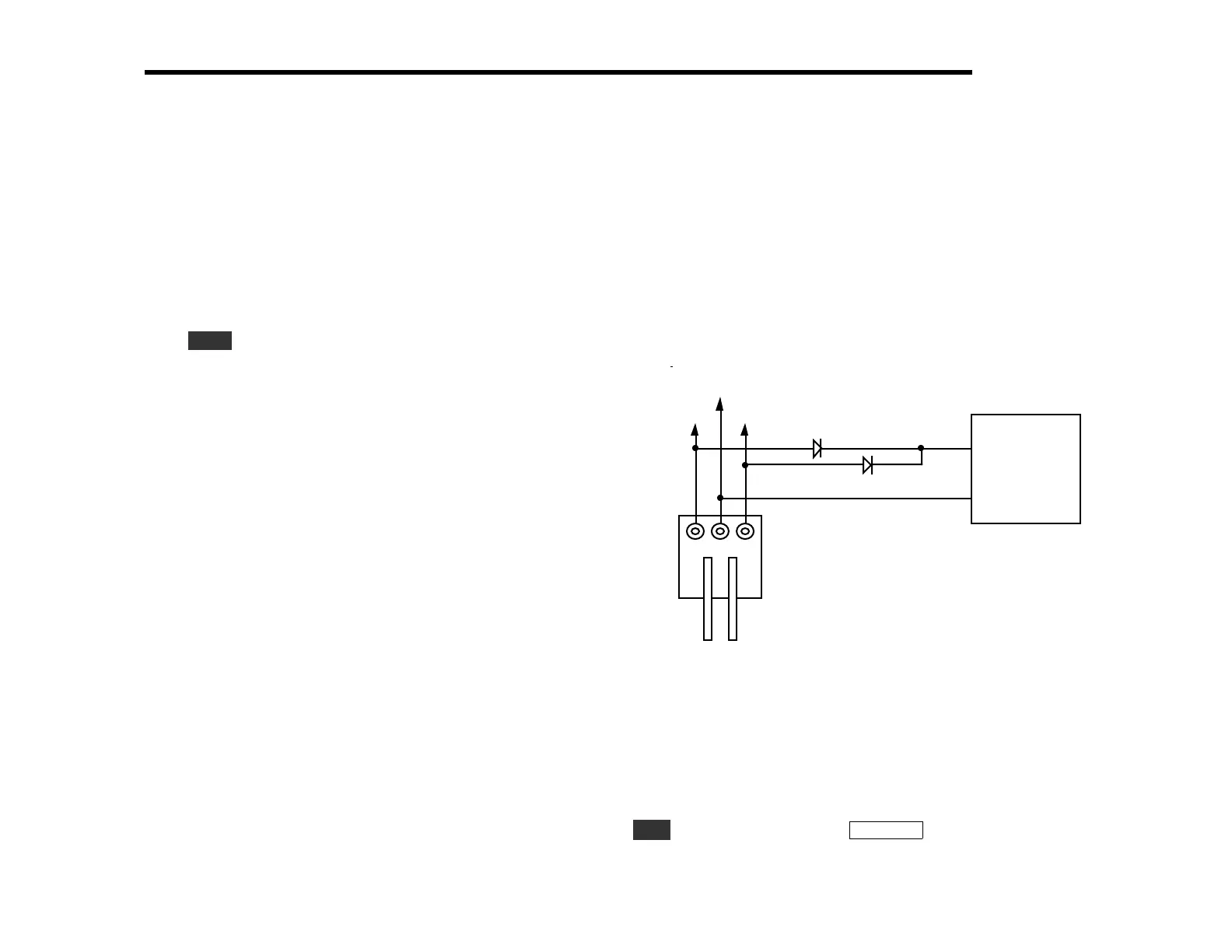
External Keying Auto-Detect: If you wish to connect a
handkey, external keyer or computer along with a keyer paddle,
you can use the K2’s "auto-detect" feature. Simply connect your
external keying device to the DOT and DASH lines through two
diodes as shown in Figure 8-1, along with the keyer paddle. Be sure
you have selected I N P P D L n or I N P P D L R in the menu.
DO T DASH
GROUND
TO K2 KEY JACK
PADD LE
H ANDKE Y,
COMPUTER,
OR EXT ERNAL
KEYER
1N5817, 1N4148, etc.
GROUND
KEYLINE
Figure 8-1
When you connect the keying devices in this way, you can
continue to use the paddle as usual. But if the external keying
device is keyed, both the DOT and DASH lines will be pulled low
simultaneously via the diodes. The K2 firmware interprets this as
direct external keying rather than as DOT or DASH triggers.
Auto Detect can be turned off if desired. Find the I N P menu entry,
E D I T the parameter, then tap D I S P L A Y to select A D E T O F F .


 To Next Page