21
On-screen buttons can have one or two functions. For example, the
<LAST CTRL> button in the operating manual screen has only a white
label so it can only be tapped. A yellow label on a button indicates that
a hold function is also available.
Multi-Function Knobs
The three multi-function knobs to the left of the LCD also have built-in
pushbutton switches, giving them tap and hold functions. Tap a knob
to select a function to adjust; hold to select an additional function
labeled in yellow below the knob.
Each of the specially shaped LCD buttons associated with the
multifunction knobs shows a primary function (upper label), and a
secondary function in yellow italics, accessed by tapping the button a
second time. A knob always controls the parameter associated with
the upper label on the selected button.
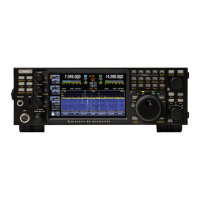
FRONT PANEL OVERVIEW
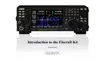
A large (7" diagonal) color LCD forms the heart of the K4's user
interface. Most of the screen is dedicated to either a single
panadapter (associated with VFO A or VFO B), or split between dual
panadapters (centered below the VFO A and VFO B displays,
respectively). Between the VFOs and panadapters are the bar graph
meters and icons for transmit and receive. Along the bottom edge of
the LCD are the Info button (<?>) and seven primary function
buttons (see PRIMARY FUNCTIONS.)
Some LCD elements are color-coded, as follows: orange = TX, blue =
main RX, green = sub RX. (Alternate color schemes may be provided in
the future.)
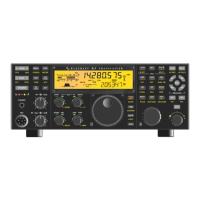
The remaining controls are physical knobs and switches, arranged
similarly to that of the Elecraft K3/K3S transceiver:


 To Next Page