previous section. Port forwarding must be successfully enabled before the K4
can be used remotely.
2. Install version R36.BETA1 (or later) software on the server K4. Earlier
versions do not support remote front-panel emulation.
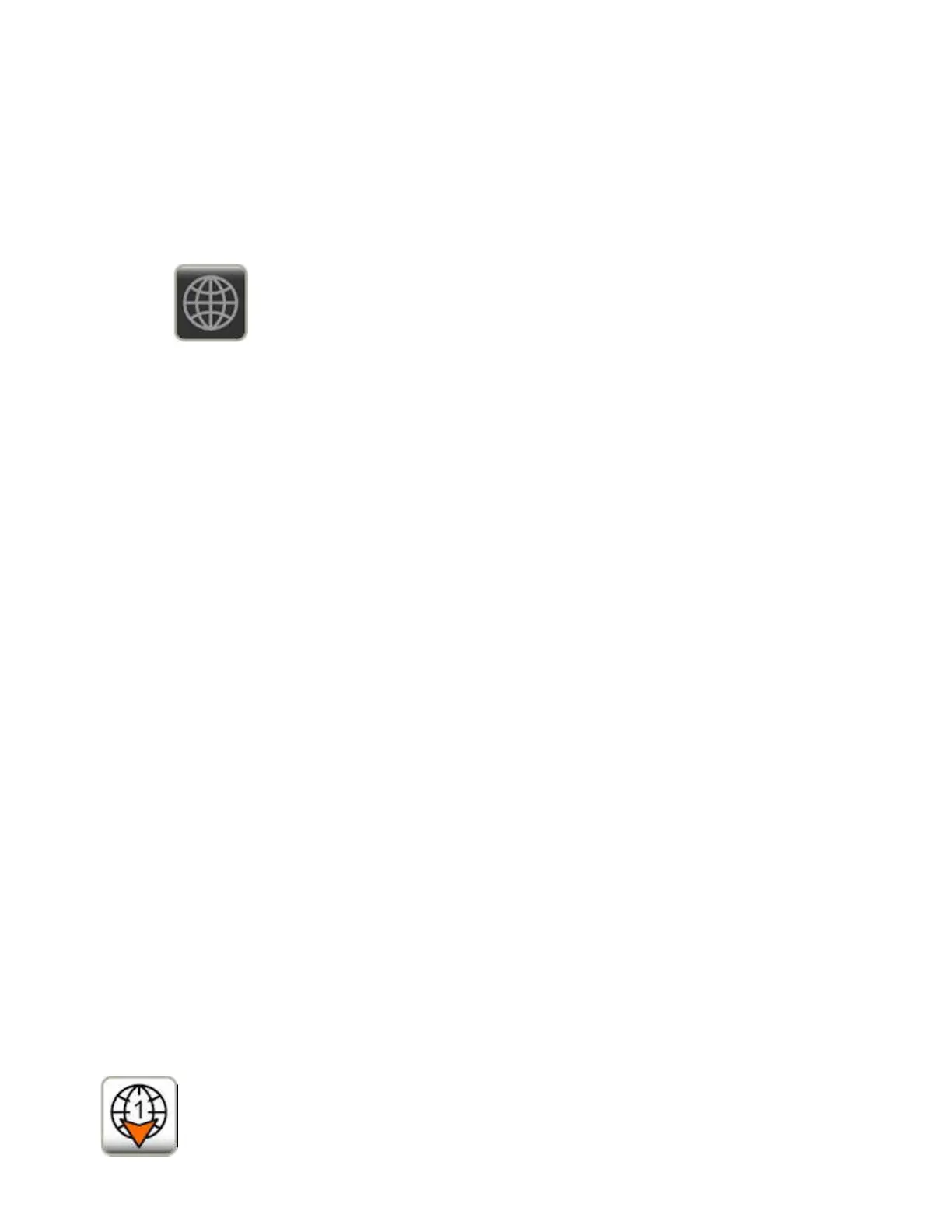
3. On the K4 operating screen, you'll see a new "globe" button near the "?"
button:
Whenever the globe button is grayed out, as above, the K4 is not acting as
a client or as a server.
4. Tap the globe. This will initially bring up the client settings screen. Tap
the <SERVER SETTINGS> button at the bottom to go to server settings.
5. Tap the <Password> field. Use the pop-up keyboard to enter a server
password. Do not use '$' as a password character. Upper and lower-case
letters and 0-9 are recommended. The password is case-sensitive. (You can
tap the "eye" icon, top right, to make the password visible.) Use a non-
obvious password to ensure you can control who has access to your radio.
Tap the keyboard's <ENTER> button to save, or <x> to cancel.
6. Change "Max Clients" to the desired number. 1 is recommended, though
up to 4 concurrent connections can be supported (varies with available
network bandwidth). If you set it to 0, no client connections will be
allowed. (This action will not disconnect a current client connection,
however.)
7. Tap the return arrow to return to the operating screen.
Client devices will now have access to your K4. If one or more clients are
connected, the globe icon will have an arrow pointing down, along with the
current number of client connections. The example below shows one
active client connection.
90


 To Next Page