14
Operating Your Television
Selecting Input Source
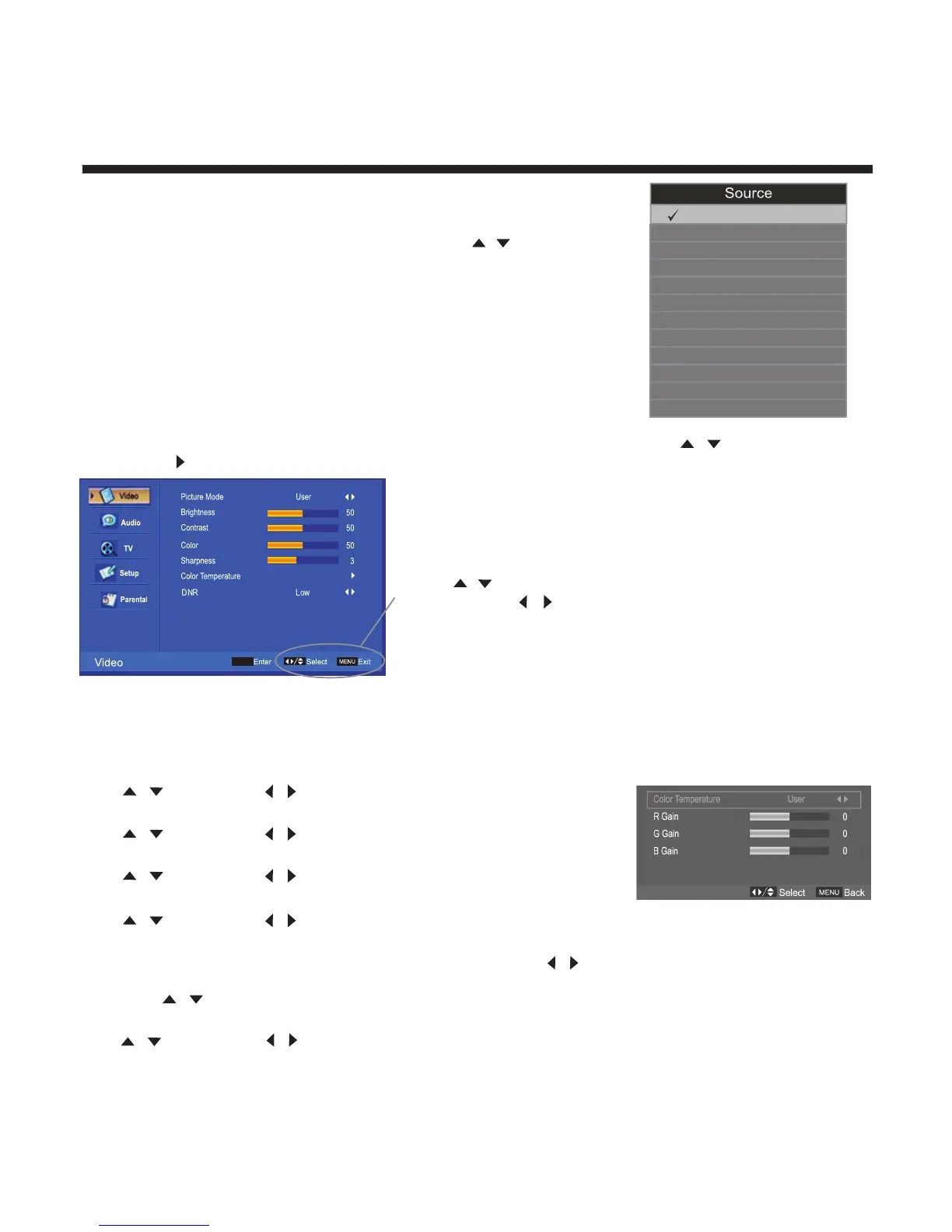
You can display the input screen menu by pressing SOURCE on the
remote control or SOURCE on the front panel, press / button to
select, press “OK” to confirm.
TV
AV1
AV2
AV3
S-VIDEO
YPBPR1
YPBPR2
VGA
HDMI1
HDMI2
HDMI3
USB
Video Menu Options
Press the MENU on the front panel or MENU on the remote control and then use / to select the Video
menu, press or OK to enter (see picture below).
1. Use / to select what you want to adjust in the Video menu.
2. Press OK or / to adjust (according to the hint below)
3. When you are satisfied with your adjustment, press
MENU
to exit.
Picture Mode
Select the type of picture which best corresponds to your viewing preferences by selecting Picture Mode in
the VIDEO menu. You may select the picture mode directly by pressing the P.MODE button on the
remote control.
Brightness
Press / and then use / to adjust the brightness of the picture.
Contrast
Press / and then use / to adjust the contrast of the picture.
Color
Press / and then use / to adjust the color of the picture.
Sharpness
Press / and then use / to adjust the sharpness of the picture.
Color Temperature
Press “OK” to enter the submenu for Color Temperature. Press / to select mode
----- User, Cool, Standard, Warm
Then press / to select “R Gain, G Gain, B Gain” in “User” mode.
DNR
Press / and then use / to adjust the Digital Noise Reduction of the picture.
OK


 To Next Page