7
to your Internet Tablet.
(1) Connect your Internet Tablet to a computer with the supplied USB cable.
(2) Once connected, two removable disk drives appear in your computer. One
represents the internal memory of your Internet Tablet, and the other
represents the memory card inserted into your Internet Tablet. Now you can
copy files from or to these disk drives.
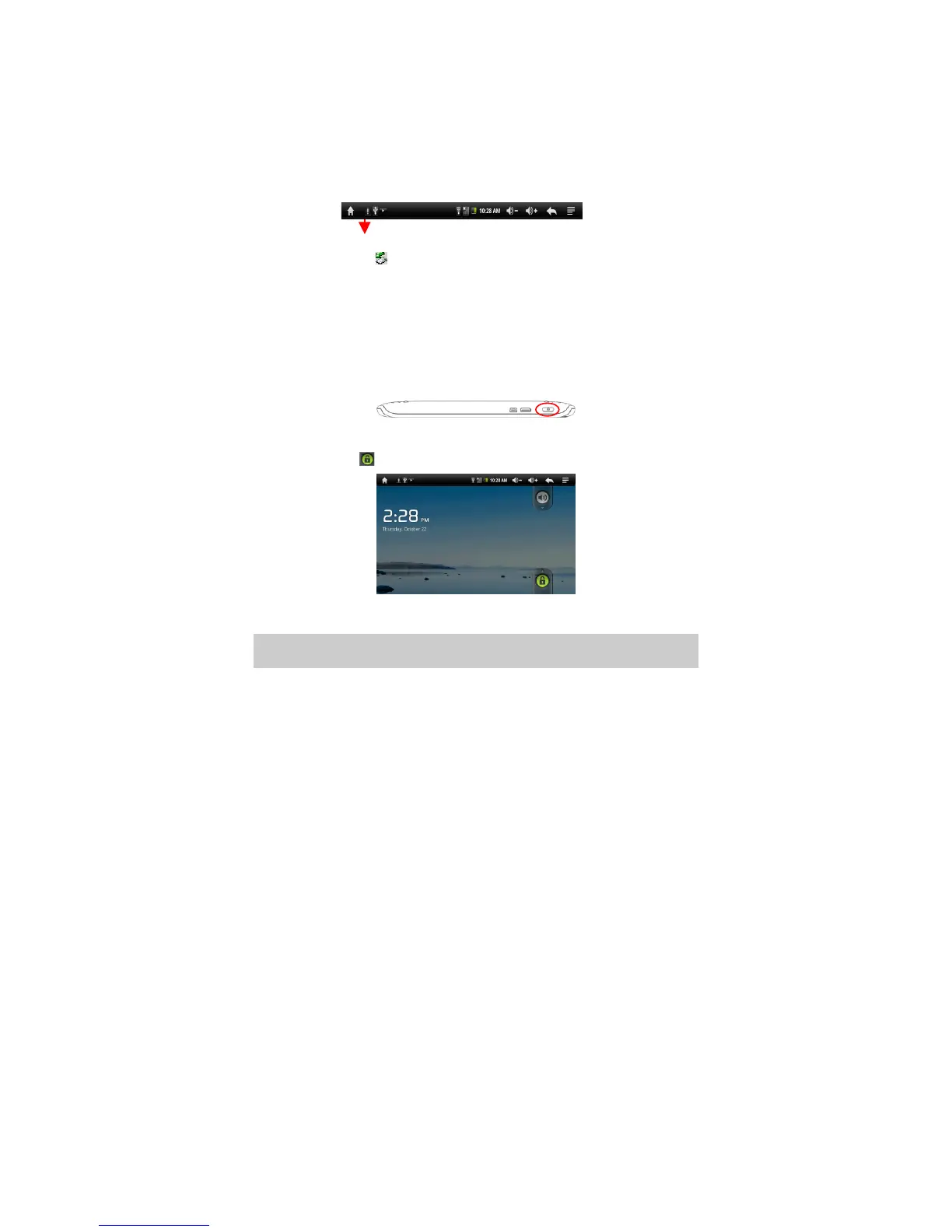
(3) Once the data transfer completes, drag from the top bar downwards to
display the USB notification message. Choose “Turn off USB Storage” and
then tap on “Turn Off” to disconnect the device from computer.
(4) Remove the player from the PC safely.
a) Left-click the icon at the right bottom corner of the computer desktop.
b) Click the pop-up mini-window with message of “Stop the USB Mass
Storage Device – Drive (X)”.
c) Remove the player from the computer.
Turning On/Off
To turn on the device, press and hold the Power button on the unit until you see
the boot-up screen. It may take a few minutes to start up the system, please wait
before you proceed.
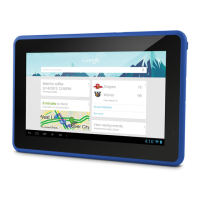
You should see the following locked screen once the device turns on. Before you
start using the device, you need to unlock the screen first. To unlock the screen,
drag the lock icon upward.
To turn off the device, press and hold the Power button until you see the option
“Power Off”, tap on “Power Off” and then tap on “OK”.
Tip: Your Internet Tablet will sleep with the screen off if it stays inactive for a few seconds.
You can briefly press the Power button to turn on the screen and wake it up.







 To Next Page