8
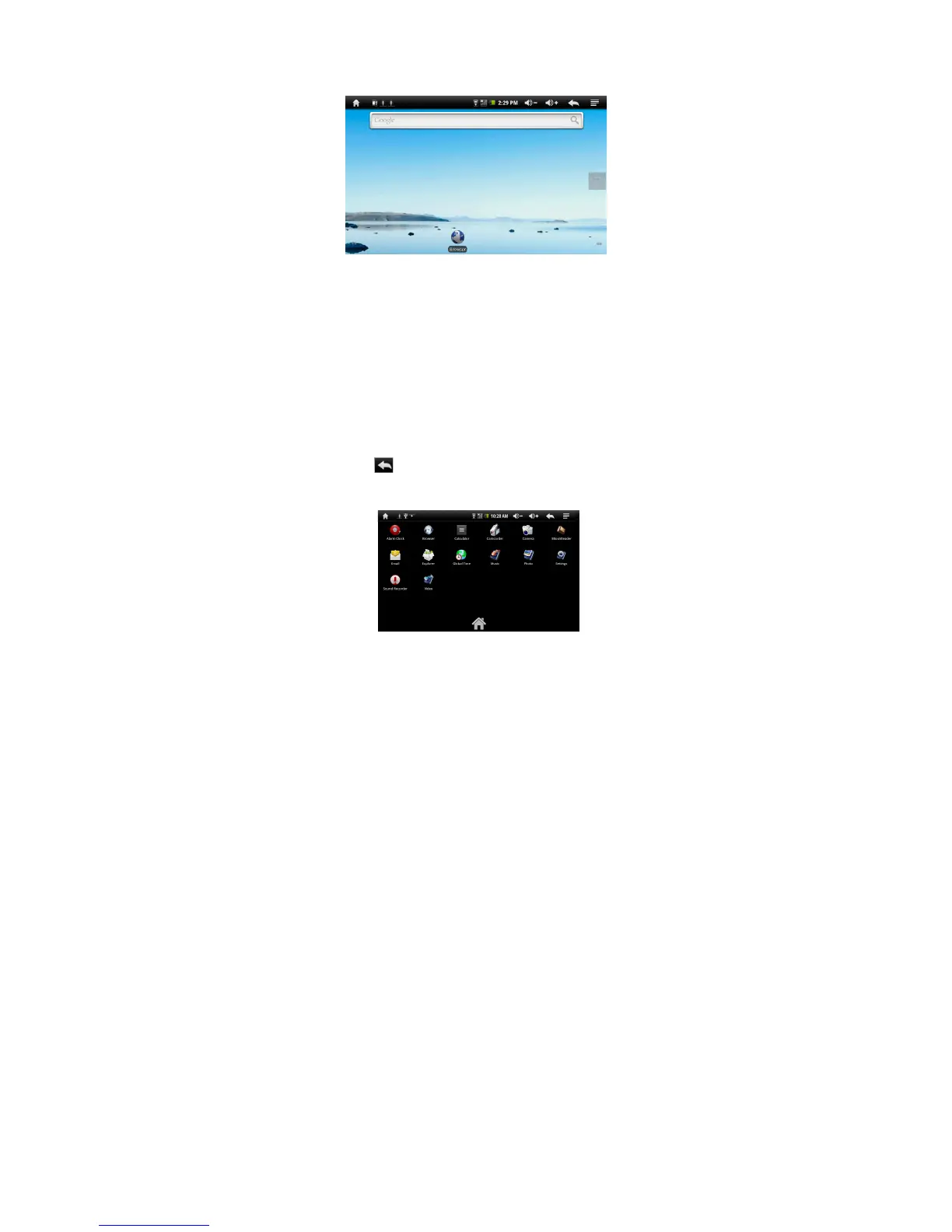
Home Screen
Indications
a. Home: Go back to the Home Screen wherever you are in the interface.
b. Memory Card: the exclamation mark indicates no available memory card,
and it should disappear once a memory card is available.
c. Wi-Fi/ 3G Network
d. Battery Charge
e. Current Time
f. Volume Down: Tap briefly or continuously to decrease the volume.
g. Volume Up: Tap briefly or continuously to increase the volume.
h. Return: Return to the previous directory.
i. Menu: Tap to display an overlay setting menu.
j. Address Inputting Area. You can input the website address by tapping
this field. A virtual keyboard should appear. Use the keyboard to type in
letters. Tapping will hide the keyboard.
k. Applications Tab: Tap on this icon to reveal all applications installed on
your Internet Tablet (alarm clock, calculator, GlobalTime etc.).
- You can copy the applications onto the Home screen by pressing and
holding on their icons.
- You can delete the application from the Home Screen by dragging
their icons to the Application Tab. To delete a Home screen item, hold
your finger onto it until it is highlighted, then drag it to the Application







 To Next Page