31
(1) Make sure the visual device like digital television that the device connects has a
HDMI interface also.
(2) Turn on the digital television, and switch its mode to HDMI.
(3) Connect the HDMI cable to the HDMI interface of the device and the digital
television.
(4) Turn on the device, and play a video. When the video is playing, tap on the
button to display the overlay menu. Choose “HDMI” from the overlay menu, and
then choose “Output 720p”.
(5) Enjoy the sharpest image quality on the wide screen of the connected visual
device.
(6) To switch the image display to the device screen, tap on the device screen.
Viewing Photos
Tap on the Application Tab to display all applications, and then select “Photo
Browser” to enter the photo mode.
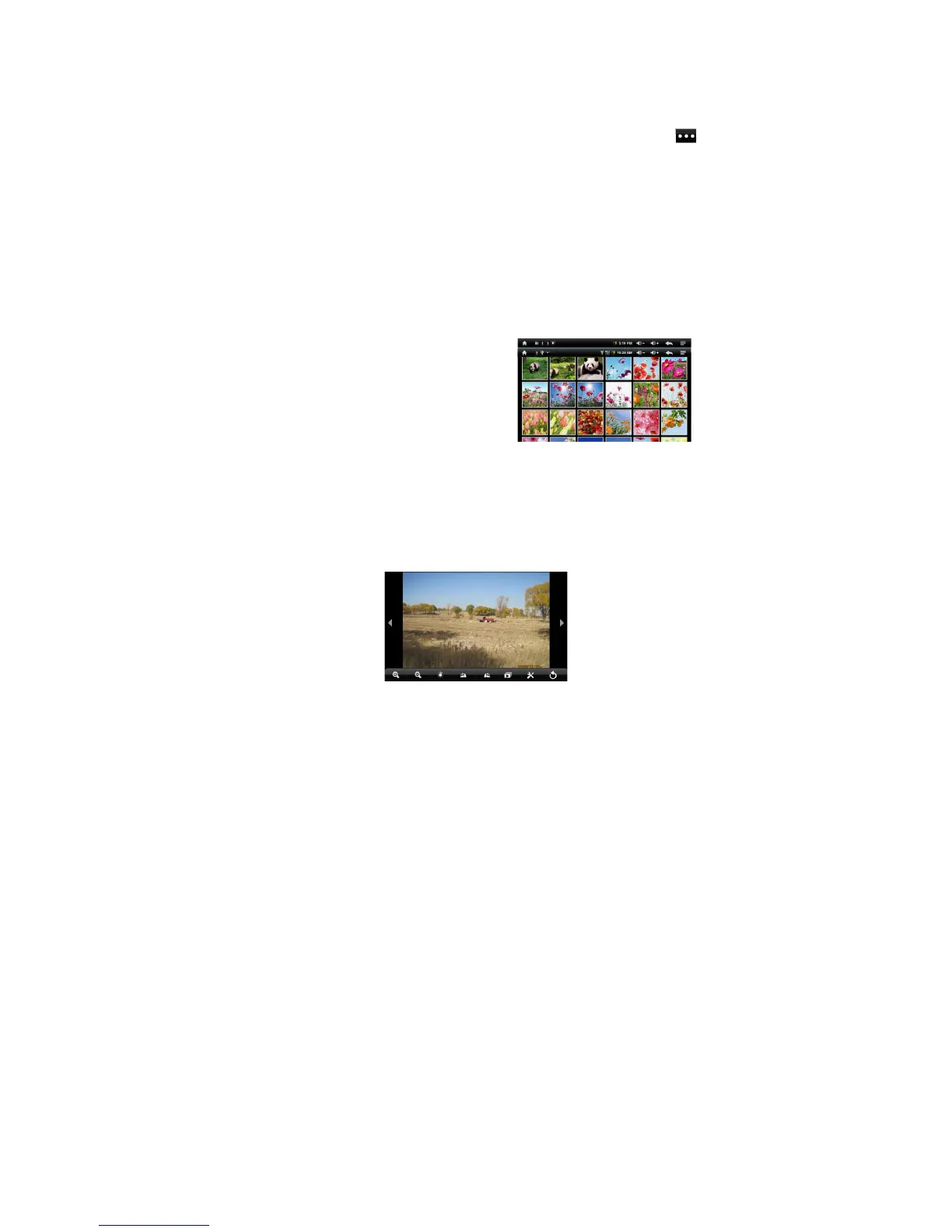
Photo Thumbnails
The first screen of the Photo mode shows all
the photos and subfolders located in your
Internet Tablet or memory card in
thumbnails.
To view a photo, tap on its thumbnail to open
it. If a photo is in a subfolder, open the
subfolder, and you will see your photo.
Viewing Photo
When you are viewing picture, you can tap on the screen to show a floating
toolbar at the bottom of the screen.







 To Next Page