1-9-1 E9400TEST
FIRMWARE RENEWAL MODE
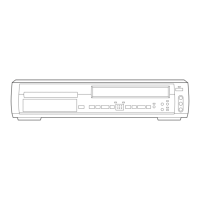
1. Turn the power on and remove the disc on the tray.
2. To put the DVD recorder into version up mode,
press [CM SKIP], [6], [5], and [4] buttons on the
remote control unit in the order. The tray will open
automatically.
Fig. a appears on the screen and Fig. b appears on
the VFD.
3. Load the disc for version up.
Fig. c appears on the screen. The file on the top is
highlighted as the default.
When there is only one file to exist, Step 4 will start
automatically.
4. Select the firmware version using arrow buttons,
then press [ENTER] button on the remote control
unit.
Fig. d appears on the screen and Fig.E appears on
the VFD. The DVD recorder starts updating.
The appearance shown in *1 of Fig. d is described
as follows.
5. After updating is finished, the tray opens automati-
cally.
Fig. f appears on the screen and Fig. g appears on
the VFD.
6. Press [POWER] button to turn the power off. Then
press it again.
Firm Update Mode
Please insert a Disc.
ver. R1F0467S1E
Fig. a Version Up Mode Screen
Fig. b VFD in Version Up Mode
Firm Update Mode
UPDATE DISC
JPN
TEST
RIF0025S1E
RIF0035S1E
RIF0056S1E
RIF0078S1E
ver. R1F0467S1E
Fig. c Update Disc Screen
Firm Update Mode
R1F0525S1E
File Loading...
*1
ver. R1F0467S1E
Fig. d Programming Mode Screen
Fig. e VFD in Programming Mode (Example)
AppearanceNo. State
File Loading... Sending files into the memory.
Firmware
Updating...
Writing new version data.
1
2
Firm Update
Failure
-
Failed in updating.
Firm Update Mode
B/E Firmware
Update End
ver. R1F0467S1E
R1F0525S1E
Fig. f Completed Program Mode Screen
Fig. g VFD in Completed Program Mode


 To Next Page
 Loading...