2.2 Installing the e-CamView App on an Apple/Android
device
Before you can view the video of the camera, you need to download and install the
app “e-CamView” from the “Play Store” or “App Store”.
1. Download and install the app “e-CamView” from the “Play Store” or “App Store”.
2. Open “e-CamView”.
3. Select the “+” button to add the camera to the App.
4. A new window opens to enter the data of the camera.
5. Here you can choose to install the camera: “Manually”, “Scan QR code” or
“Search”.
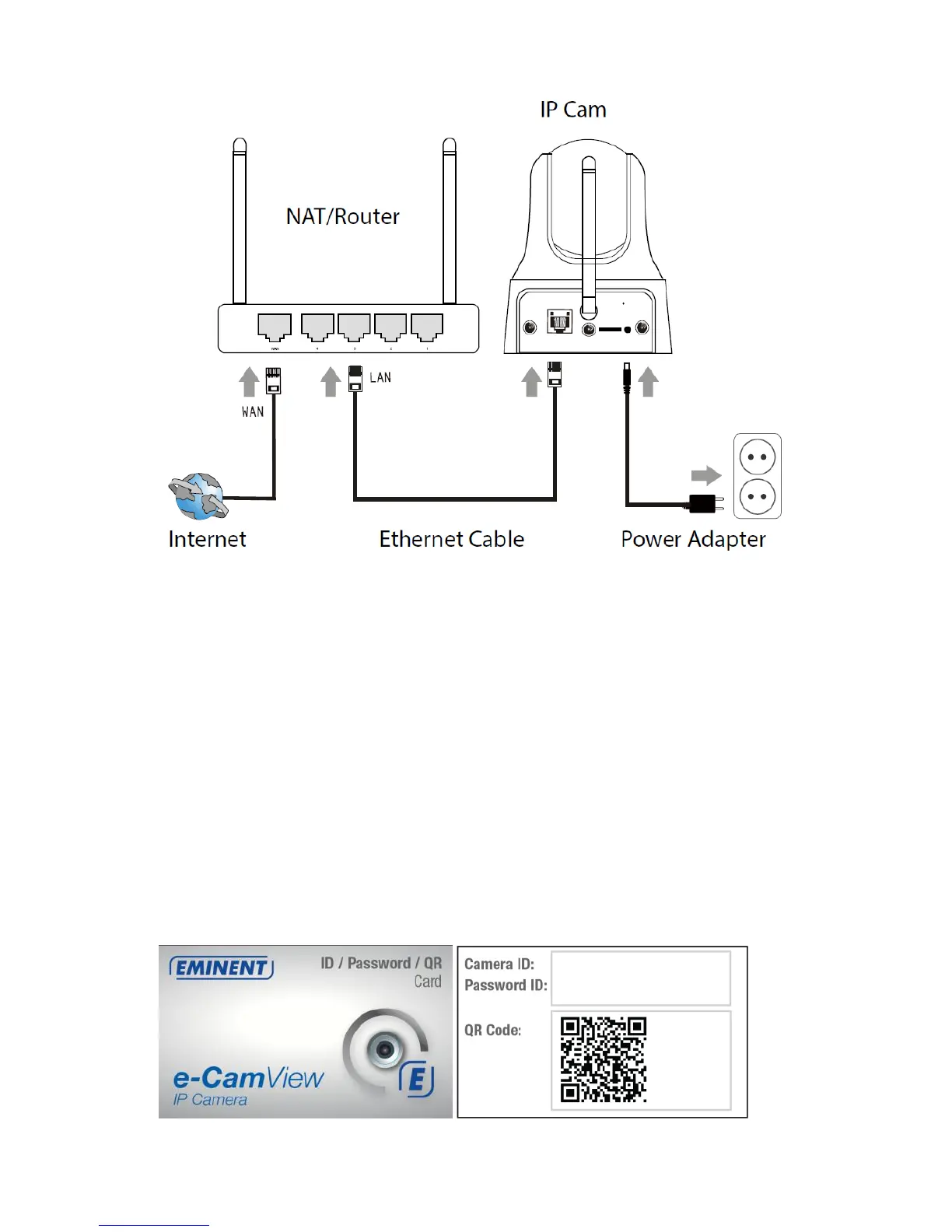
6. Now enter the device ID manually, Scan the QR code on the bottom label or on
the ID/Password Card or select the camera you just found in the LAN by selecting
search.
Password: This is the 4 digit password you can find on the ID/Password Card.
7. Select “Done” to add the camera.



 To Next Page