to refresh the list)
7. Enter the wireless encryption key and press “Join”
8. Disconnect the Ethernet cable to connect to the wireless network.
2.4.2 Connecting to Wi-Fi using the PC utility (windows).
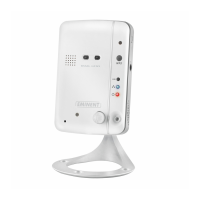
1. Ensure the camera is connected to the network with a Ethernet cable.
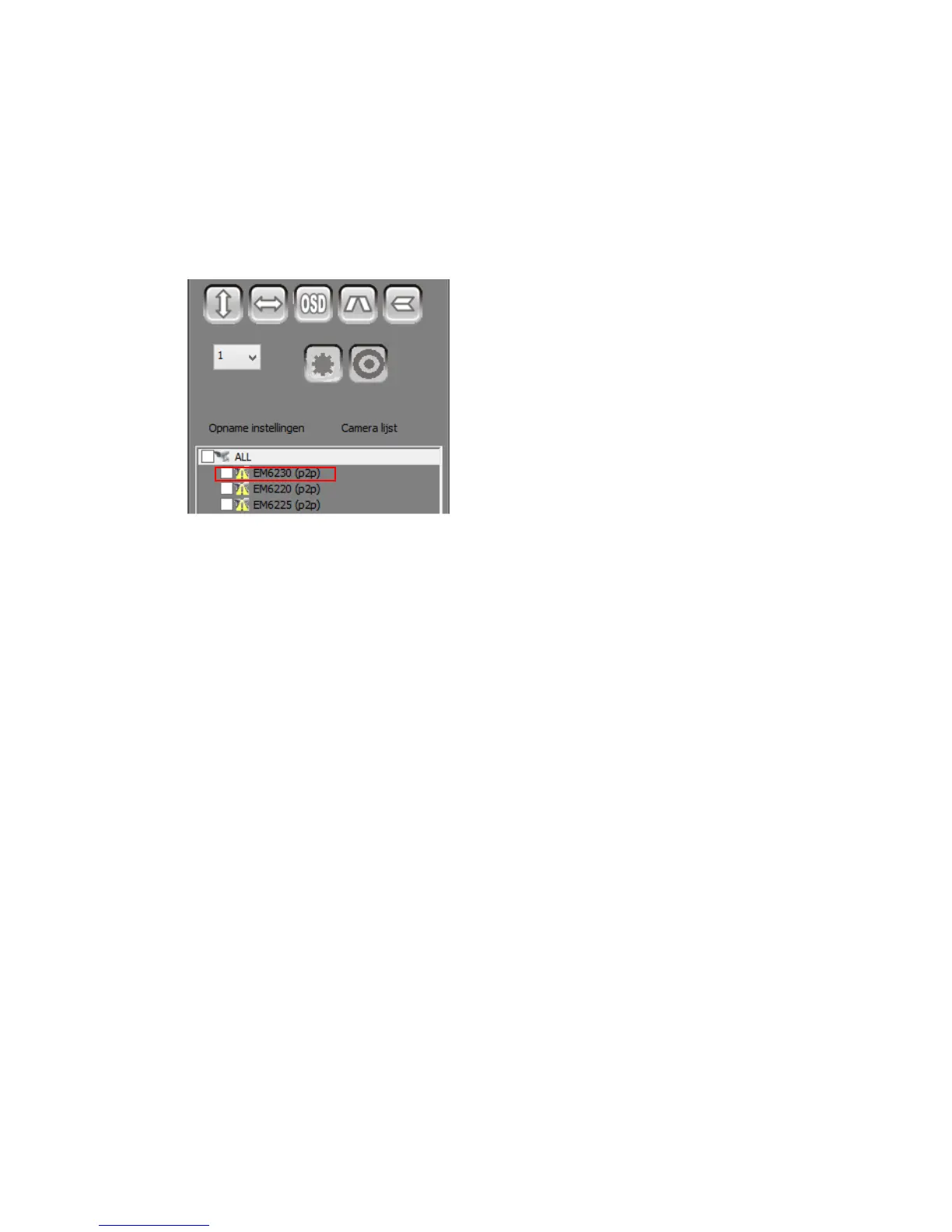
2. Ensure the camera is added to the device list (see chapter 2.3)
3. Double click the camera in the camera list
4. The settings menu will be displayed
5. Go to the Menu option “Wi-Fi”
6. If necessary enable the WiFi option by enabling the selection box “using wireless
Lan”
7. Click “Scan” to search for available wireless networks, please press “Scan” if your
wireless network is not displayed (If device is just rebooted please be patient for
the device to be ready to refresh the WIFI list). Select the Wireless network you
want to connect to.
8. Enter the Encryption settings and the WPA-PSK key of the wireless network
9. Click “Set”.
10. Disconnect the Ethernet cable to connect to the wireless network.



 To Next Page