THIS DOCUMENT CONTAINS CONFIDENTIAL INFORMATION PROPRIETARY TO ENERGATE INC. NO PART OF ITS CONTENTS MAY BE DISCLOSED OR CONVEYED TO,
USED BY, OR COPIED TO A THIRD PARTY WITHOUT PRIOR WRITTEN CONSENT BY ENERGATE INC. PRINTED COPIES WILL BE CONSIDERED UNCONTROLLED.
AW000873-G 48
7. Snap the supplied cover over the tab end of the module slot. It should be flush with the side of the Foundation
casing.
8. To re-attach Foundation to the mounting bracket, position Foundation in the bottom of the bracket using the
bottom snap-fit tab. Gently push Foundation into the rest of the bracket until the top tab snaps into place.
9. Wait for Foundation to power up.
10. From the Thermostat main menu, navigate to the Installer Setup menu.
When the pager module is installed and working properly, the Pager option is displayed in the Installer Setup menu.
Use this option to access information about the module’s connection to the network and other troubleshooting
information.
9.7.2 Pager Signal Status
The pager module cannot receive messages or DR events until it is provisioned using Energate’s Consumer Connected
Demand Response™ (CCDR).
After the pager module is provisioned, the radio link status indicator at the top right of the Temperature or Energy
home screen displays the status of the pager signal. The following indicators can be displayed to the right of the signal
quality bars:
F: A pager module is installed and configured.
D: Both a pager module and a ZigBee network are configured.
Z: A ZigBee network only is configured.
9.7.3 Pager Link Information
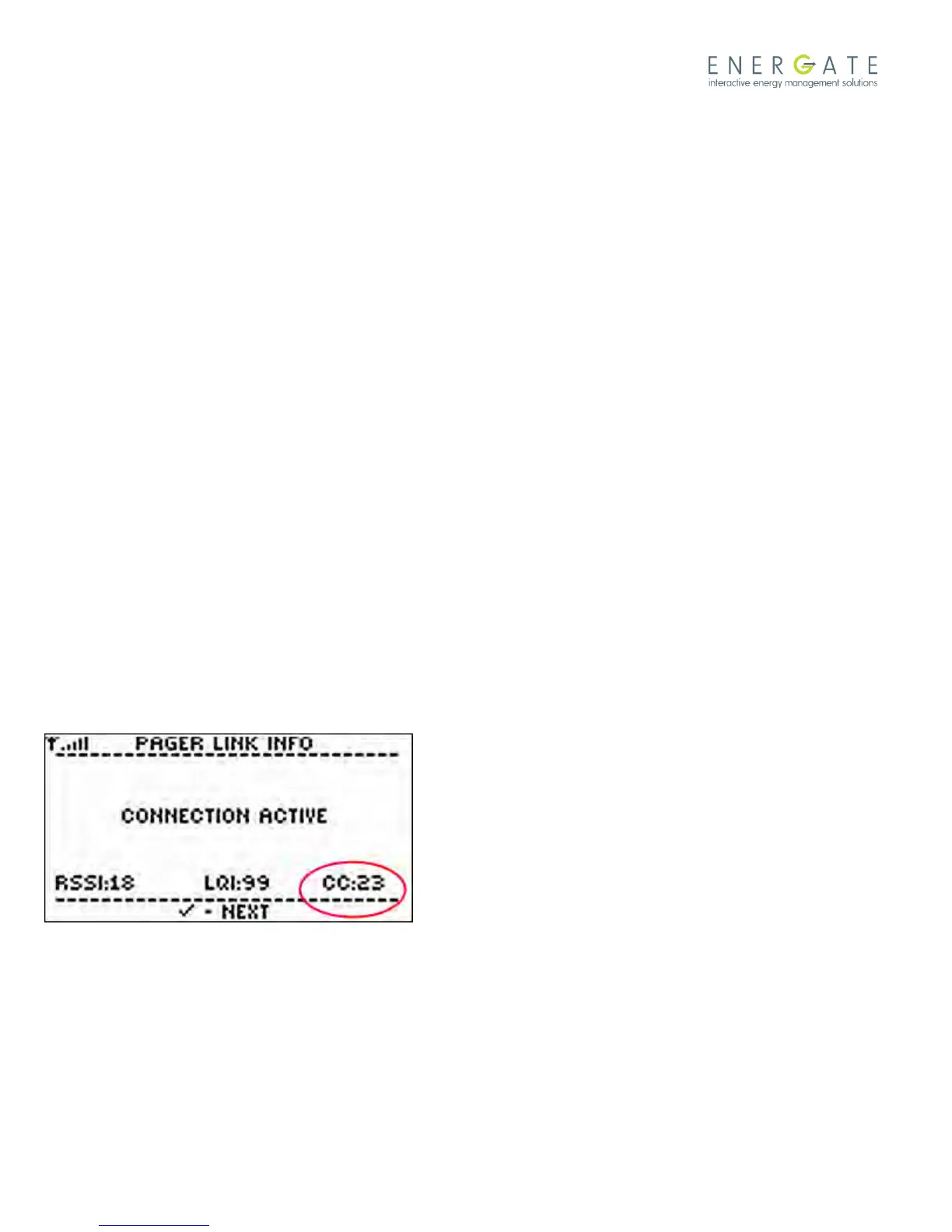
Use the Pager menu’s Link Info option to display information such as connection status, radio signal strength, and
hardware information. A two-digit confirmation code (CC) that confirms that you have successfully provisioned the
pager module is displayed in the bottom-right corner of the Link Info screen.



 To Next Page