THIS DOCUMENT CONTAINS CONFIDENTIAL INFORMATION PROPRIETARY TO ENERGATE INC. NO PART OF ITS CONTENTS MAY BE DISCLOSED OR CONVEYED TO,
USED BY, OR COPIED TO A THIRD PARTY WITHOUT PRIOR WRITTEN CONSENT BY ENERGATE INC. PRINTED COPIES WILL BE CONSIDERED UNCONTROLLED.
AW000873-G 60
If ZigBee is provisioned, a "D" (for Dual) is displayed beside the signal bars, which indicates that both ZigBee and the
pager module are configured.
11.3.2 Use LMS to Associate a Pager Module with a Home
1. Log in to LMS and, on the Homes menu, click Manage Homes.
2. To search for the appropriate home configuration, enter information in one or more fields, and then click Submit.
For example, enter the account number.
3. In the list of homes, for the appropriate home, under Actions, click Provision.
4. On the Provision Devices Details page, click Provision No Gateway End Device.
5. On the Provision New End Device page, beside the MAC Address field, click the search button.
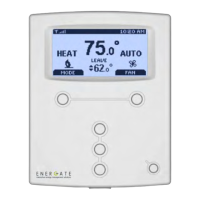
6. Enter the MAC Address of the Foundation thermostat where the pager module is installed. The address is printed
on the label on the back of the thermostat.
To search quickly, you can enter the last 4 characters of the MAC address and then select the exact MAC address
from the search results.
7. In the list of devices, click the item for the current thermostat to select it, and then click Select.
8. Enter a name for the device (for example, “Foundation – Main Hallway”) and, optionally, a description.
9. Click Submit.
A dialog box that prompts you for a verification code generated by the thermostat is displayed.
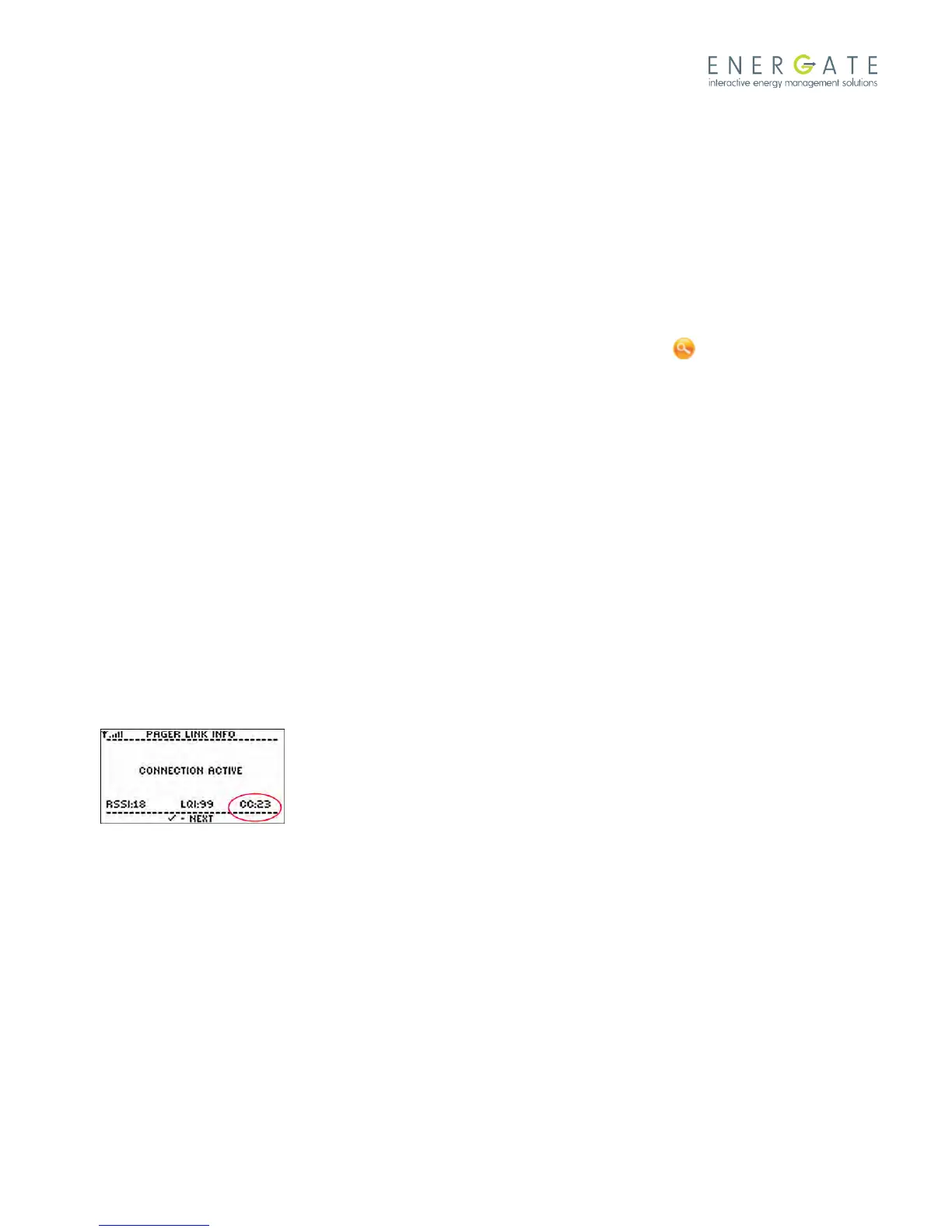
10. In the thermostat’s Installer Setup menu, select Pager, and then select Link Info.
The screen displays the message “Waiting for Commission”.
Within a minute of when you submit the pager module information using LMS, the thermostat displays a two-letter
code in the bottom-right corner of the Link Info screen.
11. In the LMS verification code dialog box, enter the code and then click Verify.
The pager module with the name you specified is added to the devices on the Provision Devices Details page.
11.3.3 Send a Message via the Pager Module
To verify that the thermostat and pager network can communicate, use the website provided by the utility send a text
message to the thermostat.
This procedure describes how to send a message using Load Management System (LMS). If your utility uses a different
tool, refer to the information provided by the utility.



 To Next Page