EasyManua.ls Logo

ENHANCED VISION Pebble HD - Turning Power On and Off; Setting Clock Time and Date

ENHANCED VISION Pebble HD
40 pages
Print Icon
To Next Page IconTo Next Page
To Previous Page IconTo Previous Page
Loading...
Turning the Power On/Off
Use the following procedure to turn the power of your
Pebble HD On or Off:
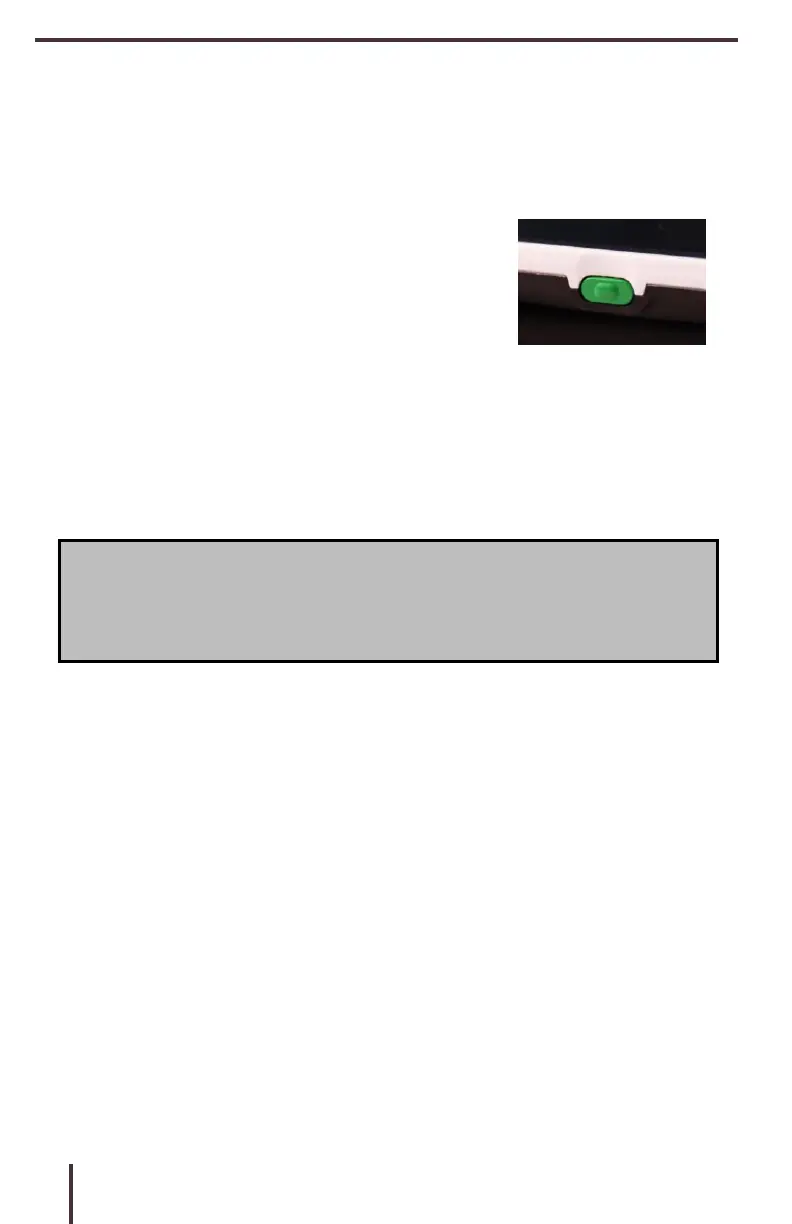
1) Find
the
recessed
Green
[POWER]
button.
(See
Figure 1)
2)
Press
and
hold’
the
Green
[POWER]
button
for
1 second
or
more
to
turn
the
Pebble
HD
on.
After the
Pebble HD
‘startup
sound is
heard
an
image will
appear
on
the
LCD
display.
Figure 1
To
turn
off
the
Pebble
HD,
press
and
hold
the
[POWER]
button
again
for
2
seconds
or
more.
A
short,
confirmation
tone
will be heard
when the
unit is
powered Off.
Note:
To
put the Pebble HD into
Standby mode,
once
powered on,
Press and release’
the [POWER] button.
To return to
‘live’
mode
Press and release’
the
[POWER] button again.
14
Button
Combinations
Throughout
the
User
Manual
there
will
be
button
combinations’
(i.e.
Press
the
[MODE]
and
Red
[FREEZE]
buttons).
This
indicates
that
the
buttons
should
be
pressed
simultaneously.
Setting the Clock Time/Date
The
Pebble
HD
can
maintain,
and
display,
the
current
Time
&
Date
once
it
is
set.
To
set
the
current
Time/Date:
1)
Enter the
Menu by
pressing the [MODE]
and
Red
[FREEZE] buttons.
2)
Rotate
the
[Scroll
Wheel]
clockwise
until
Product
Settings
is
highlighted
3)
Press
the
[+]
SIZE
button
to
select
Product
Settings
4)
With
Set
Clock
highlighted,
press
the
[+]
SIZE
button
to
select
Set
Clock’
Chapter 3 Using the Pebble HD

Related product manuals