Need help?
Do you have a question about the ENHANCED VISION Pebble HD and is the answer not in the manual?
Follow all warnings, cautions, and instructions marked on the product. Use care outdoors.
Use the carrying case for transport to prevent damage. Use care when connecting/disconnecting cables.
Always turn off the unit when not in use. Clean with a soft damp cloth; avoid liquid cleaners.
Strong magnetic fields, RF, or static discharge may degrade performance. Switch off and relocate.
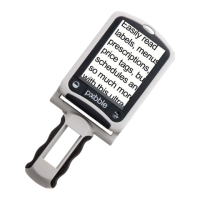
Identifies and describes the location of controls on the Pebble HD, including buttons and screen.
Describes powering the device using the AC adaptor/power supply or the integrated battery.
Step-by-step instructions for connecting the AC adaptor to the Pebble HD and power outlet.
Instructions for installing country-specific inserts for the power supply and plugging it in.
Details on using the rechargeable battery, charging procedures, and standby mode charging.
Explanation of the LED indicator lights and their meanings for power and battery status.
Procedure for turning the Pebble HD on, off, and entering/exiting standby mode.
Step-by-step guide to setting the current time and date on the Pebble HD.
Instructions for increasing or decreasing magnification size using the SIZE buttons.
How to select different viewing modes, including Full Color, Black and White, and custom color options.
Instructions on how to increase or decrease voice volume using the scroll wheel.
How to capture a still image (freeze) and adjust size or viewing modes afterwards.
Procedure to save captured images for later viewing, indicated by a 'Saving' message.
How to recall and view previously saved snapshot images using the scroll wheel.
Options to delete selected or all saved snapshots, including confirmation prompts.
Instructions for connecting the Pebble HD to a PC via USB to transfer stored images.
How to turn the built-in LED lighting on or off using the Orange [CLOCK/CALENDAR] button.
How to display and announce the current time and date using the Orange button.
Information on using the convenient carrying case with belt clip for protection and transport.
Instructions on how to keep the Pebble HD up to date by visiting the software support page.
Details on the unique adjustable handle that can rotate for various magnification positions.
Describes Reading (fully closed) and Hand-Held (180° open) handle positions.
Describes Writing (210° open) and Hands-Free/Desktop positions for the handle.
How to enter and navigate the Pebble HD menu using buttons and the scroll wheel.
Procedure to manually adjust the LCD brightness level for optimal viewing.
How to enable or disable the audible key click sound through the menu.
How to select from 4 preset viewing modes and 28 additional color modes.
How to set the main language for menus and prompts on the Pebble HD.
Enabling/disabling four types of prompts: Screen, Voice, Menu Voice, and Clock Voice Messages.
View serial number, firmware revisions, and restore factory settings.
Checks for power issues: using the AC adaptor and proper connection to power sources.
Solutions include cleaning lenses, adjusting distance/handle angle, and changing viewing modes.
Tips for optimal lighting, adjusting distance/handle angle, and manual brightness settings.
Troubleshooting steps for battery charging issues, including adaptor and connection checks.
Explanation that automatic standby mode after 3 minutes of non-use is normal behavior.
Indicates low battery warnings with a beeping sound and flashing icon before shutdown.
Normal operation for the unit to become warm due to integrated components; not a malfunction.
Lists key features like portable design, adjustable handle, viewing modes, magnification, and battery.
Details about the 4.3" TFT display, brightness, resolution, and viewing angle.
Information on the fixed iris lens and focal length of the camera.
Provides the length, width, and height of the Pebble HD in closed and extended states.
Lists the available magnification levels from 4.5x to 20x.
States the product warranty period is two years.
Operating and storage temperature ranges for the Pebble HD.
Details on the 3.7V Li-Ion battery, charge times, and usage times.
Input and output specifications for the AC wall adapter.
Input specifications for the unit itself.
Covers defects in material and workmanship for two years from purchase.
Lists items not covered by warranty, such as misuse, accidents, spills, and cosmetic damage.
How to contact support, request return authorization, and prepare the unit for repair.
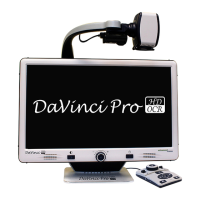
Description of the DaVinci desktop video magnifier with text-to-speech.
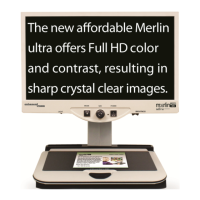
Description of the Merlin HD desktop video magnifier with advanced camera technology.
Description of the Merlin elite desktop video magnifier with HD and text-to-speech.
Details on the Acrobat HD LCD video magnifier with various screen sizes.
Description of the ultra-compact Pebble-mini handheld magnifier.
Overview of the Transformer USB/VGA portable solution for reading and viewing.
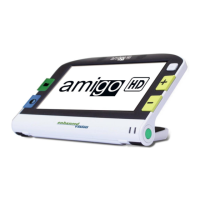
Description of the Amigo portable desktop magnifier with a tilting screen.
Information about available accessories like Carrying Cases and Power Supplies.
Provides contact details for US, UK, and DE offices, and technical support.
 General
| Display Size | 4.3 inches |
|---|---|
| Display Type | LCD |
| Camera | HD Camera |
| Image Capture | Yes |
| Battery Life | 3 hours continuous use |
| Battery Charge Time | 3 hours |
| Color Modes | Full color |
| Color Options | Black |


 To Next Page