13 14
3.2 MI Quick Binding
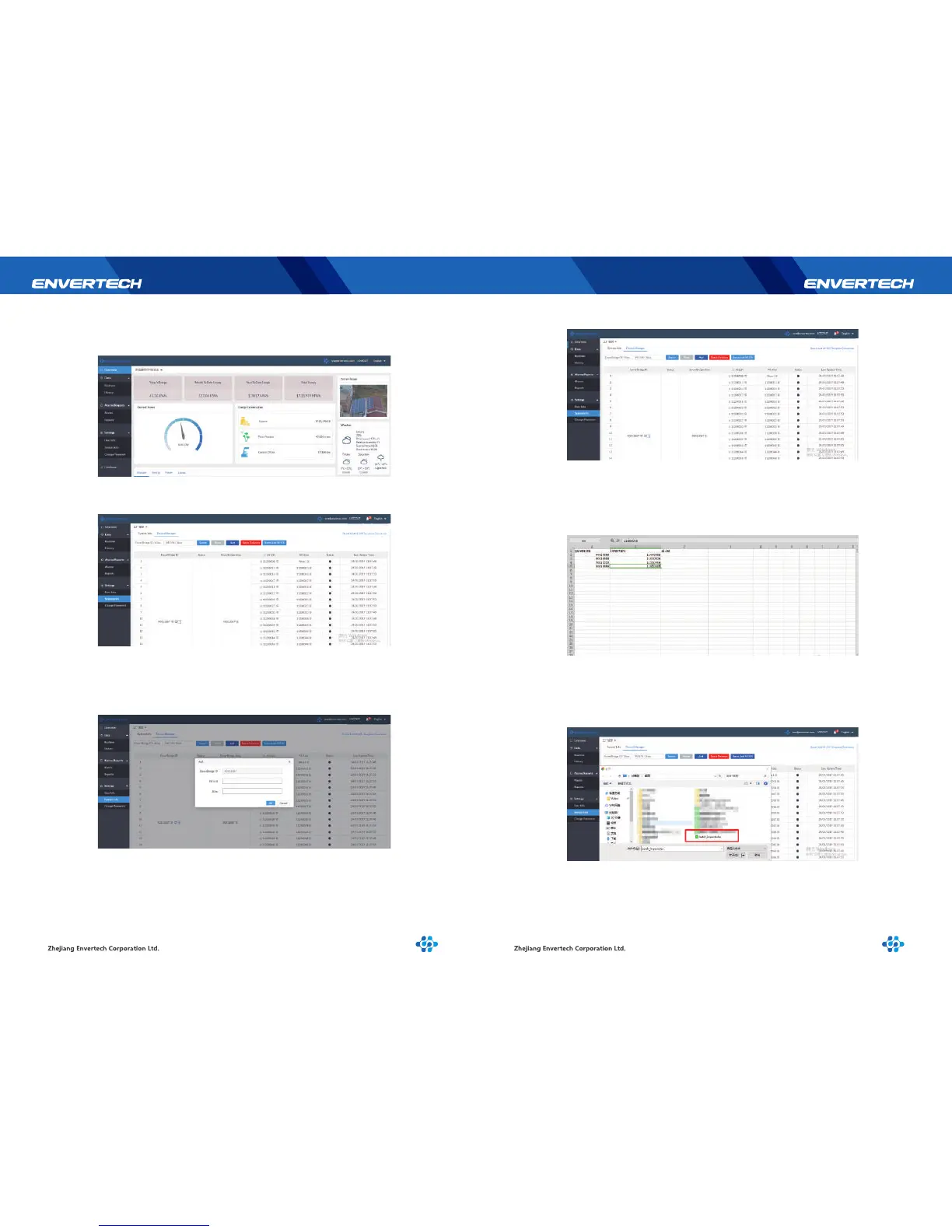
3.2.1 Login
3.2.2 Select“System Info”under “Settings”, and click “Device Manager”.
3.2.3 Add a Single Microinverter ID
Click “+”behind the EnverBridge ID, input the ID of the neededmicroinverter ID in
the pop-up interface and click “OK”. Wait up to 5 minutes, then refresh the screen,
and it will pop up a window of “Sent successfully”.
3.2.4 Add a Batch of Microinverter IDs
1. Click “Batch Add MI S/N Template Download” on the upper right corner of the
screen and download.
2. Input the microinverter IDs which need to be added to the template. On the left
side of the following template is the EnverBridge ID, and on the right side is the
microinverter ID.
3. Click“Batch Add MI S/N”, select the modified template and click “Open”.
Wait up to 5 minutes, and then refresh the page, it will show “Sent successfully“.



 To Next Page