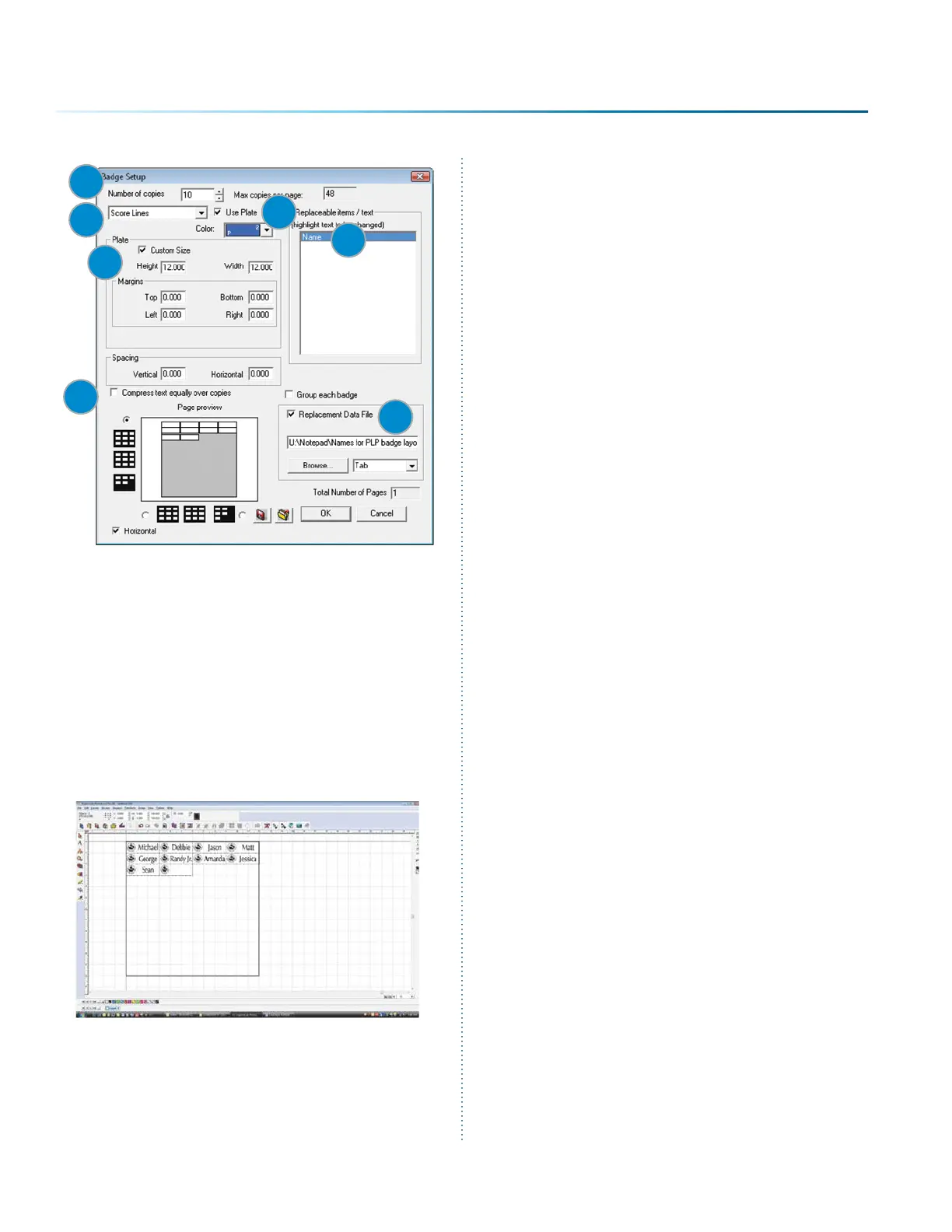
9. Aer clicking OK, the text substitution box
will open allowing you to enter or adjust the
names for your badges.
10. Aer clicking OK, you will be taken back to
your drawing page and badges will be
properly laid out and populated. You can see
that we have ten badges. One was le blank
intentionally because we had ten badges
and only nine names. You’re ready to print
your badges to the laser!
1
2
3
4
5
6
7
Troubleshooting Badge Layout
Problem: The logo doesn’t appear on the badges.
Solution: In step 6, you didn’t select everything on
the badges before clicking the Badge tool.
Problem: The word Name is repeated on all of the
badges.
Solution: In the badge setup parameters you
didn’t highlight Name as the field to replace.
- 104 -
SECTION 9: OPTIONAL FEATURES



 To Next Page